
Introduction to QuickBooks Error 6000, 77
QuickBooks Error 6000, 77 is a company file–related error that usually occurs when users try to open or access a QuickBooks company file stored on a network drive, external storage, or shared folder.
This error prevents QuickBooks from opening the file and can disrupt daily accounting operations—especially for businesses using multi-user mode.
Table of Contents
What Is QuickBooks Error 6000, 77?
QuickBooks Error 6000, 77 appears when:
- The company file is stored in a read-only location
- QuickBooks lacks permission to access the folder
- The file is opened from an external drive or encrypted folder
- Network hosting settings are misconfigured
This error belongs to the 6000 series, which generally indicates file access, permission, or network issues.
Common Error Message Users See
Error -6000, -77: QuickBooks is having trouble opening this company file
OR
QuickBooks cannot open the company file. Make sure the file is not opened in another program.
Symptoms of QuickBooks Error 6000, 77
You may be facing Error 6000, 77 if you notice:
- QuickBooks crashes while opening a company file
- Company file opens in single-user but not multi-user mode
- QuickBooks freezes or becomes unresponsive
- Error occurs when opening file from server or network location
You cannot access the file despite correct login credentials
Primary Causes of QuickBooks Error 6000, 77
Identifying the root cause aids in applying the proper solution.
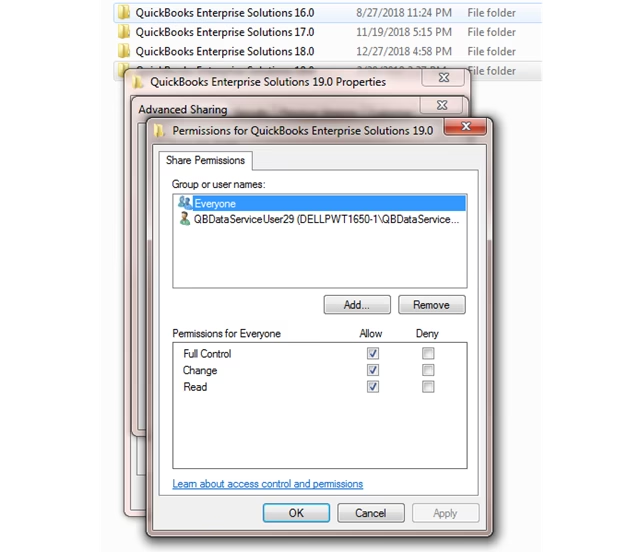
1. Incorrect Folder Permissions
QuickBooks does not have Full Control permission to the folder containing the company file.
2. Company File Stored on External Drive
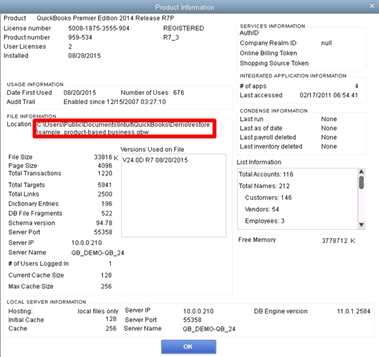
Files opened directly from:
- USB
- External HDD
- Network-attached storage (NAS)
3. Encrypted or Read-Only Folder
QuickBooks cannot open files from encrypted, compressed, or read-only directories.
4. Hosting Configuration Issues
Hosting enabled on both workstation and server causes file access conflicts
5. Corrupted .ND or .TLG Files
Network Descriptor files (.ND) may be damaged.
Before You Start Troubleshooting (Important)
- Take a backup of your QuickBooks company file
- Log in as Windows Administrator
- Ensure QuickBooks is updated to the latest release
Solution 1: Move the Company File to Local Drive
This is the most effective fix.
Steps:
- Create a new folder on your C: drive
Example:C:\QuickBooksTest - Copy the company file (
.QBW) to this folder - Open QuickBooks
- Click File > Open or Restore Company
- Browse to the new folder and open the file
If the file opens successfully, the issue is location-related.
Solution 2: Check and Correct Folder Permissions
Steps to Grant Full Control:
- Right-click the company file folder
- Click Properties > Security
- Select Edit
- Add:
- Everyone
- Administrator
- QBDataServiceUser
- Enable Full Control
- Apply changes
Restart QuickBooks and try again.
Solution 3: Disable Encryption on the Folder
Steps:
- Right-click the company file folder
- Select Properties > Advanced
- Uncheck Encrypt contents to secure data
- Click OK > Apply
Restart QuickBooks and try opening the file again.
Solution 4: Rename .ND and .TLG Files
These files control network access and can become corrupted.
Steps:
- Open the company file folder
- Locate:
CompanyFileName.qbw.nd
CompanyFileName.qbw.tlg
- Right-click and rename:
- Add
.oldat the end
- Add
- Reopen QuickBooks
QuickBooks will automatically recreate these files.
Solution 5: Verify Hosting Settings
On Workstations:
- File > Utilities
- Select Stop Hosting Multi-User Access
On Server:
- File > Utilities
- Select Host Multi-User Access
Only one system should host the file.
Solution 6: Use QuickBooks File Doctor Tool
QuickBooks File Doctor is a built-in diagnostic tool from QuickBooks.
Steps:
- Download QuickBooks Tool Hub
- Open Tool Hub
- Select Company File Issues
- Click Run QuickBooks File Doctor
- Browse and select the company file
The scan may take 10–15 minutes.
Solution 7: Create a New Windows User
Sometimes Windows user profiles cause permission conflicts.
Steps:
- Go to Control Panel > User Accounts
- Create a new Administrator account
- Log in using the new account
- Open QuickBooks and access the company file
Solution 8: Restore Company File from Backup
If none of the above works:
- Open QuickBooks
- Click File > Open or Restore Company
- Select Restore a Backup Copy
- Choose the most recent backup
Solution 9: Temporarily Disable Antivirus & Firewall
Security software may block QuickBooks.
Steps:
- Disable antivirus temporarily
- Add QuickBooks folder as exception
- Open required ports (8019, 56728–56730)
Re-enable security software afterward.
Best Practices for Multi-User QuickBooks Setup
- Use wired network instead of Wi-Fi
- Enable hosting only on server
- Install Database Server Manager
- Scan company file folder regularly
Preventing QuickBooks Error 6000, 77 in the Future
- Always store company files on local or dedicated server drives
- Avoid opening files directly from USB or cloud-sync folders
- Regularly update QuickBooks
- Schedule routine backups
- Maintain correct folder permissions
Final Thoughts
QuickBooks Error 6000, 77 is primarily a file location and permission issue, not a software bug. By systematically applying the solutions above, most users can resolve the issue without data loss or reinstallation.
If you are building QuickBooks support services or affiliate content, this topic has high search intent and conversion potential, especially when paired with:
What causes QuickBooks Error 6000, 77?
Permission issues, encrypted folders, external drives, or incorrect hosting settings.
Can this error corrupt my company file?
Not directly, but repeated crashes increase risk.
Does QuickBooks Online have Error 6000, 77?
No, this error affects only QuickBooks Desktop.
Is QuickBooks File Doctor safe?
Yes, it’s an official Intuit diagnostic tool.
Should I contact QuickBooks support?
If none of the solutions work, professional support is recommended.
Need Immediate Help with QuickBooks Error 6000, 77?
If your business operations are on hold and you can’t open your QuickBooks company file, waiting can make things worse.