
Introduction
Installing accounting software should be simple—but when errors interrupt the process, productivity can come to a halt. One of the most common and frustrating installation issues faced by Windows users is QuickBooks Error 1603.
This error typically appears when installing, updating, or repairing QuickBooks Desktop and prevents the setup from completing successfully. For businesses that rely on QuickBooks for bookkeeping, payroll, invoicing, or tax preparation, this error can cause serious delays.
In this comprehensive troubleshooting guide, you’ll learn:
- What QuickBooks Error 1603 means
- Why it occurs on Windows systems
- How to fix it using beginner to advanced methods
- How to prevent it from recurring
This guide is written specifically for US-based QuickBooks Desktop users running Windows 10 or Windows 11.
Table of Contents
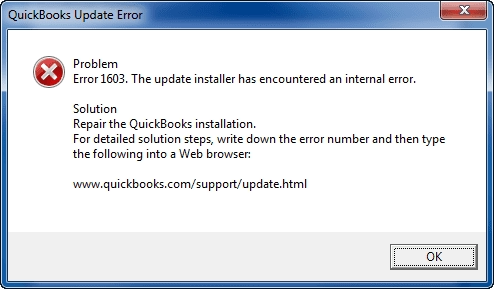
What Is QuickBooks Error 1603?
QuickBooks Error 1603 is a Windows Installer (MSI) error that occurs when the QuickBooks installation or update process fails internally.
You may see messages such as:
“Error 1603: The update installer encountered an internal error.”
“QuickBooks Installation Error 1603 – Setup Failed.”
This error usually means that required Microsoft components are damaged, missing, disabled, or blocked, preventing QuickBooks from completing its installation.
Why QuickBooks Depends on Microsoft Components
QuickBooks Desktop is not a standalone program—it relies heavily on Windows system components, including:
- Microsoft .NET Framework – Core functionality
- Microsoft MSXML – Data processing and configuration
- Microsoft Visual C++ Redistributable – Runtime support
If any of these components are corrupted or improperly configured, QuickBooks Error 1603 can occur.
When Does QuickBooks Error 1603 Occur?
You may encounter this error during:
- First-time installation of QuickBooks Desktop
- Updating QuickBooks to a newer release
- Repairing an existing QuickBooks installation
- Reinstalling QuickBooks after system changes
- Migrating QuickBooks to a new Windows computer
Symptoms of QuickBooks Error 1603
Common symptoms include:
- Installation process stops unexpectedly
- QuickBooks update fails repeatedly
- Error 1603 appears on screen
- System becomes slow during installation
- QuickBooks fails to launch after setup
Primary Causes of QuickBooks Error 1603
Understanding the underlying cause enables quicker problem resolution.
1. Corrupt or Disabled Microsoft .NET Framework
This is the number one cause of Error 1603. If .NET Framework is damaged or turned off, QuickBooks cannot install.
2. Damaged Windows Installer Service
If Windows Installer is not functioning correctly, MSI-based installs fail.
3. Incomplete or Failed Previous Installation
Leftover QuickBooks files can conflict with a new installation.
4. Insufficient Windows Permissions
Lack of admin rights prevents system-level changes.
5. Antivirus or Firewall Interference
Security software may block QuickBooks installer files.
Versions Affected by Error 1603
- QuickBooks Desktop Pro
- QuickBooks Desktop Premier
- QuickBooks Desktop Enterprise
QuickBooks Online is NOT affected, since it runs in a browser.
Solution 1: Run QuickBooks Installer as Administrator
Permissions issues are common.
Steps:
- Log in as a Windows Administrator
- Right-click QuickBooks installer
- Select Run as Administrator
- Follow installation prompts
Solution 2: Fully Update Windows (Critical Step)
QuickBooks requires updated Windows libraries.
- Press Windows + I → Update & Security
- Click Check for updates
- Install all pending updates
- Restart your computer
Solution 3: Repair Microsoft .NET Framework (MOST IMPORTANT)
- Open Control Panel → Programs and Features
- Click Turn Windows features on or off
- Enable:
- .NET Framework 3.5
- .NET Framework 4.8 or higher
- Click OK and allow repair
- Restart your system
This step alone fixes Error 1603 in most cases.
Solution 4: Use QuickBooks Install Diagnostic Tool
This tool automatically repairs Microsoft components.
- Download QuickBooks Tool Hub
- Open Tool Hub → Installation Issues
- Click QuickBooks Install Diagnostic Tool
- Let it run (15–30 minutes)
- Restart system
Solution 5: Perform a Clean Install of QuickBooks
A clean install removes conflicting files.
- Uninstall QuickBooks from Control Panel
- Open Tool Hub → Installation Issues
- Run Clean Install Tool
- Reinstall QuickBooks using fresh installer
Solution 6: Temporarily Disable Antivirus & Firewall
Security software can block installer files.
- Disable antivirus temporarily
- Turn off Windows Firewall
- Install QuickBooks
- Re-enable protection afterward
Solution 7: Repair Microsoft Components Manually (Advanced)
For persistent errors:
- Repair MSXML 4.0 and 6.0
- Reinstall Visual C++ Redistributable
- Restart Windows Installer Service
Recommended for advanced users.
Solution 8: Install QuickBooks in Selective Startup Mode
This prevents background programs from interfering.
- Press Windows + R → type
msconfig - Select Selective Startup
- Disable startup items
- Restart computer
- Install QuickBooks
- Return to Normal Startup
Advanced Troubleshooting If Error 1603 Persists
If none of the above works:
- Create a new Windows admin user
- Install QuickBooks on a different drive
- Check Windows Event Viewer logs
- Repair Windows Installer service
- Seek professional QuickBooks support
How to Prevent QuickBooks Error 1603 in the Future
- Always update Windows regularly
- Never interrupt QuickBooks installation
- Use admin privileges for installs
- Keep Microsoft components healthy
- Avoid third-party installers
Business Impact of Ignoring QuickBooks Error 1603
Delaying resolution can result in:
- Delayed accounting setup
- Payroll processing interruptions
- Missed tax deadlines
- Reduced productivity
Quick resolution ensures business continuity.
Final Thoughts
QuickBooks Error 1603 is a serious installation error, but it is 100% fixable when approached systematically. In most cases, repairing Microsoft .NET Framework or performing a clean install resolves the issue.
By following the step-by-step and advanced troubleshooting methods outlined above, you can successfully install or update QuickBooks Desktop and avoid future disruptions.
Frequently Asked Questions (FAQs)
What causes QuickBooks Error 1603?
Damaged .NET Framework, Windows Installer issues, or permission conflicts.
Is Error 1603 a Windows problem?
Yes. It’s a Windows installer-level issue.
Can Error 1603 be fixed without reinstalling Windows?
Yes, in almost all cases.
Does Error 1603 affect QuickBooks Online?
No.
Need Help Fixing QuickBooks Error 1603?
Installation issues can block access to your financial data.
Our certified QuickBooks experts can fix Error 1603 quickly and safely—without data loss.
Fix QuickBooks Error 1603 Now
Talk to a QuickBooks Installation Expert