
QuickBooks Error 1904 is a QuickBooks Desktop installation error. It usually appears when Windows cannot register a required QuickBooks, Microsoft, DLL, EXE, or OCX file during installation, repair, update, or first launch after installation.
The good news: Error 1904 does not usually mean your QuickBooks company file is damaged. In most cases, the issue is related to Windows permissions, Microsoft components, security software, a damaged installer, or a Windows user profile problem.
The safest starting point is to restart Windows, run the QuickBooks Desktop installer as an administrator, then use QuickBooks Tool Hub and the QuickBooks Install Diagnostic Tool. If the error continues, you may need to update Windows, repair Microsoft components, create a new Windows administrator account, or involve an IT professional.
Table of Contents
What Is QuickBooks Error 1904?
QuickBooks Error 1904 commonly appears during QuickBooks Desktop installation or update when a file fails to register correctly in Windows. The message often includes the name of the file that failed, such as a DLL, EXE, or OCX file.
That file name matters. It can help identify whether the problem is tied to a QuickBooks installation file, a Windows system component, or a Microsoft dependency that QuickBooks needs in order to install properly.
This issue applies to QuickBooks Desktop on Windows. It is not a QuickBooks Online error because QuickBooks Online does not install local program files in the same way.
Common Causes of QuickBooks Error 1904
Error 1904 is usually not caused by one single universal problem. It is a registration failure, and several Windows conditions can lead to it.
| Possible Cause | Why It Triggers Error 1904 | What Usually Helps |
|---|---|---|
| Missing administrator rights | Windows may block the installer from registering program files. | Sign in with a Windows administrator account and run the installer as administrator. |
| Damaged Microsoft components | QuickBooks Desktop relies on Windows components such as .NET Framework, MSXML, and Visual C++ Redistributable. | Run the QuickBooks Install Diagnostic Tool, then repair Microsoft components if needed. |
| Security software interference | Antivirus or endpoint security may block QuickBooks installation files. | Use limited troubleshooting steps, exclusions, or IT-approved adjustments, then restore protection. |
| Damaged installer | An incomplete or outdated installer may fail while registering files. | Use a current QuickBooks Desktop installer from an official Intuit source when possible. |
| Damaged Windows user profile | The current profile may not allow installation tasks to complete correctly. | Create or use another Windows administrator account and retry. |
| Unsupported Windows or QuickBooks version | Older QuickBooks Desktop versions may not install correctly on newer Windows systems. | Confirm the QuickBooks Desktop version is compatible with the operating system. |
Before You Start Troubleshooting
Before changing system settings or reinstalling QuickBooks Desktop, take a few minutes to prepare. These checks prevent wasted time and reduce the risk of creating a second problem while trying to fix the first one.
- Write down the full error message. Include the file name shown in the Error 1904 window.
- Use a Windows administrator account. Standard users may not have permission to register installation files.
- Back up your company file. Error 1904 is normally an installation issue, but a backup is still a smart precaution before major system or QuickBooks changes.
- Install Windows updates. Pending updates can leave Microsoft components in an unstable state.
- Close open programs. Close QuickBooks, Microsoft Office apps, browsers, and other programs before repair work.
- Use a stable internet connection. You may need to download QuickBooks Tool Hub, QuickBooks updates, or Microsoft components.
- Keep your license and product numbers nearby. You may need them if a reinstall becomes necessary.
Important: Do not start by editing the Windows registry or deleting QuickBooks folders manually. Those steps can create larger Windows or QuickBooks problems if done incorrectly.
How to Fix QuickBooks Error 1904
Work through these steps in order. The goal is to fix the most common causes first before moving into deeper Windows repair work.
1. Record the exact file named in the error
When Error 1904 appears, do not immediately close the message without reading it. The file name can be a useful clue. For example, the error may reference a DLL, EXE, or OCX file that failed to register.
Why this matters: If the error references a QuickBooks file, the problem may be tied to the installer or permissions. If it references a Microsoft component, Windows dependencies may need repair.
What to do: Take a screenshot or write down the full message and file name. If you contact support or an IT professional later, this saves time.
2. Restart Windows and run the installer as administrator
A simple restart clears pending Windows installation tasks and releases files that may be locked by another process.
After restarting, locate the QuickBooks Desktop installer on your local computer. Right-click the installer and choose the Windows option to run it as an administrator if available on your system.
Expected result: QuickBooks Desktop should continue installing without the Error 1904 message.
If it still fails: Do not keep running the installer over and over without changing anything. Move to the QuickBooks Tool Hub step.
3. Run QuickBooks Tool Hub and the Install Diagnostic Tool
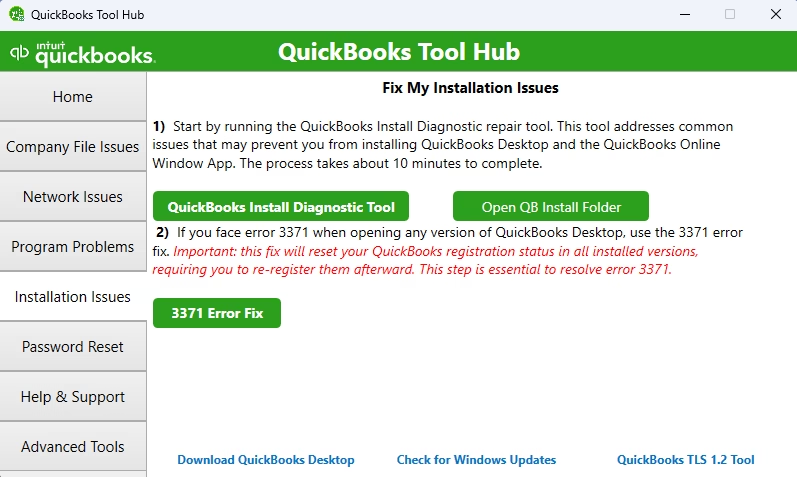
QuickBooks Tool Hub includes tools designed for common QuickBooks Desktop problems. For installation-related errors like Error 1904, the most relevant tool is the QuickBooks Install Diagnostic Tool.
What to do: Download and install QuickBooks Tool Hub from Intuit if it is not already installed. Open Tool Hub, go to the Installation Issues section, and run the QuickBooks Install Diagnostic Tool.
Why this matters: The diagnostic tool can repair or reset installation components that QuickBooks Desktop depends on. It is safer than manually changing Windows settings as a first step.
After the tool finishes: Restart the computer even if the tool does not display a dramatic success message. Some component repairs are completed only after a reboot.
Expected result: After restarting, retry the QuickBooks Desktop installation or update. If the file registration problem was caused by a common component issue, the installation may complete normally.
4. Install all available Windows updates
If Tool Hub does not fix the issue, check Windows Update. QuickBooks Desktop depends on Microsoft components, and Windows updates can affect .NET Framework, security settings, and installation behavior.
What to do: Install all available Windows updates, restart the computer, then check again for remaining updates if Windows prompts you to do so.
Why this matters: A partially updated Windows system can cause installation tools to fail or prevent required files from registering.
Expected result: Once Windows is fully updated, rerun the QuickBooks installation or update.
5. Repair Microsoft components if the error continues
If Error 1904 continues after Tool Hub and Windows updates, the problem may involve Microsoft components such as .NET Framework, MSXML, or Visual C++ Redistributable.
Professional warning: Be careful here. Repairing or reinstalling Microsoft components can affect other Windows applications if done incorrectly. Use official Intuit or Microsoft guidance, and involve an IT professional if you are not comfortable making system-level changes.
When this step makes sense: Use this step when the error repeatedly references registration failures and basic QuickBooks installation tools have not resolved the issue.
Expected result: Once the damaged component is repaired, QuickBooks Desktop should be able to register the required file and complete installation.
6. Try a new Windows administrator account
A damaged Windows profile can prevent QuickBooks installation tasks from completing, even when the computer itself is otherwise healthy.
What to do: Create or use another Windows account with administrator rights, sign in to that account, and rerun the QuickBooks Desktop installer.
Why this matters: This is a practical way to test whether the problem is connected to the current Windows user profile rather than QuickBooks itself.
Expected result: If QuickBooks installs correctly under the new administrator profile, the original Windows profile may be damaged or restricted.
7. Check whether security software is blocking installation files
Antivirus, firewall, endpoint protection, or company-managed security tools can sometimes block QuickBooks files from being installed or registered.
What to do: Review your security software for quarantined QuickBooks installation files or blocked actions. On a managed business computer, ask your IT administrator before changing security settings.
Better approach: If your security product allows it, use temporary approved exclusions for QuickBooks installation folders instead of fully disabling protection.
Do not: Leave antivirus, firewall, or User Account Control protections disabled after troubleshooting. Restore normal protection once installation is complete.
8. Use special caution if the message references QBversionTool.dll
In some cases, Error 1904 may reference QBversionTool.dll. Intuit guidance may allow selecting Ignore for that specific file if QuickBooks Desktop can still open normally afterward.
This does not mean every Error 1904 message should be ignored. If a different file is named, or if QuickBooks will not open after installation, continue troubleshooting instead of assuming the installation is fine.
How to Verify the Fix Worked
Do not stop troubleshooting only because the error window disappeared once. Confirm that QuickBooks Desktop is actually installed and working.
| Check | How to Verify | Expected Result |
|---|---|---|
| Installation completes | Run the QuickBooks Desktop installer or update again. | No Error 1904 message appears. |
| QuickBooks opens | Launch QuickBooks Desktop after installation. | The program opens without an installation-related error. |
| Product information is available | Press F2 inside QuickBooks Desktop. | The Product Information window opens. |
| Correct version is installed | Review the installed QuickBooks Desktop version and edition. | The installed product matches what you intended to install. |
| Company file opens | Open your company file after QuickBooks launches. | The file opens without a related installation error. |
| Security software is not interfering | Check antivirus or endpoint security history. | QuickBooks installation files are not being quarantined. |
Common Mistakes to Avoid
Error 1904 can be frustrating, especially when you need QuickBooks available for payroll, invoicing, reporting, or month-end work. Avoid these mistakes that often make troubleshooting take longer.
- Troubleshooting the company file first. Error 1904 is usually an installation and Windows component issue, not a damaged company file issue.
- Skipping administrator rights. QuickBooks Desktop installation needs enough Windows permission to register files.
- Ignoring the file name in the error. That detail can point you toward the right cause.
- Running repair tools without restarting. Many Windows component repairs need a reboot before they take effect.
- Using old installation media. An outdated or damaged installer can cause avoidable failures.
- Disabling antivirus permanently. Security changes should be temporary and controlled.
- Attempting registry repairs without expertise. Registry mistakes can affect Windows and other applications.
- Installing an unsupported QuickBooks Desktop version. Compatibility matters, especially with older QuickBooks versions on newer Windows systems.
When a Clean Install Might Be Needed
A clean installation can help when standard repair steps fail, but it should not be the first move for most users. Clean install steps can involve removing or renaming QuickBooks installation folders and reinstalling the program carefully.
Use clean installation steps only when basic repair tools, Windows updates, administrator testing, and component checks have not resolved the issue. Follow Intuit’s clean install instructions rather than deleting folders manually.
Before attempting a clean install, make sure you have your QuickBooks license number, product number, installer, and a current company file backup.
When to Get Professional Help
Professional help makes sense when the issue moves beyond basic QuickBooks troubleshooting and into Windows permissions, Microsoft component repair, managed security software, or repeated installation failures.
Consider getting help if:
- Error 1904 continues after running the QuickBooks Install Diagnostic Tool and restarting.
- The error references different files each time you install.
- You are working on a company-managed computer with security restrictions.
- You need QuickBooks running quickly for payroll, billing, sales tax, or financial reporting.
- You are unsure whether your QuickBooks Desktop version is compatible with your Windows system.
- Manual Microsoft component repair or registry-level work is being suggested.
At that point, continued trial-and-error can waste time and may create additional Windows or QuickBooks problems. A QuickBooks support professional or IT technician can help isolate whether the issue is QuickBooks, Windows, security software, or the user profile.
Key Takeaways
- QuickBooks Error 1904 is usually a QuickBooks Desktop installation file registration problem.
- It does not normally mean your company file is damaged.
- Always record the file name shown in the error message before troubleshooting.
- Start with administrator rights, a restart, QuickBooks Tool Hub, and the Install Diagnostic Tool.
- Install Windows updates before attempting deeper Microsoft component repairs.
- Use caution with antivirus changes, registry edits, and manual folder deletion.
- Get professional help if the issue involves Windows components, managed security, or repeated installation failures.
FAQ
Does QuickBooks Error 1904 apply to QuickBooks Online?
No. QuickBooks Error 1904 is related to QuickBooks Desktop installation on Windows. QuickBooks Online runs through a browser and does not use the same local installation process.
Is my QuickBooks company file damaged because of Error 1904?
Usually, no. Error 1904 normally points to a Windows or QuickBooks Desktop installation problem. You should still keep a current backup, but the error itself does not usually indicate company file damage.
What is the first thing I should try?
Restart Windows, sign in with an administrator account, and run the QuickBooks Desktop installer as administrator. If the error continues, use QuickBooks Tool Hub and run the QuickBooks Install Diagnostic Tool.
Why does the file name in the error matter?
The file name helps narrow the problem. It may show whether a QuickBooks file, Microsoft component, DLL, EXE, or OCX file failed to register during installation.
Should I ignore QuickBooks Error 1904?
Not usually. One specific situation may involve QBversionTool.dll, where Intuit guidance may allow selecting Ignore if QuickBooks opens normally afterward. For other files, continue troubleshooting.
Can antivirus software cause Error 1904?
Yes. Security software can block installation files from being installed or registered. Do not permanently disable protection. Use controlled troubleshooting steps or ask your IT administrator for help.
Do I need to reinstall QuickBooks Desktop?
Not always. Many Error 1904 cases can be resolved with administrator rights, Tool Hub, the Install Diagnostic Tool, Windows updates, or component repair. Reinstallation or clean install steps should come later.
When should I contact support?
Contact support if the error continues after standard repair steps, if Windows components need repair, if your computer is managed by IT, or if you are not comfortable making system-level changes.
Conclusion
QuickBooks Error 1904 is annoying, but it is usually fixable with the right troubleshooting order. Treat it as an installation and Windows component issue first, not a company file issue. Record the exact file name, use administrator rights, run the QuickBooks Install Diagnostic Tool, update Windows, and only then move into deeper component or profile troubleshooting.
If the error keeps coming back, especially on a business workstation, it is better to stop guessing and get help before registry edits, security changes, or repeated reinstalls create a larger problem.
Need Expert Help with QuickBooks?
If QuickBooks Error 1904 is still preventing your QuickBooks Desktop installation or update, Databrax can help you troubleshoot the issue, review the installation environment, and identify whether the problem is related to QuickBooks, Windows components, permissions, or security software. We provide practical QuickBooks Error Resolution and QuickBooks Support so you can get back to using your accounting system with less downtime and fewer risky workarounds.