
QuickBooks Error 6144 usually appears when QuickBooks Desktop cannot open or access your company file. It is commonly connected to company file access problems, network configuration issues, damaged support files, incorrect hosting settings, or possible data file damage.
This is a QuickBooks Desktop issue. QuickBooks Online does not use local .QBW company files, .ND files, or .TLG files, so these troubleshooting steps are for QuickBooks Desktop users working with a company file stored on a computer, server, or network location.
Table of Contents
Quick Answer
To fix QuickBooks Error 6144, first update QuickBooks Desktop, sign in to Windows as an administrator, and create a backup copy of the company file if possible. Then run QuickBooks File Doctor from QuickBooks Tool Hub, verify that only the server is hosting multi-user access, rename the .ND and .TLG support files, test the file locally, check folder permissions, and confirm that firewall or antivirus software is not blocking QuickBooks Database Server Manager.
If the file still will not open after those steps, do not keep experimenting on the live company file. Restore a recent backup or get professional QuickBooks error resolution help, especially if the error started after a crash, power outage, failed backup, or network interruption.
What QuickBooks Error 6144 Means
QuickBooks Error 6144 is part of the broader group of QuickBooks Desktop company file access errors. You may see it when opening a company file, restoring a backup, switching to multi-user mode, or accessing a file stored on another computer. In some cases, the message may appear with a related code such as Error -6144, -82.
The error does not always mean the company file is permanently damaged. Many 6144 errors are caused by the way QuickBooks is trying to reach the file. For example, QuickBooks may be looking through a damaged network descriptor file, a workstation may be incorrectly set to host multi-user access, or Windows permissions may block the QuickBooks service from reading the folder.
That distinction matters. If the file opens correctly from a local folder but not from the server, the problem is probably network, hosting, permissions, or firewall related. If the file will not open anywhere, including locally, the company file itself may need repair or recovery.
Before You Start Troubleshooting
Do these checks first. They reduce the risk of making the problem worse.
- Use a supported and updated QuickBooks Desktop version. Install available QuickBooks updates before deeper troubleshooting.
- Sign in to Windows as an administrator. Some file, folder, service, and firewall changes require administrator rights.
- Know where the file is stored. Confirm whether the .QBW file is on the local computer, a server, a mapped network drive, or another shared folder.
- Close QuickBooks on all workstations. This is especially important before renaming .ND or .TLG files or changing hosting settings.
- Make a backup or safe copy first. If QuickBooks will open long enough to create a backup, do that. If not, make a Windows copy of the .QBW file before making changes.
- Do not delete the .QBW file. The .QBW file is your main company file. The steps below may involve renaming support files, not deleting your accounting data.
Important: Do not restore an older backup over your current file unless you have confirmed which copy contains the most recent transactions. Overwriting the wrong file can create avoidable data loss.
How to Fix QuickBooks Error 6144
Work through these steps in order. The goal is to separate a QuickBooks program issue from a company file issue and a network access issue.
1. Update QuickBooks Desktop and reopen the file
Start with the simplest correction: make sure QuickBooks Desktop is current for your installed product version. Updates can resolve program-level issues that interfere with opening or repairing company files.
After updating, close QuickBooks Desktop completely, reopen it, and try the company file again. If the file opens, create a fresh backup immediately before doing additional work.
If the error continues, move to File Doctor rather than repeatedly restarting the computer. Repeated restarts rarely fix a company file access problem unless the server or network service was temporarily unavailable.
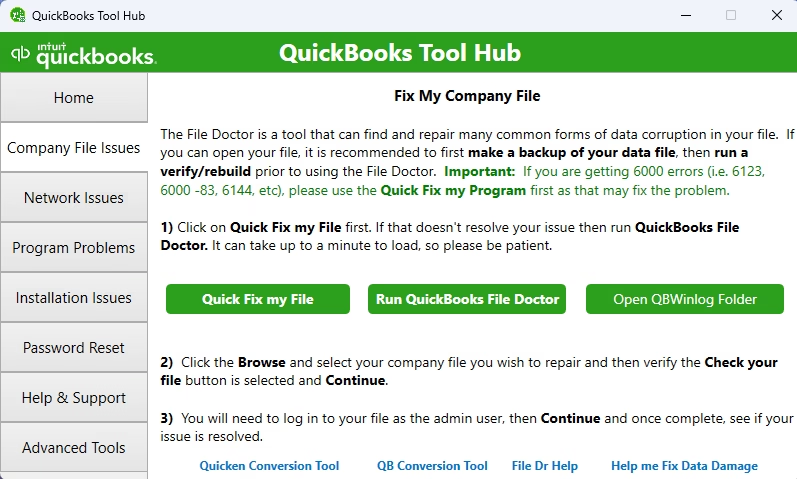
2. Run QuickBooks File Doctor from QuickBooks Tool Hub
QuickBooks File Doctor is designed to diagnose and repair certain QuickBooks Desktop company file and network problems. It is available through QuickBooks Tool Hub.
- Close QuickBooks Desktop on all computers using the company file.
- Open QuickBooks Tool Hub.
- Select the section for company file issues.
- Run QuickBooks File Doctor.
- Select the affected company file when prompted.
- Allow the tool to complete its scan and repair process.
Why this matters: File Doctor can identify problems that are difficult to see manually, including some file access and network-related issues. It is a sensible first repair step before changing permissions or support files.
Expected result: QuickBooks should open the file or provide a clearer indication that the issue is with the file, the network, or the local QuickBooks installation.
If it does not work: Continue with the next steps. File Doctor can fix many problems, but it cannot repair every case of severe company file damage.
3. Confirm the server is available in a multi-user setup
If your company file is stored on a server or host computer, make sure that computer is powered on, connected to the network, and accessible from the workstation where the error appears.
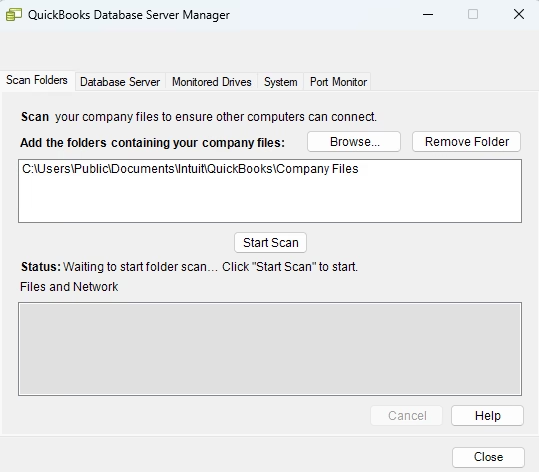
QuickBooks Desktop multi-user access depends on QuickBooks Database Server Manager. If the service is not running, workstations may not be able to locate or open the company file.
On the server, open QuickBooks Database Server Manager and scan the folder that contains the company file. After scanning, the server should be able to manage network access to that file location.
Practical check: If the file opens directly on the server but not from a workstation, focus on hosting settings, Database Server Manager, folder permissions, firewall rules, and network stability. If it does not open on the server either, the file itself may be damaged.
4. Check hosting settings on the server and workstations
Incorrect hosting is one of the most common causes of QuickBooks company file access errors in multi-user environments. In a typical network setup, only the server or host computer should host multi-user access. Workstations should not host the same company file.
Open QuickBooks Desktop on each workstation and review the hosting setting under the File and Utilities area. The wording can vary by QuickBooks Desktop version, but the key point is this: workstations should not be hosting multi-user access when the file is stored on a dedicated server.
On the server, confirm that hosting is enabled if that server stores and shares the company file. Then reopen QuickBooks from a workstation and test multi-user access again.
What can go wrong: If more than one computer tries to host access to the same file, QuickBooks may not know which computer should control the network connection. That can trigger 6144 errors and other -6000 series file access errors.
5. Rename the .ND and .TLG files
QuickBooks Desktop uses support files alongside the main .QBW company file. Two important ones are:
- .ND file: A network descriptor file that helps QuickBooks access the company file over a network.
- .TLG file: A transaction log file used with the company file to track changes since the last backup.
If either support file is damaged, QuickBooks may fail to open the company file even though the .QBW file is still intact. Renaming these files is usually safe because QuickBooks recreates them when the company file opens again.
- Close QuickBooks Desktop on all computers.
- Open the folder that contains the company file.
- Find files with the same name as your company file but ending in .ND and .TLG.
- Right-click each support file and rename it by adding .old to the end of the file name.
- Reopen QuickBooks Desktop and try the company file again.
For example, if your company file is named CompanyName.qbw, you may see support files similar to CompanyName.qbw.ND and CompanyName.qbw.TLG. Rename them to something like CompanyName.qbw.ND.old and CompanyName.qbw.TLG.old.
Do not rename or delete the .QBW file. Only rename the .ND and .TLG support files.
Expected result: QuickBooks creates fresh support files when the company file opens. If the old support file was the problem, the 6144 error should stop.
6. Move the company file to a local folder and test it
This test helps determine whether the error is caused by the company file itself or by the network path.
- Close QuickBooks on all computers.
- Create a simple local folder on the computer you are testing from.
- Copy the .QBW company file into that local folder.
- Open QuickBooks Desktop and browse to the copied file.
- Try opening the file in single-user mode.
Keep the original file in place. This is a test copy, not a permanent move unless you decide to restructure the file location later.
If the file opens locally: The company file may be usable, and the problem likely involves the network location, mapped drive, hosting configuration, permissions, firewall, or Database Server Manager.
If the file does not open locally: The file may be damaged, or QuickBooks Desktop on that computer may have a program issue. Test a sample company file next.
7. Open a QuickBooks sample company file
A sample company file helps you check whether QuickBooks Desktop itself can open a company file. If the sample file opens but your real company file does not, the issue is probably connected to your file or its location. If the sample file also fails, QuickBooks Desktop may need program repair or additional troubleshooting.
This step is useful because it prevents you from spending time on network settings when the real issue is a damaged QuickBooks installation, or spending time reinstalling QuickBooks when the issue is actually one company file.
8. Check Windows folder permissions
QuickBooks needs permission to read and write in the folder where the company file is stored. In a multi-user setup, the required QuickBooks users and services must have enough access to the shared folder.
Review the folder permissions on the server or host computer. The appropriate users and QuickBooks-related services need full control or sufficient access to open, update, and manage the company file and its support files.
Common permission problem: A user can see the shared folder but cannot create or update files inside it. QuickBooks may open the folder path but fail when it tries to write to the .ND, .TLG, or company file.
If you are not comfortable changing Windows permissions, involve your IT administrator or a QuickBooks professional. Incorrect permissions can either block legitimate users or expose sensitive accounting data to the wrong people.
9. Review firewall and security software settings
Firewall or antivirus software can block QuickBooks Desktop or QuickBooks Database Server Manager from communicating across the network. This can create a situation where the file exists and the server is online, but the workstation still cannot open the file.
Check whether your firewall or security software is blocking QuickBooks Desktop components or the QuickBooks database service. If the error started after a security software update, firewall change, Windows update, or server restart, this step deserves extra attention.
Expected result: After QuickBooks communication is allowed, workstations should be able to locate the server and open the company file in multi-user mode.
10. Restore a backup or seek advanced data repair
If the company file still does not open after file repair, support file renewal, local testing, hosting review, permission checks, and firewall review, the file may be damaged. At that point, the safest options are to restore a recent backup or request advanced QuickBooks data repair support.
Be careful before restoring. Compare the backup date with the last known good working copy. From an accounting perspective, restoring a backup is only helpful if you understand what transactions may be missing and how they will be re-entered or recovered.
If you have multiple copies of the file, document their locations and dates before making changes. A disorganized recovery process can make it harder to identify the most current and reliable company file.
Troubleshooting Summary
| Symptom | Likely Area to Check | Best Next Step |
|---|---|---|
| File opens locally but not from the server | Network, hosting, firewall, permissions, Database Server Manager | Scan the company file folder and review multi-user setup |
| File will not open anywhere | Company file damage or QuickBooks program issue | Run File Doctor and test a sample company file |
| Error appeared after a power outage or crash | File integrity and transaction log | Back up the file copy, run repair tools, and validate backups |
| Only one workstation has the error | Local workstation settings or network access | Check workstation hosting, permissions, and security software |
| All users have the error | Server, shared folder, Database Server Manager, or file damage | Start troubleshooting on the server or host computer |
How to Verify the Error Is Fixed
Do not stop troubleshooting just because the file opens once. Confirm that QuickBooks is stable enough for normal use.
- QuickBooks Desktop opens without the 6144 error.
- The correct company file opens from its intended location.
- The file opens in single-user mode when needed.
- Users can switch to multi-user mode without a network error.
- QuickBooks recreates the .ND and .TLG files after the file opens.
- The company file folder appears after scanning it in QuickBooks Database Server Manager.
- Workstations can access the file from the server or host computer.
- A new backup can be created successfully after the file opens.
Creating a backup after the repair is especially important. It gives you a clean recovery point after the file is working again.
Common Mistakes to Avoid
- Deleting the wrong file. Never delete the .QBW company file while trying to fix Error 6144.
- Skipping the backup. Repair steps are safer when you have a copy of the file to fall back on.
- Letting multiple computers host multi-user access. In most server setups, only the server should host the file.
- Working from consumer cloud-sync folders. Active QuickBooks Desktop company files can be interrupted by syncing tools if the setup is not properly controlled.
- Using a long or unusual file path. Keep file names and folder paths short and avoid unsupported special characters.
- Restoring an old backup too quickly. Check what data you may lose before replacing the current file.
- Ignoring repeat errors. Recurring company file errors may point to file damage, server problems, unstable networking, or backup software conflicts.
Best Practices to Prevent Future 6144 Errors
Once the file is working, it is worth tightening the environment. Many company file errors return because the underlying setup was never corrected.
- Store the company file in a dedicated local server folder for multi-user use.
- Use QuickBooks Database Server Manager to scan the folder that contains the .QBW file.
- Keep QuickBooks Desktop, Windows, and security software updated.
- Use a stable wired network connection for computers that access hosted files when possible.
- Schedule regular QuickBooks backups and periodically test that those backups restore properly.
- Keep the company file name simple and avoid special characters in file and folder names.
- Document the original file location before moving, renaming, or copying files.
- Review server event logs, backup activity, and network stability if the error keeps returning.
When Professional Help Makes Sense
Many QuickBooks Error 6144 cases can be fixed with careful troubleshooting. Professional help becomes a better option when the file contains critical current accounting data, multiple users are locked out, the error keeps returning, or you are unsure which file copy is the most current.
You should also consider help if the error started after a crash, power outage, server failure, failed restore, or interrupted backup. Those situations can involve more than a simple network descriptor issue.
From a bookkeeping and accounting standpoint, the risk is not just downtime. The bigger risk is opening or restoring the wrong copy, losing recent transactions, damaging a live file through repeated repair attempts, or making permission changes that create new access problems.
FAQ
What causes QuickBooks Error 6144?
QuickBooks Error 6144 is usually caused by a company file access problem. Common causes include damaged .ND or .TLG files, incorrect hosting settings, network path issues, firewall blocking, folder permission problems, or company file damage.
Does QuickBooks Error 6144 affect QuickBooks Online?
No. QuickBooks Error 6144 applies to QuickBooks Desktop company files. QuickBooks Online does not use local .QBW company files, .ND files, or .TLG files.
Is it safe to rename .ND and .TLG files?
Yes, renaming the .ND and .TLG support files is generally safe because QuickBooks recreates them when the company file opens. Do not delete or rename the .QBW company file itself.
Why does the company file open on the server but not on a workstation?
That usually points to a network or multi-user setup issue rather than complete file damage. Check hosting settings, QuickBooks Database Server Manager, folder permissions, firewall rules, and the network connection between the workstation and server.
What should I do if File Doctor does not fix Error 6144?
Continue with manual checks such as hosting, .ND and .TLG files, local file testing, permissions, and firewall settings. If the file still will not open, restore a recent backup or get advanced QuickBooks data repair assistance.
Can I open a QuickBooks company file from a mapped drive?
Many businesses use mapped drives, but troubleshooting is often clearer when you confirm the full server path and verify that the server is properly hosting the file. A mapped drive can hide permission or path issues.
Can a large .TLG file cause problems?
A damaged or unusually large .TLG file can interfere with opening or managing the company file. Renaming the .TLG file after closing QuickBooks allows QuickBooks to create a fresh support file when the company file opens.
Should I restore a backup immediately when I see Error 6144?
Not always. First determine whether the problem is network-related or file-related. Restoring too quickly can replace newer data with an older backup. Confirm backup dates and file locations before restoring.
Key Takeaways
- QuickBooks Error 6144 is a QuickBooks Desktop company file access error, not a QuickBooks Online issue.
- Start with safe steps: update QuickBooks, use administrator rights, close all workstations, and protect the file with a backup or copy.
- QuickBooks File Doctor, hosting review, .ND and .TLG renaming, local file testing, permissions, and firewall checks resolve many cases.
- If the file opens locally but not over the network, focus on the server, hosting, Database Server Manager, permissions, and security software.
- If the file will not open anywhere, treat it as a possible company file damage issue and avoid repeated repair attempts on the live file.
Conclusion
QuickBooks Error 6144 can be frustrating because it often appears when users need immediate access to accounting data. The safest approach is to troubleshoot in a structured order: confirm QuickBooks is updated, run File Doctor, check the server and hosting setup, refresh the .ND and .TLG files, test the file locally, and review permissions and firewall settings.
If those steps do not resolve the problem, slow down before restoring backups or making more changes. Identify the newest reliable file copy, protect the current data, and get help if there is any chance of file damage or data loss.
Need Expert Help with QuickBooks?
If QuickBooks Error 6144 is still blocking access to your company file, Databrax can help with practical QuickBooks error resolution, company file troubleshooting, data recovery planning, cleanup, and support. We can help you determine whether the issue is file damage, network configuration, hosting, permissions, or a backup problem, then guide the safest next step without unnecessary risk to your accounting records.