
QuickBooks Error 6123, often shown as Error -6123, 0, usually appears when QuickBooks Desktop cannot stay connected to the company file. You may see it while opening a company file, restoring a backup, upgrading a file after a QuickBooks update, or working in multi-user mode over a network.
This is a QuickBooks Desktop company file issue. It is not a QuickBooks Online browser error. The right fix depends on where the file is stored, whether you are restoring from a backup, and whether the file is being accessed across a network.
Table of Contents
Quick Answer
To fix QuickBooks Error 6123, update QuickBooks Desktop, sign in to Windows as an administrator, close QuickBooks on all computers, Download Quickbooks Tool Hub and run Quick Fix my Program from QuickBooks Tool Hub. If the error continues, run QuickBooks File Doctor to check the company file and network. If the file is on a network, rename the related .ND and .TLG files, scan the company file folder with QuickBooks Database Server Manager, and confirm only the server is hosting multi-user access.
If the error appears during a backup restore, copy the .QBB file to the local hard drive before restoring it. Do not restore directly from a USB drive, external drive, or cloud-synced folder.
What QuickBooks Error 6123 Means
QuickBooks Error -6123, 0 generally means QuickBooks Desktop lost its connection to the company file or cannot establish the connection needed to open it safely. The company file may be damaged, but that is not always the case. In many situations, the file itself is fine and the problem is caused by network configuration, support files, permissions, firewall restrictions, or the location of a backup file.
The error commonly appears in four situations:
- Opening a .QBW company file from a local computer
- Restoring a .QBB backup file
- Opening or upgrading a company file after moving to a different computer
- Accessing a company file in multi-user mode over a network
The important point is to avoid guessing. A local file issue, backup restore issue, and multi-user network issue can all trigger the same error message, but the safest troubleshooting path is different for each one.
Before You Start Troubleshooting
Take a few precautions before changing file names, running repair tools, or adjusting network settings. These steps reduce the risk of making the problem worse.
- Use QuickBooks Desktop on a supported Windows computer.
- Sign in to Windows with an administrator account before running repair tools.
- Update QuickBooks Desktop to the latest release available for your version.
- Ask all users to close QuickBooks and sign out of the company file.
- Create a backup copy of the company file if you can access it from any workstation or server.
- Store the active company file or backup on a local hard drive while troubleshooting.
- For network files, confirm the server computer is powered on and connected to the network.
- Download and install the latest QuickBooks Tool Hub from Intuit.
Important: Do not rename, move, or repair a company file while other users are connected. For multi-user files, schedule the repair when everyone can log out.
Common Causes of QuickBooks Error 6123
Error 6123 can come from several different sources. The table below can help you narrow down where to focus first.
| Situation | Likely Cause | Best First Step |
|---|---|---|
| Error appears when opening a local company file | QuickBooks program issue, damaged support files, or company file problem | Run Quick Fix my Program, then QuickBooks File Doctor |
| Error appears while restoring a backup | Backup is stored on external media, cloud storage, or copied incompletely | Move the .QBB file to the local hard drive before restoring |
| Error appears only in multi-user mode | Hosting, .ND file, firewall, permissions, or Database Server Manager issue | Check hosting settings and scan the file folder on the server |
| File opens on the server but not from workstations | Network configuration problem rather than company file damage | Rename .ND and .TLG files and rescan with Database Server Manager |
| File fails after moving to a new computer | Restore issue, file path issue, or damaged backup | Restore from a local drive or use a portable company file |
Step 1: Update QuickBooks Desktop
Start with updates because older program components can interfere with file repair tools, company file upgrades, and multi-user access. Updating QuickBooks does not guarantee the error will disappear, but it removes a common variable before you begin deeper troubleshooting.
Open QuickBooks Desktop, install the latest available release for your product, then close and reopen the program. If QuickBooks will not open far enough to update normally, use QuickBooks Tool Hub for the next steps and return to the update once the program opens.
Expected result: QuickBooks Desktop is current for your installed version, and you can test the company file again before moving to file or network repair.
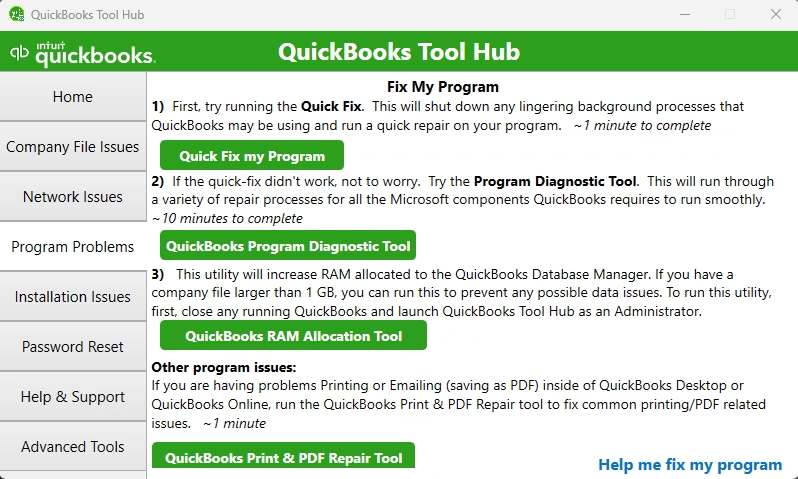
Step 2: Run Quick Fix my Program in QuickBooks Tool Hub
Quick Fix my Program is a good first repair because it targets QuickBooks Desktop program components rather than immediately changing your company file. Use this step when the error appears while opening QuickBooks or when you are not yet sure whether the issue is with the program, the file, or the network.
- Close QuickBooks Desktop on every computer.
- Open QuickBooks Tool Hub.
- Go to the Program Problems section.
- Run Quick Fix my Program.
- After the tool completes, reopen QuickBooks Desktop.
- Try to open the affected company file again.
Why this matters: If QuickBooks Desktop itself is not running correctly, file-level repairs may not solve the problem. This step gives you a clean starting point before using File Doctor or changing network files.
If it does not work: Move to QuickBooks File Doctor. Do not repeatedly run the same program repair if the error appears in the same place every time.
Step 3: Run QuickBooks File Doctor
QuickBooks File Doctor checks for company file damage and network access problems. Intuit recommends it as a primary repair tool for many QuickBooks Desktop company file errors, including Error -6123, 0.
- Close QuickBooks Desktop on all computers.
- Open QuickBooks Tool Hub.
- Select Company File Issues.
- Open QuickBooks File Doctor.
- Select the affected company file.
- Choose the option to check both the file and the network if available.
- Enter the QuickBooks admin password when prompted.
- Allow the scan and repair process to finish without interruption.
Why this matters: File Doctor can identify problems that are not obvious from the error message. It may repair company file damage, correct access problems, or confirm that the file needs more advanced attention.
Expected result: File Doctor completes and QuickBooks opens the company file without Error 6123.
If File Doctor reports unrepaired damage: Stop making manual changes to the file. At that point, use a verified backup if available or contact Intuit support or a qualified QuickBooks professional for advanced data repair guidance.
Step 4: If the Error Happens During Backup Restore, Move the Backup to a Local Drive
If Error 6123 appears while restoring a .QBB backup, the problem may be the backup location rather than the backup itself. Restoring directly from a USB drive, external drive, removable media, or cloud-synced folder can fail if the connection is interrupted during the restore.
- Close QuickBooks Desktop.
- Copy the .QBB backup file to a local folder on the computer, such as a folder on the C drive.
- Open QuickBooks Desktop.
- Restore the backup from the local copy, not from the external or online storage location.
- Save the restored company file to a local folder or an appropriate network location after the restore completes.
Why this matters: QuickBooks needs stable access to the backup file while it restores the company data. Cloud sync activity or removable drive interruptions can break that process.
If the backup still will not restore: If you still have access to the original computer, create a .QBM portable company file there and restore the portable file on the new computer. A portable file is often a safer way to move company data when a standard backup restore keeps failing.
Step 5: Rename the .ND and .TLG Files for Network Company Files
If the company file is stored on a server or host computer, damaged support files can prevent QuickBooks from locating or maintaining the connection to the file. Two common support files are the .ND network data file and the .TLG transaction log file.
Renaming these files is a standard troubleshooting step because QuickBooks recreates them when the company file opens. It is usually safer to rename them rather than delete them.
- Make sure all users are signed out of QuickBooks.
- On the server or host computer, open the folder that contains the company file.
- Find the files with the same company file name and extensions .ND and .TLG.
- Add .OLD to the end of each file name.
- Reopen QuickBooks Desktop and open the company file.
For example, a file named CompanyFile.qbw.nd would become CompanyFile.qbw.nd.OLD. A file named CompanyFile.qbw.tlg would become CompanyFile.qbw.tlg.OLD.
Expected result: QuickBooks recreates fresh .ND and .TLG files when the company file opens.
If the file opens locally but not over the network: The company file may not be the main issue. Focus on hosting settings, Database Server Manager, firewall permissions, folder permissions, and the network path.
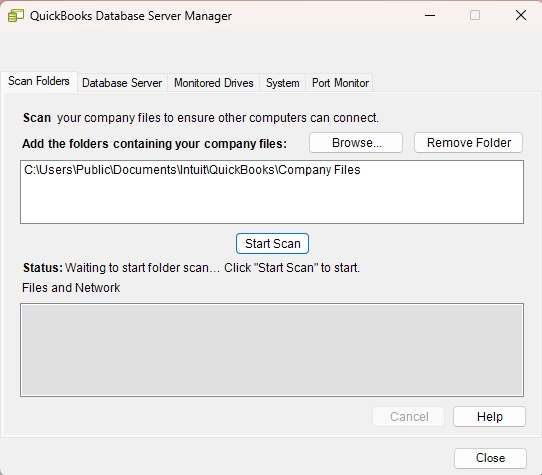
Step 6: Scan the Company File Folder with QuickBooks Database Server Manager
QuickBooks Database Server Manager is required for many multi-user network setups. If the server is not scanning the folder that contains the company file, workstations may fail to connect and show Error 6123.
- Go to the server computer or the computer that hosts the company file.
- Open QuickBooks Database Server Manager.
- Scan the folder that contains the company file.
- After the scan completes, try opening the company file from a workstation.
Why this matters: The Database Server Manager helps QuickBooks Desktop workstations locate and access the company file in multi-user mode. Without a proper folder scan, the company file may be visible in Windows but still fail inside QuickBooks.
Expected result: The folder containing the company file appears in Database Server Manager, and workstations can open the file using their normal QuickBooks credentials.
Step 7: Check Hosting Settings
Hosting errors are a common cause of QuickBooks Desktop multi-user problems. In a standard network setup, the server or dedicated host computer should host multi-user access. Workstations should not all be set to host the same company file.
If more than one workstation is hosting, QuickBooks can lose track of where the company file is being served from. That can trigger connection errors, including Error 6123.
Check hosting settings on the server and workstations. Only the server should host the company file in a normal multi-user environment. If you are not sure how your office network is configured, do not change hosting settings randomly. A poorly configured hosting setup can create more connection problems.
Step 8: Review Firewall, File Path, and Windows Permissions
If Tool Hub, File Doctor, support file renaming, and Database Server Manager do not solve the issue, look at access restrictions outside the company file.
- Firewall or security software: Security tools can block QuickBooks Desktop or QuickBooks Database Server Manager from communicating over the network.
- Windows folder permissions: Users need proper access to the folder that contains the company file.
- File path length: Very long folder paths can create access problems. Keep company file names and folder paths short and simple.
- Special characters: Avoid unusual characters in the company file name or folder path.
- Cloud sync folders: Do not work directly in an active company file stored in a cloud-synced folder. Sync activity can interrupt QuickBooks file access.
From a bookkeeping perspective, stable file access matters because interrupted company file activity can lead to lost work, failed restores, damaged support files, or inconsistent access for users who need to enter transactions and run reports.
How to Verify the Error Is Fixed
Do not assume the problem is solved just because QuickBooks opens once. Verify the file behaves normally in the way your business actually uses it.
| Check | How to Verify | Expected Result |
|---|---|---|
| Company file opens | Open the correct .QBW file from its intended location | No Error -6123, 0 appears |
| Backup restore works | Restore the .QBB from a local hard drive | The restored file opens successfully |
| Portable file works | Restore the .QBM on the destination computer | The portable file converts and opens normally |
| Network access works | Open the file from a workstation | The workstation connects without error |
| Multi-user mode works | Switch to multi-user mode if required | Authorized users can access the file |
| Support files are recreated | Check the company file folder after opening QuickBooks | New .ND and .TLG files appear |
| Database Server Manager is scanning the folder | Open Database Server Manager on the server | The company file folder is listed |
Common Mistakes to Avoid
Some fixes for Error 6123 are safe when done correctly, but small mistakes can create new problems. Avoid these common issues:
- Restoring a backup directly from a USB drive or cloud-synced folder
- Renaming the main .QBW company file without first making a backup
- Deleting .ND or .TLG files instead of renaming them during troubleshooting
- Running File Doctor while other users are still connected to the file
- Turning on hosting on every workstation
- Skipping QuickBooks Desktop updates before running repair tools
- Using QuickBooks Online troubleshooting steps for a QuickBooks Desktop company file error
- Restoring a backup over an existing company file without protecting the existing file first
When Professional Help Makes Sense
Many Error 6123 cases can be resolved with QuickBooks Tool Hub, File Doctor, a local backup restore, or corrected network settings. Professional help is worth considering when the standard steps fail or when the business risk is high.
Get help before making further changes if:
- File Doctor cannot repair the company file.
- The only available backup may be damaged.
- The file opens on one computer but fails across the network.
- Multiple users are blocked from entering invoices, bills, payroll-related data, or bank transactions.
- Your company file is stored in a complicated shared folder or server environment.
- You are moving QuickBooks data to a new computer and both .QBB and .QBM restore attempts are failing.
- You are not sure which computer should host multi-user access.
Continued trial-and-error troubleshooting can waste time and may create additional file access problems. In a live bookkeeping environment, it is usually better to pause and get structured help than to keep renaming, moving, or restoring files without a clear plan.
Key Takeaways
- QuickBooks Error 6123 is a QuickBooks Desktop company file connection error, not a QuickBooks Online issue.
- Run Quick Fix my Program first, then QuickBooks File Doctor if the error continues.
- Restore backups from a local hard drive, not directly from USB drives, external drives, or cloud-synced folders.
- For network files, focus on .ND files, .TLG files, hosting settings, Database Server Manager, firewall rules, and folder permissions.
- Only the server should host multi-user access in a standard network setup.
- If File Doctor cannot repair the file, use a verified backup or seek advanced QuickBooks data help.
FAQ
What is QuickBooks Error 6123?
QuickBooks Error 6123, usually displayed as Error -6123, 0, is a QuickBooks Desktop error that generally means QuickBooks lost the connection to the company file or cannot open the file through the current path, restore process, or network setup.
Does QuickBooks Error 6123 happen in QuickBooks Online?
No. Error 6123 applies to QuickBooks Desktop company files. QuickBooks Online does not use local .QBW, .QBB, .QBM, .ND, or .TLG files, so QuickBooks Online troubleshooting steps are not the right approach for this error.
Is my company file damaged if I see Error 6123?
Not always. The company file may be damaged, but the error can also be caused by network settings, damaged .ND or .TLG files, firewall restrictions, Windows permissions, hosting problems, or restoring a backup from an unstable location.
Can I delete the .ND and .TLG files?
For troubleshooting, it is safer to rename them by adding .OLD to the end of the file names. QuickBooks can recreate these files when the company file opens. Renaming also gives you a way to identify what was changed during troubleshooting.
Why does Error 6123 appear when restoring a backup?
A common reason is that the .QBB backup is being restored from a USB drive, external drive, removable media, or cloud-synced folder. Copy the backup to the local hard drive first, then restore it from there.
What should I do if a .QBB backup will not restore?
If the backup fails repeatedly and you still have access to the original computer, create a .QBM portable company file from the original QuickBooks installation and restore the portable file on the new computer.
Why does the file open on the server but not on workstations?
That usually points to a network access problem rather than a damaged company file. Check the .ND file, hosting settings, QuickBooks Database Server Manager, firewall rules, folder permissions, and the network location used by the workstations.
Can multiple computers host the same QuickBooks company file?
In a standard QuickBooks Desktop network setup, only the server or dedicated host computer should host multi-user access. Workstations should not all be set to host the company file.
What if QuickBooks File Doctor cannot fix Error 6123?
If File Doctor cannot repair the file, stop making repeated manual changes. Restore from a verified backup if possible or contact Intuit support or a qualified QuickBooks professional for advanced file repair and data recovery guidance.
Conclusion
QuickBooks Error 6123 is frustrating because it can block access to the company file at exactly the wrong time: during a restore, upgrade, or multi-user workday. The safest approach is to start with QuickBooks Tool Hub, then use File Doctor, and then troubleshoot based on where the file is stored and how it is being accessed.
If the error happens during restore, move the backup to a local drive. If it happens over a network, focus on hosting, .ND and .TLG files, Database Server Manager, firewall rules, and folder permissions. If the file is damaged or the repair tools cannot resolve it, do not keep experimenting with the only copy of your accounting data.
Need Expert Help with QuickBooks?
If QuickBooks Error 6123 is still preventing access to your company file, Databrax can help you work through the issue with a structured troubleshooting approach. We can assist with QuickBooks error resolution, company file access problems, network file troubleshooting, data migration concerns, and cleanup steps after a file restore or repair. If the standard fixes have not worked, getting expert help can save time and reduce the risk of damaging important accounting data.