
QuickBooks Payroll Error PS077 is a QuickBooks Desktop Payroll update error that usually appears when QuickBooks cannot download or install the latest payroll tax table. It is commonly tied to an inactive or unverified payroll subscription, incorrect billing details, an incorrect service key or EIN, damaged payroll update files, or a QuickBooks Desktop installation that needs updating.
The practical fix is to confirm that QuickBooks Desktop is activated, update QuickBooks Desktop first, verify your payroll subscription and service key, then download the full payroll tax table update. If the error continues, you may need to refresh the CPS payroll update folder, check the company file with Verify Data and Rebuild Data, or repair QuickBooks Desktop.
Important: Do not process payroll until the tax table update completes successfully. Outdated payroll tax tables can cause incorrect tax calculations, payroll liabilities, and payroll forms.
Table of Contents
Does PS077 Apply to QuickBooks Online Payroll?
No. Error PS077 applies to QuickBooks Online Payroll. QuickBooks Online Payroll handles payroll updates differently, and users generally do not manually download payroll tax table updates the same way Desktop Payroll users do.
If you are using QuickBooks Online Payroll and seeing a payroll problem, troubleshoot it as a QuickBooks Online Payroll issue rather than searching for PS077 repair steps. The menus and update process are not the same.
Why PS077 Matters Before You Run Payroll
Payroll tax tables tell QuickBooks Desktop how to calculate payroll taxes using current rates and rules. If QuickBooks cannot install the latest payroll tax table, paycheck calculations and payroll forms may be unreliable.
From a bookkeeping and payroll compliance perspective, PS077 is not just a technical nuisance. It can affect:
- Federal and state withholding calculations
- Payroll tax liabilities
- Employee paycheck accuracy
- Payroll forms prepared in QuickBooks Desktop
- Your ability to complete payroll on schedule
The safest approach is to stop, fix the update issue, verify the payroll tax table update completed, and then calculate payroll.
Common Causes of QuickBooks Payroll Error PS077
PS077 can appear for more than one reason. That is why random repairs often waste time. Start with the items QuickBooks Payroll depends on: product activation, supported software, an active subscription, correct account details, and clean payroll update files.
| Possible Cause | Why It Triggers PS077 | What to Check First |
|---|---|---|
| QuickBooks Desktop is not activated | Payroll updates require a registered and activated Desktop product. | Open the Product Information window and confirm the product shows Activated. |
| Payroll subscription is inactive or expired | Desktop Payroll tax table updates require an active subscription. | Check payroll subscription status from the My Payroll Service menu. |
| Billing details need attention | Subscription validation can fail if account or billing information is outdated. | Review your Intuit account if QuickBooks prompts for account validation. |
| Incorrect payroll service key | The service key connects the company file to the payroll subscription. | Confirm the service key under Manage Service Key. |
| Incorrect EIN in the company file | The EIN must match the employer tied to the payroll subscription. | Verify the company EIN before changing payroll settings. |
| Damaged payroll update files | A partial or corrupted update can prevent the next update from installing. | Download the entire payroll update or refresh the CPS folder. |
| QuickBooks Desktop needs an update | Older maintenance releases may not install current payroll components correctly. | Install the latest QuickBooks Desktop release before payroll updates. |
| Company file data problems | Data damage can interfere with payroll setup or update installation. | Run Verify Data before Rebuild Data, after making a backup. |
Before You Start: Requirements and Safety Checks
Before troubleshooting, confirm that you are working in the correct product and company file. This matters especially if you manage payroll for multiple businesses or have more than one QuickBooks company file.
- Use QuickBooks Desktop with an active QuickBooks Desktop Payroll subscription.
- Log in to Windows and QuickBooks Desktop with administrator permissions when installing updates.
- Use a stable internet connection while downloading product and payroll updates.
- Back up the company file before running data repair tools or making payroll setup changes.
- Confirm the company file has the correct EIN and the correct payroll service key.
- Make sure your QuickBooks Desktop version is supported for current payroll services.
One common mistake is trying to repair payroll files before checking the subscription. If the payroll service is inactive or the billing account needs attention, folder repairs will not solve the underlying problem.
How to Fix QuickBooks Payroll Error PS077
Work through these steps in order. The sequence matters. Product activation and subscription validation should be checked before you rename folders or repair data.
1. Confirm QuickBooks Desktop Is Activated
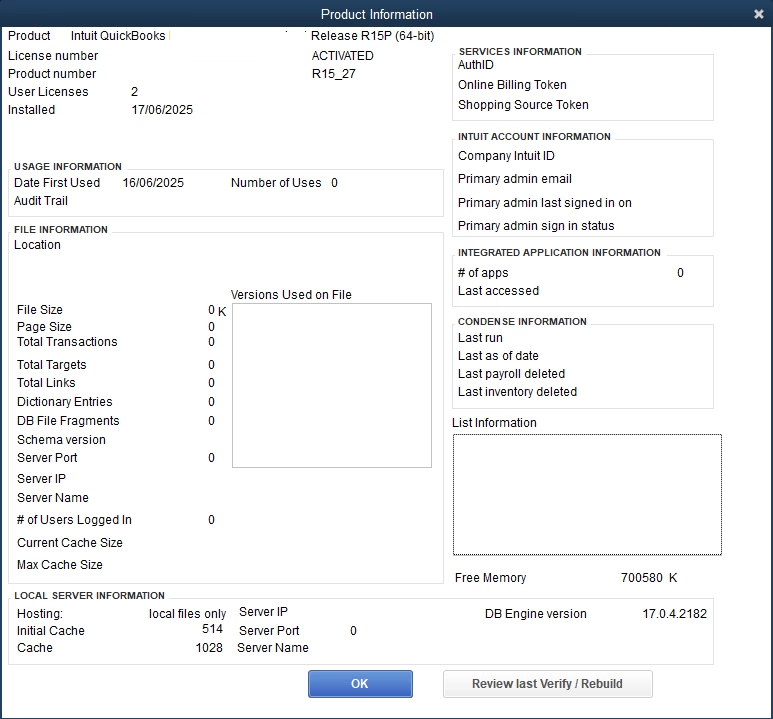
What to do: Open QuickBooks Desktop and press F2 to open the Product Information window. Confirm that the product status shows Activated.
Why it matters: QuickBooks Desktop Payroll updates rely on a valid, registered Desktop installation. If QuickBooks is not activated, payroll update validation can fail before the tax table download is completed.
What should happen: The Product Information window should show that QuickBooks Desktop is activated.
If it does not: Complete the activation process before continuing with payroll updates. If activation cannot be completed, resolve the licensing or account issue first.
2. Update QuickBooks Desktop Before Updating Payroll
What to do: In QuickBooks Desktop, go to Help, then Update QuickBooks Desktop. Download and install the latest available product release.
Why it matters: Payroll updates are separate from product updates, but they depend on QuickBooks Desktop working properly. An outdated Desktop release can cause payroll update components to fail or install incorrectly.
What should happen: QuickBooks should install the available product updates. You may need to close and reopen QuickBooks after the update.
If it does not: Check your internet connection, Windows permissions, and whether QuickBooks is being run as an administrator. If product updates repeatedly fail, repairing QuickBooks Desktop or using QuickBooks Tool Hub may be appropriate.
3. Verify the Payroll Subscription Status
What to do: Go to Employees, then My Payroll Service, and review the payroll subscription status.
Why it matters: QuickBooks Desktop Payroll tax table updates require an active payroll subscription. If the subscription is inactive, expired, or not properly linked, QuickBooks may display PS077 during the update process.
What should happen: The payroll service should show as active and connected to the company file you are using.
If it does not: Review your Intuit account and any payroll service messages shown in QuickBooks. Billing, account validation, or subscription issues may need to be corrected before QuickBooks will allow payroll updates.
4. Review Billing or Account Validation Prompts
What to do: If QuickBooks prompts you to verify your account, billing details, or payroll subscription, do not ignore the message. Review the Intuit account connected to the payroll subscription and correct any outdated billing information.
Why it matters: Even if payroll worked previously, a billing issue or account validation problem can interrupt access to new tax table updates.
What should happen: After the account issue is corrected, QuickBooks should be able to validate the payroll subscription again.
If it does not: Contact Intuit Payroll Support for subscription, billing, or account validation issues that cannot be corrected from within QuickBooks. Do not change company payroll setup details as a workaround unless you have confirmed the correct information.
5. Confirm the Payroll Service Key
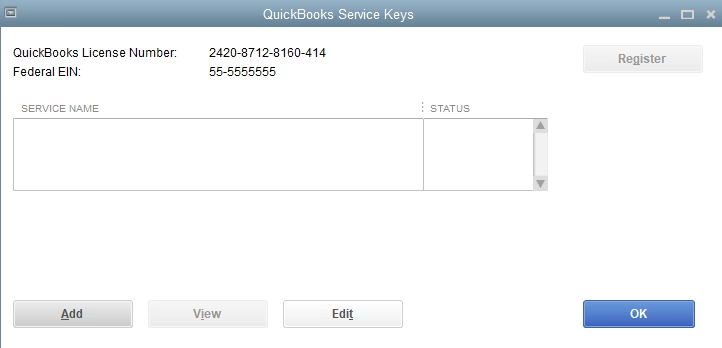
What to do: Go to Employees, then My Payroll Service, then Manage Service Key. Confirm that the service key shown belongs to the correct payroll subscription.
Why it matters: The payroll service key links your QuickBooks Desktop company file to the payroll subscription. If the key is missing or incorrect, QuickBooks may not recognize the company file as eligible for payroll updates.
What should happen: The service key should match the payroll subscription for that employer.
If it does not: Enter or edit the service key only after confirming the correct key. A wrong service key can create more payroll access problems, especially for accountants or bookkeepers handling multiple employer files.
6. Confirm the Company EIN
What to do: Check that the company file is using the correct Employer Identification Number for the business connected to the payroll subscription.
Why it matters: The EIN identifies the employer for payroll tax reporting. QuickBooks Payroll subscription records, service key information, and the company file should align.
What should happen: The EIN in the company file should match the legal employer associated with the payroll subscription.
If it does not: Do not casually change the EIN just to test the error. Change the EIN only if it is legally incorrect and the corrected EIN matches the payroll account records. If you are unsure, get help before changing employer payroll information.
7. Download the Full Payroll Tax Table Update
What to do: Go to Employees, then Get Payroll Updates. Select Download Entire Update, then choose Update.
Why it matters: If PS077 appeared after an incomplete or interrupted update, downloading the entire update can replace missing or damaged payroll update components.
What should happen: QuickBooks should download and install the latest payroll tax table. The Payroll Update window should confirm the update completed successfully.
If it does not: Close QuickBooks and continue with the CPS folder step below. If the download fails repeatedly, also confirm that Windows permissions and internet connectivity are not blocking the update.
8. Rename the CPS Payroll Update Folder
What to do: Close QuickBooks Desktop completely. Then rename the CPS folder used by QuickBooks Desktop Payroll update components. After renaming it, reopen QuickBooks and download the payroll update again.
Why it matters: The CPS folder stores payroll update files. If those files are damaged, QuickBooks may keep failing even after you try another payroll update. Renaming the folder is safer than deleting it because it allows QuickBooks to create a fresh folder while preserving the old one for reference if needed.
What should happen: QuickBooks should create a new payroll update folder during the next payroll update attempt and download clean update components.
If it does not: Make sure QuickBooks was fully closed before renaming the folder. Do not delete payroll folders unless you are following trusted instructions or working with support. If folder permissions prevent changes, sign in to Windows as an administrator.
Professional warning: Never rename or remove payroll update folders while QuickBooks Desktop is open. Doing so can leave update files in an incomplete state.
9. Run Verify Data, Then Rebuild Data if Needed
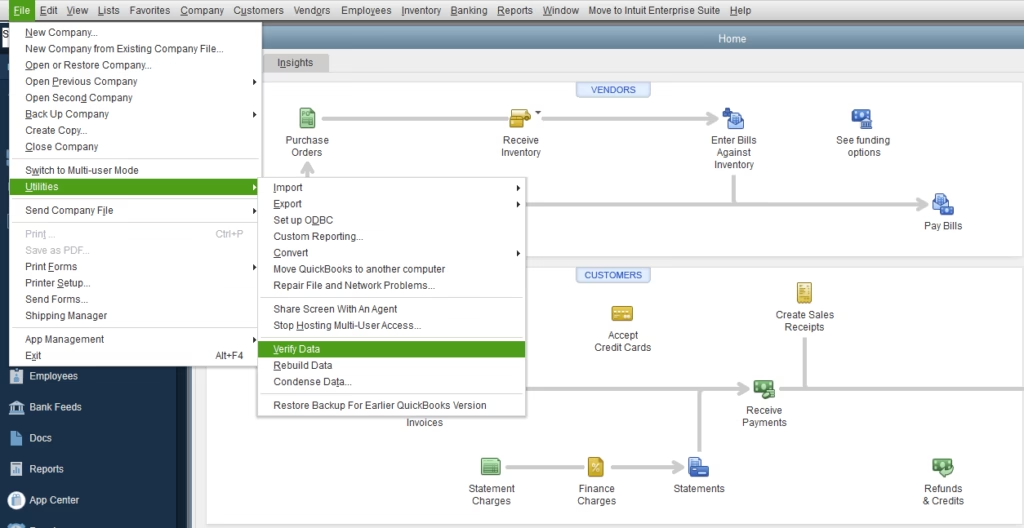
What to do: Back up the company file first. Then go to the File menu and run Verify Data. If QuickBooks finds data damage, run Rebuild Data.
Why it matters: PS077 is often related to payroll update validation or update files, but company file damage can also interfere with payroll functions. Verify Data checks for integrity problems. Rebuild Data repairs certain problems QuickBooks identifies.
What should happen: Verify Data should either report no problems or identify issues that need repair. After Rebuild Data, run Verify Data again to confirm whether the problem was corrected.
If it does not: If Verify Data continues to report problems after a rebuild, avoid repeated blind repair attempts. Company file damage can affect payroll records and financial reporting, so professional review is often the safer route.
10. Repair QuickBooks Desktop or Use QuickBooks Tool Hub
What to do: If activation, subscription, service key, EIN, tax table download, CPS folder, and company file checks do not resolve PS077, consider repairing the QuickBooks Desktop installation or using QuickBooks Tool Hub.
Why it matters: Sometimes the issue is not the payroll subscription or company file. Damaged program files, update components, or Windows-level permissions can prevent QuickBooks from installing payroll updates correctly.
What should happen: After repairing QuickBooks Desktop, reopen the program, confirm activation, and try the payroll update again.
If it does not: At this stage, it is reasonable to involve Intuit Payroll Support for subscription validation problems or a QuickBooks professional for Desktop installation, company file, and payroll setup troubleshooting.
How to Verify That PS077 Is Fixed
Do not assume the error is resolved just because QuickBooks opens normally. Confirm the payroll update actually completed.
| Check | How to Verify | Expected Result |
|---|---|---|
| QuickBooks activation | Press F2 in QuickBooks Desktop. | Product status shows Activated. |
| Product update | Use Help, then Update QuickBooks Desktop. | No pending critical product update remains. |
| Payroll subscription | Go to Employees, then My Payroll Service. | Subscription shows active. |
| Service key | Open Manage Service Key. | Correct service key is assigned to the company file. |
| EIN | Review employer information in the company file. | EIN matches the payroll subscription employer. |
| Payroll tax table | Use Employees, then Get Payroll Updates. | Payroll Update window confirms completion. |
| Payroll calculation | Review payroll items and paycheck calculations before finalizing payroll. | Calculations use the current tax table. |
Common Mistakes That Make PS077 Worse
- Running payroll anyway: Processing paychecks before the tax table update completes can create incorrect withholding and liability amounts.
- Skipping the Desktop product update: Payroll updates should be attempted after QuickBooks Desktop is current.
- Changing the service key without confirming it: A wrong service key can disconnect the file from the correct payroll subscription.
- Ignoring billing alerts: If the payroll subscription cannot be validated, technical repairs will not fix the account problem.
- Deleting folders instead of renaming them: Renaming the CPS folder is safer because it preserves the old folder while forcing QuickBooks to create a fresh one.
- Repairing data without a backup: Always back up before Verify and Rebuild steps that affect the company file.
- Troubleshooting the wrong product: PS077 is a QuickBooks Desktop Payroll issue, not a QuickBooks Online Payroll update error.
When to Contact Intuit Payroll Support
Some PS077 situations are tied to payroll subscription records that a user or consultant cannot fully correct from inside QuickBooks Desktop. Contact Intuit Payroll Support when:
- The payroll subscription does not show active even though you believe it should be active.
- Billing or account validation messages keep returning.
- The payroll service key cannot be verified or corrected.
- The EIN or subscription record does not match the employer file.
- QuickBooks indicates an account-level payroll access problem.
It is better to resolve subscription and account validation issues directly than to keep changing local payroll settings in the company file.
When Professional QuickBooks Help Makes Sense
Many PS077 cases can be resolved by updating QuickBooks Desktop, confirming payroll subscription details, and downloading the full payroll tax table. Professional help becomes more valuable when the issue keeps returning or when payroll data may be at risk.
Consider getting QuickBooks assistance if:
- Payroll is due soon and repeated update attempts are delaying paychecks.
- Verify Data reports company file damage.
- You manage multiple payroll company files and are unsure which service key belongs to which file.
- The payroll update works in a sample file but not in the live company file.
- You are uncomfortable renaming payroll update folders or repairing QuickBooks Desktop.
- Payroll reports, liabilities, or paycheck calculations look inconsistent after the error.
Databrax can help with QuickBooks Error Resolution, QuickBooks Cleanup, payroll-related troubleshooting, and company file review. The goal is not just to clear an error message. The important part is making sure your payroll setup, tax table update, and company data are reliable before you continue processing payroll.
Best Practices to Prevent Payroll Update Problems
- Update QuickBooks Desktop before scheduled payroll processing days.
- Download the full payroll update when troubleshooting update errors.
- Keep Intuit account billing information current.
- Verify the payroll subscription before changing payroll setup details.
- Use the same EIN in the company file that is registered with the payroll subscription.
- Back up the company file before data repair or payroll configuration changes.
- Run Verify Data periodically if you notice payroll or company file issues.
- Do not use unsupported QuickBooks Desktop versions for current payroll processing.
FAQ
What does QuickBooks Payroll Error PS077 mean?
PS077 means QuickBooks Desktop Payroll cannot download or install the payroll tax table update. It is usually related to activation, payroll subscription validation, service key or EIN mismatch, damaged payroll update files, outdated Desktop updates, or company file problems.
Can I run payroll if PS077 appears?
You should not run payroll until the payroll tax table update completes successfully. Running payroll with outdated tax tables can cause incorrect paycheck tax calculations and payroll tax reporting issues.
Is PS077 a QuickBooks Online Payroll error?
No. PS077 applies to QuickBooks Desktop Payroll. QuickBooks Online Payroll updates are handled differently, so PS077 troubleshooting steps do not apply to QuickBooks Online Payroll.
Should I update QuickBooks Desktop or payroll first?
Update QuickBooks Desktop first. After the product update is installed, download the payroll tax table update from Employees, then Get Payroll Updates. This order helps prevent payroll components from failing because the Desktop program is outdated.
What is the CPS folder in QuickBooks Payroll?
The CPS folder stores QuickBooks Desktop Payroll update components. If payroll update files in that folder become damaged, renaming the folder can force QuickBooks to create a fresh payroll update folder during the next download.
Is it safe to delete the CPS folder?
Renaming is safer than deleting. Do not delete payroll update folders unless you are following trusted instructions or working with support. Also make sure QuickBooks Desktop is closed before renaming payroll folders.
Why does my payroll subscription matter for PS077?
QuickBooks Desktop Payroll tax table updates require an active payroll subscription. If the subscription is expired, inactive, not linked correctly, or blocked by billing validation, QuickBooks may not allow the update to complete.
What should I do if Verify Data finds problems?
Back up the company file, then run Rebuild Data. After rebuilding, run Verify Data again. If problems remain, avoid repeated repair attempts and consider professional QuickBooks data repair or file review.
Key Takeaways
- QuickBooks Payroll Error PS077 is a Desktop Payroll tax table update problem.
- It does not apply to QuickBooks Online Payroll.
- Check QuickBooks activation, product updates, payroll subscription status, service key, and EIN before advanced repairs.
- Use Download Entire Update to replace incomplete payroll update files.
- Renaming the CPS folder can help when payroll update components are damaged.
- Back up the company file before Verify Data, Rebuild Data, or payroll setup changes.
- Do not process payroll until the payroll update completes successfully.
Conclusion
QuickBooks Payroll Error PS077 is usually fixable, but it should be handled carefully because payroll accuracy is involved. Start with the basics: confirm QuickBooks Desktop is activated, update the Desktop program, verify the payroll subscription, check the service key and EIN, then download the full payroll tax table update. If the update still fails, refresh the CPS folder and check the company file for data issues.
If the problem is tied to subscription validation, Intuit Payroll Support may need to correct the account side. If the issue appears to involve company file damage, repeated Desktop update failures, or confusing payroll setup details, getting professional QuickBooks help can save time and reduce risk.
Need Expert Help with QuickBooks?
If QuickBooks Payroll Error PS077 is still blocking your payroll update, Databrax can help you review the issue, check your QuickBooks Desktop payroll setup, troubleshoot update errors, and identify whether the problem is tied to the subscription, service key, company file, or Desktop installation. We can also assist with QuickBooks cleanup and error resolution when payroll or company data problems are affecting your workflow.