
QuickBooks Payroll Error PS058 is a QuickBooks Desktop Payroll update error that usually appears when QuickBooks cannot finish downloading or installing a payroll tax table update. If you are trying to run payroll, this error should not be ignored. Payroll tax table updates are what QuickBooks uses to calculate current federal, state, and local payroll taxes, wage limits, and payroll rules.
The safest approach is to update QuickBooks Desktop first, confirm your payroll subscription is active, download the entire payroll update, and then check for program or company file problems if the error returns. This article walks through the process in a practical order so you do not waste time on advanced repair steps before checking the basics.
Table of Contents
Quick Answer
To fix QuickBooks Payroll Error PS058, first install the latest QuickBooks Desktop release from Help > Update QuickBooks Desktop. Restart QuickBooks, then go to Employees > Get Payroll Updates, select Download Entire Update, and choose Download Latest Update. If the error continues, verify that your QuickBooks Desktop Payroll subscription is active, run QuickBooks as a Windows administrator, check the company file with Verify Data, and use QuickBooks Tool Hub or reboot.bat only if program components appear damaged.
Important: Do not process payroll with an outdated tax table. If payroll taxes calculate incorrectly, you may need to correct paychecks, liabilities, forms, or filings later.
What QuickBooks Payroll Error PS058 Means
Error PS058 applies to QuickBooks Desktop Payroll. It is not a QuickBooks Online Payroll error. QuickBooks Online Payroll updates are handled differently and do not use the PS-series Desktop payroll update errors.
In Desktop Payroll, PS058 generally means the payroll update process did not complete correctly. That can happen during the download, during installation of the tax table files, or when QuickBooks tries to apply payroll update information to the company file.
Common reasons include:
- An incomplete payroll tax table download
- QuickBooks Desktop not being updated to the latest maintenance release
- An inactive, expired, or unsynced payroll subscription
- QuickBooks being opened without Windows administrator permissions
- Company file data damage affecting payroll components
- Firewall, antivirus, or network restrictions blocking Intuit update services
- Damaged QuickBooks Desktop program files or registered components
The error does not always identify the exact cause. That is why the troubleshooting sequence matters. Start with the items that are easiest to verify and least risky, then move to file repair or program repair if needed.
Before You Start
Before changing anything, make sure you meet the basic requirements for Desktop payroll updates. Skipping these checks is one of the most common reasons users repeat the same failed update over and over.
| Requirement | Why It Matters |
|---|---|
| Supported QuickBooks Desktop version | Payroll updates require a supported Desktop product. Unsupported versions may not receive current payroll updates. |
| Active QuickBooks Desktop Payroll subscription | QuickBooks must be able to validate payroll service access before applying tax table updates. |
| Admin access in QuickBooks | Payroll updates and company file utilities should be run while signed in as the QuickBooks Admin user. |
| Windows administrator permissions | Program updates and registered components may require elevated Windows permissions. |
| Stable internet connection | QuickBooks must connect to Intuit services to download payroll update files. |
| Current company file backup | Always back up before running Rebuild Data or deeper repair steps. |
If you are near a payroll deadline, also consider your direct deposit or Assisted Payroll timing. Troubleshooting can take longer if the issue involves data damage, subscription authorization, or Windows/network restrictions.
Step 1: Update QuickBooks Desktop First
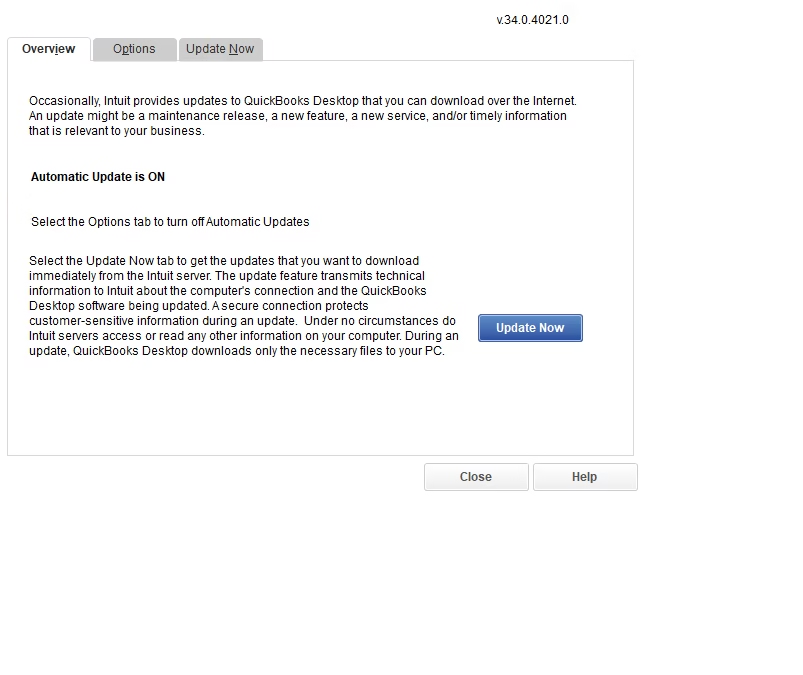
Do not begin with payroll tax table updates if QuickBooks Desktop itself is behind on maintenance releases. Payroll update errors can occur when program components are not current enough to process the newest payroll files correctly.
- Open QuickBooks Desktop.
- Select Help.
- Choose Update QuickBooks Desktop.
- Install the latest available program release.
- Restart QuickBooks Desktop after the update completes.
Why this matters: Payroll updates depend on QuickBooks Desktop components. If the program update is incomplete, the payroll update may fail even if your subscription is active.
What should happen: QuickBooks should reopen without continuing to prompt for the same program update.
If it does not work: Close QuickBooks completely and reopen it using Windows administrator permissions. If program updates still fail, you may need to use QuickBooks Tool Hub later in the process.
Step 2: Download the Entire Payroll Update
After QuickBooks Desktop is current, download the full payroll update rather than relying on a partial or incremental update file.
- Open the affected company file in QuickBooks Desktop.
- Go to Employees.
- Select Get Payroll Updates.
- Select Download Entire Update.
- Choose Download Latest Update.
Why this matters: A partial update may not replace all payroll tax table components. Downloading the entire update gives QuickBooks a cleaner chance to install the current tax table.
Expected result: QuickBooks should show a confirmation message after the payroll update finishes. You should also be able to see the installed tax table version from the payroll update window.
If Error PS058 returns: Do not keep clicking download repeatedly without changing anything. Move to subscription and permissions checks.
Step 3: Verify Your Payroll Subscription
A payroll update can fail if QuickBooks cannot confirm that the company file is linked to an active Desktop Payroll subscription. This is especially worth checking if billing information changed, the payroll service was recently renewed, or the company file was moved to another computer.
- In QuickBooks Desktop, go to Employees.
- Select My Payroll Service.
- Choose Account/Billing Information or Manage Service Key, depending on what appears in your version.
- Confirm that the payroll subscription or service key information is active and associated with the correct company file.
Why this matters: QuickBooks Desktop Payroll uses subscription and service key information to authorize payroll features and updates. If that link is broken or out of sync, the tax table download may not install correctly.
If you cannot access billing or service information: You may need the Primary Admin or an authorized payroll account contact. Do not guess at service key changes if you are not sure which subscription belongs to the company file.
Step 4: Run QuickBooks Desktop as Administrator
Windows permissions can prevent QuickBooks from updating program files, registering components, or applying payroll update files correctly.
- Close QuickBooks Desktop.
- Right-click the QuickBooks Desktop icon.
- Select Run as administrator.
- Open the company file.
- Try Employees > Get Payroll Updates again.
Why this matters: Even if you are signed in as the QuickBooks Admin user, Windows may still restrict program-level changes unless QuickBooks is run with administrator permissions.
If this fixes the problem: Make a note of it. You may need your Windows administrator to adjust permissions for users who regularly maintain payroll updates.
Step 5: Check the Company File with Verify Data
If the program is updated, the payroll subscription is active, and permissions look correct, the next question is whether the issue is tied to the company file itself. QuickBooks includes utilities for checking and repairing certain company file data problems.
Before using repair utilities, create a current backup of the company file. This is not optional. Rebuild Data changes the file, and you need a recovery point if something unexpected happens.
- Open the company file as the QuickBooks Admin user.
- Go to File.
- Select Utilities.
- Choose Verify Data.
Why this matters: Verify Data checks for data integrity problems that may interfere with payroll functions or updates.
Expected result: QuickBooks either reports that no problems were found or identifies that data damage exists.
If QuickBooks finds data damage: Back up the company file, then run File > Utilities > Rebuild Data. After Rebuild completes, run Verify Data again to confirm whether the issue was resolved.
Professional warning: Do not run Rebuild Data casually on a file with known reporting issues, payroll problems, or heavy historical activity without a backup. Rebuild can help, but it is not a substitute for a proper file review when data damage is significant.
Step 6: Test Whether the Issue Is File-Specific
If you have access to more than one company file, testing can save time. The goal is to determine whether PS058 is caused by the specific company file or by QuickBooks/Windows on the computer.
| Test Result | Likely Direction | What to Focus On |
|---|---|---|
| Payroll updates work in a sample or other company file | File-specific issue | Company file data, payroll subscription link, service key, or file permissions |
| Payroll updates fail in every company file | Program, Windows, or network issue | QuickBooks installation, Tool Hub, administrator rights, firewall, antivirus, or Intuit connectivity |
This step is especially useful for bookkeepers or payroll administrators who manage multiple company files. It helps avoid unnecessary file repair when the real issue is a damaged QuickBooks installation or blocked network connection.
Step 7: Use QuickBooks Tool Hub for Program Problems
If QuickBooks behaves unusually, program updates fail, or PS058 appears across multiple company files, QuickBooks program components may need repair. Intuit provides QuickBooks Tool Hub for common Desktop program, company file, network, and installation problems.
Close QuickBooks Desktop completely before running Tool Hub. Then use Quick Fix my Program to close background QuickBooks processes and perform a quick repair of program components.
Why this matters: Payroll update errors are not always caused by payroll data. If Desktop components are damaged or stuck in the background, QuickBooks may not be able to complete the update installation.
If Quick Fix my Program does not resolve PS058: Continue to the next step or contact support if payroll deadlines are close.
Step 8: Run reboot.bat to Re-Register QuickBooks Files
The reboot.bat file is a QuickBooks Desktop batch file used to re-register QuickBooks program files in Windows. This is a more technical step than downloading updates or checking the subscription, so it should be used after the simpler fixes have failed.
You can locate reboot.bat in the QuickBooks installation folder. Run it with appropriate Windows administrator permissions, then restart QuickBooks Desktop and try the payroll update again.
Why this matters: If Windows does not properly recognize certain QuickBooks program files, payroll update installation can fail even when the tax table download itself is valid.
Be careful: Do not rename, delete, or manually edit QuickBooks installation files while searching for reboot.bat. If you are not comfortable working in program folders, get help rather than risking damage to the installation.
Step 9: Check Security Software and Internet Access
QuickBooks Desktop must be able to connect to Intuit services to download payroll updates. If your internet connection is unstable or security software blocks the connection, PS058 may appear during or after the download attempt.
Check for:
- Unstable internet connection
- Firewall rules blocking QuickBooks Desktop
- Antivirus software interfering with update downloads
- Company network restrictions
- Proxy or administrative restrictions managed by an IT provider
If you are on a managed business network, do not make firewall changes without approval. Your Windows or network administrator may need to review QuickBooks Desktop access to Intuit update services.
How to Confirm PS058 Is Fixed
Do not assume the problem is fixed simply because the error message disappeared once. Confirm the payroll update and test payroll calculations before submitting payroll.
| Check | How to Verify | Expected Result |
|---|---|---|
| QuickBooks Desktop release | Press F2 in QuickBooks Desktop | The product information window shows the current release level |
| Payroll subscription | Employees > My Payroll Service | The subscription or service key shows active |
| Payroll tax table | Employees > Get Payroll Updates | The latest tax table downloads successfully |
| Company file integrity | File > Utilities > Verify Data | No unresolved data errors remain |
| Payroll calculation | Preview a sample paycheck | Taxes calculate as expected before payroll is submitted |
If you are not sure whether the installed tax table version is current, compare the version shown in QuickBooks with the current Intuit payroll tax table release information available through QuickBooks support resources.
Common Mistakes to Avoid
- Running payroll before confirming the tax table update. This can lead to incorrect withholding or employer payroll tax calculations.
- Troubleshooting PS058 in QuickBooks Online Payroll. PS058 is a Desktop Payroll error, not an Online Payroll error.
- Skipping the Desktop program update. Payroll updates may fail when the QuickBooks release is outdated.
- Ignoring payroll subscription status. An inactive or unsynced subscription can block updates even if the software is installed correctly.
- Running Rebuild Data without a backup. Always create a current backup before file repair.
- Using a non-admin Windows profile. Payroll updates and repairs may require elevated permissions.
- Manually editing payroll tax table files. QuickBooks payroll calculations depend on Intuit-provided updates. Do not attempt to change tax table files yourself.
When to Contact Support or Get Professional Help
Standard troubleshooting can resolve many PS058 cases, but there are situations where continuing on your own may create more risk than benefit.
Get help if:
- Payroll is due soon and the tax table will not update
- Verify Data reports unresolved company file problems
- PS058 appears in multiple company files after program updates
- You are using Assisted Payroll or direct deposit and deadlines are close
- You do not have access to the payroll account administrator or service key information
- Security software or network settings require IT-level access
- You are unsure whether Rebuild Data is safe for your file
For subscription authorization issues, Intuit QuickBooks Desktop Payroll support may need to review the payroll account. For company file damage, repeated Desktop errors, or cleanup concerns, professional QuickBooks assistance can help you isolate the issue and avoid unnecessary changes to the file.
Key Takeaways
- QuickBooks Payroll Error PS058 is a QuickBooks Desktop Payroll update error, usually tied to payroll tax table download or installation.
- Update QuickBooks Desktop before downloading the payroll tax table.
- Use Download Entire Update from the payroll update window.
- Confirm your Desktop Payroll subscription is active and properly linked to the company file.
- Run QuickBooks with Windows administrator permissions when installing updates or repairs.
- Back up the company file before using Rebuild Data.
- Do not run payroll until the latest tax table is installed and a sample paycheck calculates correctly.
FAQ
What is QuickBooks Payroll Error PS058?
PS058 is a QuickBooks Desktop Payroll update error that can occur while downloading or installing payroll tax table updates. It usually means QuickBooks could not complete the payroll update process.
Does PS058 affect QuickBooks Online Payroll?
No. PS058 applies to QuickBooks Desktop Payroll. QuickBooks Online Payroll uses a different update process and does not use PS-series Desktop payroll update errors.
Can I run payroll if PS058 appears?
It is not recommended. If the latest payroll tax table is not installed, employee withholding, employer taxes, wage limits, or other payroll calculations may be outdated.
Why should I update QuickBooks Desktop before payroll updates?
Payroll tax table updates rely on QuickBooks Desktop program components. If the Desktop release is outdated, QuickBooks may not install the payroll update correctly.
What does Download Entire Update do?
Download Entire Update tells QuickBooks to download the full payroll update instead of relying on partial update files. This can help when a previous payroll update was incomplete or corrupted.
Should I run Rebuild Data for PS058?
Only run Rebuild Data if Verify Data identifies company file damage, and always create a current backup first. Rebuild Data is a repair tool, not a general first step for every payroll update error.
What if my payroll subscription is active but QuickBooks still shows an error?
The issue may be related to the service key link, company file data, QuickBooks program components, Windows permissions, or network access. If subscription information looks correct but PS058 continues, further troubleshooting is needed.
When should I contact Intuit Payroll support?
Contact Intuit Payroll support if the error appears to involve payroll subscription authorization, account billing, service key validation, or if standard troubleshooting fails before a payroll deadline.
Conclusion
QuickBooks Payroll Error PS058 is frustrating because it often appears right when payroll needs to be processed. The safest fix is to work in order: update QuickBooks Desktop, download the entire payroll update, confirm the payroll subscription, run QuickBooks as administrator, then check for company file or program damage if the error continues.
Do not skip verification. After the update completes, confirm the tax table version, run Verify Data if needed, and preview a sample paycheck before submitting payroll. That extra check can prevent payroll tax calculation problems that are harder to correct later.
Need Expert Help with QuickBooks?
If QuickBooks Payroll Error PS058 keeps returning, Databrax can help you review the issue, troubleshoot QuickBooks Desktop Payroll, check for company file problems, and determine whether the error is tied to updates, permissions, subscription status, or data damage. If payroll deadlines are close, getting experienced QuickBooks support can help you avoid repeated failed fixes and reduce the risk of processing payroll with outdated tax tables.