
Quick Answer
QuickBooks Payroll Error PS036 usually appears in QuickBooks Desktop when the program cannot verify an active payroll subscription. It commonly happens during payroll tax table updates and may block payroll updates until the subscription, service key, EIN, QuickBooks Desktop release, or payroll validation file is corrected.
The safest fix is to confirm that your QuickBooks Desktop Payroll subscription is active, verify the payroll service key and EIN, update QuickBooks Desktop, download the full payroll tax table update, and then repair the company file only if the error continues.
Do not process payroll with outdated tax tables. Payroll taxes, deductions, filings, and forms may calculate incorrectly if the payroll update did not install successfully.
Table of Contents
What Is QuickBooks Payroll Error PS036?
QuickBooks Payroll Error PS036 is a QuickBooks Desktop Payroll error connected to payroll subscription verification. It is not a QuickBooks Online Payroll error code.
In practical terms, QuickBooks Desktop is trying to confirm that your company file is connected to a valid, active Desktop Payroll subscription. If that check fails, QuickBooks may stop the payroll tax table update. In some cases, payroll features may also become difficult to access until the subscription issue is resolved.
This matters because payroll tax table updates are not optional maintenance. They help QuickBooks calculate payroll taxes, deductions, and payroll forms using current payroll data. If the update fails right before a payroll run, the business may face delays, incorrect checks, or payroll tax compliance problems.
Common Causes of QuickBooks Payroll Error PS036
PS036 is not always caused by one single problem. It can be triggered by subscription, company file, product update, or connection issues. Start with the checks that are least risky before moving to file repair steps.
| Possible Cause | Why It Triggers PS036 | What to Check First |
|---|---|---|
| Inactive payroll subscription | QuickBooks cannot validate payroll access if billing, cancellation, or account status prevents the subscription from showing active. | Open Account/Billing Information under My Payroll Service. |
| Incorrect service key | The company file may be connected to the wrong payroll agreement or an expired key. | Review Manage Service Key in QuickBooks Desktop. |
| EIN mismatch | The EIN in the company file must match the EIN tied to the payroll subscription. | Confirm the company file EIN against the payroll account records. |
| Outdated QuickBooks Desktop release | An older release may not communicate correctly with payroll update services. | Install the latest QuickBooks Desktop release before updating payroll. |
| Damaged Paysub.ini file | This payroll subscription validation file can prevent QuickBooks from confirming payroll status. | Rename the file according to Intuit guidance, then retry the update. |
| Company file damage | Data integrity problems can interfere with payroll settings or update validation. | Run Verify Data and Rebuild Data after backing up the file. |
| Internet or security restriction | QuickBooks needs to reach Intuit payroll servers to validate and update payroll. | Check internet stability, firewall rules, and security software restrictions. |
Before You Start Troubleshooting
Payroll troubleshooting can affect sensitive company and employee data. Before changing payroll settings, use the right access level and protect the file.
- Use QuickBooks Desktop, not QuickBooks Online. PS036 applies to QuickBooks Desktop Payroll.
- Sign in as the QuickBooks company file admin. Payroll subscription and service settings may not be available to standard users.
- Use Windows admin rights when needed. Product updates and payroll system file changes may require administrator permission.
- Create a company file backup. Back up before running Verify Data, Rebuild Data, or making payroll-related changes.
- Confirm you are using a supported QuickBooks Desktop version. Payroll tax table updates require an active payroll subscription and a supported Desktop product.
- Use a stable internet connection. Payroll subscription validation depends on communication with Intuit services.
How to Fix QuickBooks Payroll Error PS036
Work through these steps in order. Do not jump straight to renaming payroll files or rebuilding data if the issue is simply an inactive subscription or outdated QuickBooks release.
1. Open the Company File as the Admin User
Start by opening the affected company file in QuickBooks Desktop and signing in as the admin user. This matters because payroll service settings, billing information, and service key management may be restricted.
If you are signed in with a limited user profile, you may see incomplete options or be unable to refresh payroll subscription information. If you do not know the admin credentials, do not guess repeatedly. Get the correct credentials from the company file administrator.
2. Verify the Payroll Subscription Status
In QuickBooks Desktop, go to Employees, select My Payroll Service, then choose Account/Billing Information. If QuickBooks prompts you to sign in, use the Intuit account connected to the payroll subscription.
Why this helps: Opening the payroll billing screen can refresh the subscription status with Intuit. If the subscription is inactive because of billing, cancellation, or account issues, QuickBooks may continue showing PS036 until the account is corrected.
Expected result: The payroll subscription should show as active. If it does not, resolve the billing or account status issue before continuing with payroll updates.
3. Confirm the Payroll Service Key
Go to Employees, select My Payroll Service, then choose Manage Service Key. Review the service key connected to the company file.
The service key links the company file to a specific payroll subscription. If the key is expired, typed incorrectly, or tied to a different company or payroll agreement, QuickBooks may not be able to validate payroll.
Do not change the service key unless you have confirmed the correct payroll account information. Changing it to the wrong key can create more validation problems, especially if the business has had multiple payroll agreements.
Expected result: The service key should be active and should match the payroll subscription for this company file.
4. Check the EIN in the Company File
The EIN in QuickBooks should match the EIN registered with the payroll subscription. If the EIN does not match, QuickBooks may treat the company file as unrelated to the payroll account.
Be careful here. Do not change the EIN just to test whether the error disappears. The EIN is a legal tax identifier, and changing it incorrectly can create payroll reporting and filing problems. If the EIN is legally wrong in the company file, correct it only after confirming the correct payroll account details.
Expected result: The EIN in the company file should match the EIN associated with the active QuickBooks Desktop Payroll subscription.
5. Update QuickBooks Desktop Before Updating Payroll
Go to Help, then select Update QuickBooks Desktop. Install the latest available QuickBooks Desktop release. After the update finishes, restart QuickBooks Desktop and allow any prompted update installation to complete.
Why this step comes before payroll updates: Payroll updates rely on the Desktop program communicating correctly with Intuit payroll services. If the QuickBooks Desktop release is outdated, payroll tax table updates may fail even when the subscription itself is active.
If the company file has trouble opening, you may be able to run QuickBooks Desktop updates from the No Company Open window.
Expected result: QuickBooks Desktop should reopen without update prompts that still need to be completed.
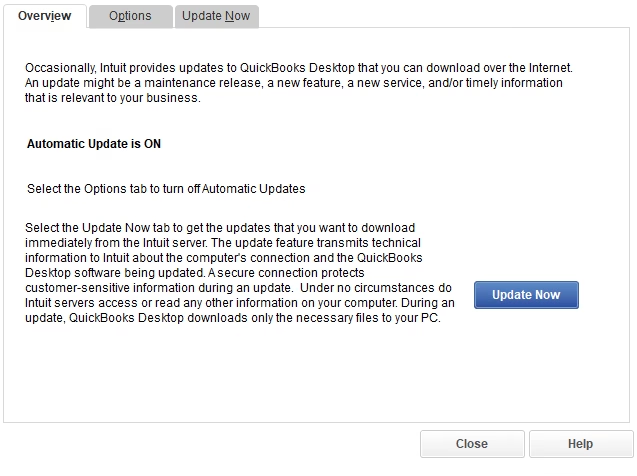
6. Download the Full Payroll Tax Table Update
After updating QuickBooks Desktop, go to Employees, select Get Payroll Updates, check Download Entire Update, then select Download Latest Update.
Why this helps: A partial or damaged payroll update may continue causing problems. Choosing the full update gives QuickBooks a better chance to replace incomplete payroll tax table files.
Expected result: QuickBooks should download the payroll tax table update and display a confirmation message when the update completes.
If PS036 appears again, do not process payroll yet. Continue to the next step.
7. Rename the Paysub.ini File If Subscription Validation Still Fails
If the subscription is active, the service key is correct, the EIN matches, and the full payroll update still fails, the payroll subscription validation file may be damaged. QuickBooks Desktop uses a file commonly referred to as Paysub.ini as part of payroll subscription validation.
Close QuickBooks Desktop before working with this file. Use Windows administrator permissions if required. Follow Intuit guidance for locating and renaming the file. The important point is to rename the file, not delete it. Renaming allows QuickBooks to recreate subscription validation data when it opens again.
Why renaming is safer than deleting: Renaming preserves the original file in case you need to reverse the change or support needs to review what happened. Deleting removes that fallback.
After renaming the file, reopen QuickBooks Desktop and try downloading the payroll update again.
Expected result: QuickBooks should recreate payroll subscription validation data and allow the payroll update if the local validation file was the cause.
8. Run Verify Data and Rebuild Data If the Error Remains
If PS036 continues after subscription, service key, EIN, product update, and Paysub.ini checks, the company file may have data damage that affects payroll validation or update processing.
Before running repair tools, create a current backup of the company file. Then use File, select the appropriate utility options, and run Verify Data. If QuickBooks reports data problems, run Rebuild Data.
Why this step is later in the process: Data repair is useful, but it should not be the first fix for a payroll subscription error. Many PS036 cases are caused by subscription status, service key, EIN, or product update issues. Repairing data before checking those items can waste time and create unnecessary risk.
Expected result: Verify Data should return no remaining company file integrity errors after repair.
How to Confirm QuickBooks Payroll Error PS036 Is Fixed
Do not stop troubleshooting just because the error message disappears once. Confirm that payroll is actually ready before processing checks or direct deposits.
| Check | How to Verify | Good Result |
|---|---|---|
| Payroll subscription | Open Account/Billing Information under My Payroll Service. | Status shows active. |
| Service key | Review Manage Service Key. | Key is active and tied to the correct payroll account. |
| EIN | Compare company file EIN with payroll subscription records. | EINs match. |
| QuickBooks release | Run Update QuickBooks Desktop and complete all prompts. | No pending Desktop update remains. |
| Payroll tax table | Use Get Payroll Updates with Download Entire Update selected. | Payroll update confirmation appears. |
| Payroll access | Open employee records, payroll items, and scheduled payrolls. | Payroll data is accessible. |
| Company file integrity | Run Verify Data if file damage was suspected. | No remaining integrity errors are reported. |
Common Mistakes That Make PS036 Worse
Some troubleshooting actions can create more payroll problems than they solve. Avoid these common mistakes:
- Processing payroll before the latest tax table is installed. This can cause incorrect payroll tax calculations.
- Updating payroll before updating QuickBooks Desktop. The Desktop program update should come first.
- Using a non-admin QuickBooks user. Payroll service settings may not refresh or save properly.
- Changing the EIN without confirming the legal and payroll account details. EIN mistakes can affect payroll reporting.
- Deleting payroll system files. Rename files only when the step is documented and appropriate.
- Skipping the backup before data repair. Always protect the file before running Verify Data or Rebuild Data.
- Assuming this is a QuickBooks Online Payroll issue. PS036 is tied to QuickBooks Desktop Payroll.
- Using an unsupported Desktop version for payroll. Payroll updates require supported software and an active subscription.
When You Should Contact Intuit or Get Professional QuickBooks Help
Some PS036 problems are account-level issues, not local company file issues. If QuickBooks shows the subscription as inactive even though billing appears current, or if multiple payroll agreements exist on the account, Intuit QuickBooks Payroll support may need to correct the payroll account linkage.
Professional QuickBooks help also makes sense when the company file shows data damage, payroll deadlines are close, or the same error returns after the standard checks. Repeated trial-and-error changes can make payroll settings harder to untangle, especially when service keys, EINs, payroll items, or direct deposit agreements are involved.
From a bookkeeping and payroll compliance perspective, the goal is not just to clear the error. The goal is to confirm that payroll is connected to the correct company, using the correct subscription, with current tax tables before payroll is processed.
Best Practices to Prevent Payroll Update Problems
- Update QuickBooks Desktop before running payroll tax table updates.
- Check payroll subscription status before payroll due dates, not on the morning payroll must be submitted.
- Keep the legal business name, EIN, and payroll service key consistent with the Intuit payroll account.
- Use Download Entire Update when correcting payroll tax table issues.
- Back up the company file before payroll troubleshooting or data repair.
- Run Verify Data periodically, especially if you notice recurring payroll or company file errors.
- Resolve payroll billing and subscription issues promptly to avoid payroll filing delays.
FAQ
What does QuickBooks Payroll Error PS036 mean?
It usually means QuickBooks Desktop cannot verify an active payroll subscription. The error often appears when downloading payroll tax table updates.
Does PS036 happen in QuickBooks Online Payroll?
No. PS036 is associated with QuickBooks Desktop Payroll. QuickBooks Online Payroll uses a different system and does not use this Desktop payroll error code.
Can I run payroll if PS036 appears?
You should not run payroll until the payroll update issue is resolved and the current payroll tax table is installed. Outdated payroll tax tables can cause incorrect tax calculations and payroll forms.
Why is my payroll subscription active but PS036 still appears?
The issue may be caused by an incorrect service key, EIN mismatch, damaged Paysub.ini file, outdated QuickBooks Desktop release, company file damage, or a payroll account linkage issue that requires Intuit support.
Should I delete the Paysub.ini file?
No. If this step is appropriate, rename the file according to Intuit guidance rather than deleting it. Renaming gives QuickBooks a chance to recreate the validation file while preserving the original.
Do I need admin rights to fix PS036?
You should sign in as the QuickBooks company file admin before changing payroll service settings. Some update or file-related steps may also require Windows administrator permissions.
What if QuickBooks will not update before I download payroll updates?
Try updating QuickBooks Desktop from the No Company Open window if the company file is causing trouble. If updates still fail, check internet access, security software restrictions, and Windows permissions.
When should I stop troubleshooting and ask for help?
Get help if payroll deadlines are close, the subscription cannot be validated, multiple payroll agreements exist, Verify Data reports file damage, or the error returns after the standard fixes.
Key Takeaways
- QuickBooks Payroll Error PS036 is a QuickBooks Desktop Payroll subscription verification error.
- Start by checking payroll subscription status, service key, and EIN before repairing data.
- Update QuickBooks Desktop before downloading payroll tax table updates.
- Use Download Entire Update to replace incomplete payroll tax table files.
- Do not process payroll until the update completes successfully.
- If subscription or payroll agreement validation fails, Intuit support may need to correct account-level issues.
- If company file damage is involved, professional QuickBooks error resolution can reduce the risk of payroll data problems.
Conclusion
QuickBooks Payroll Error PS036 is usually a sign that QuickBooks Desktop cannot confirm the payroll subscription connected to the company file. In many cases, the fix is straightforward: verify the subscription, confirm the service key and EIN, update QuickBooks Desktop, and download the full payroll update.
If those steps do not resolve the problem, move carefully. Renaming payroll validation files and repairing company data should be done with backups and the right permissions. Payroll errors affect more than software convenience; they can delay paychecks, tax payments, and filings.
Once the error is cleared, confirm that the subscription is active, the tax table update installed, and payroll records are accessible before processing payroll.
Need Expert Help with QuickBooks?
If QuickBooks Payroll Error PS036 is still blocking payroll updates, Databrax can help review the likely cause, check your QuickBooks Desktop payroll setup, troubleshoot company file issues, and guide you through the next safe steps. This is especially useful when payroll deadlines are close, the company file shows data problems, or repeated fixes have not resolved the subscription verification error.