
QuickBooks Payroll Error PS032 usually appears in QuickBooks Desktop Payroll when the program cannot download, read, or install the latest payroll tax table update. In practical terms, QuickBooks is telling you that something is blocking payroll update files from completing correctly.
This matters because payroll tax tables affect payroll calculations, wage limits, supported tax forms, and related payroll updates. If the tax table is outdated, payroll may calculate incorrectly. Do not process payroll until you confirm that the latest payroll update has installed successfully.
This guide focuses on QuickBooks Desktop Payroll. PS032 is not a QuickBooks Online Payroll tax table download error because QuickBooks Online Payroll updates are handled differently.
Table of Contents
Quick Answer
To fix QuickBooks Payroll Error PS032, first update QuickBooks Desktop to the latest release, then confirm your payroll subscription is active and that the service key and EIN match the company file. After that, download the entire payroll update from Employees, then Get Payroll Updates. If the error continues, rename the CPS payroll update folder to force QuickBooks to recreate payroll update files, then run Verify Data and Rebuild Data if company file damage may be involved.
What QuickBooks Payroll Error PS032 Means
PS032 is part of the PSXXX family of QuickBooks Desktop Payroll update errors. It generally points to a problem with payroll update files, subscription validation, company file data, or the QuickBooks Desktop installation environment.
The error can show up when you attempt to download or install a payroll tax table update. The cause is not always the same for every business. For example, one company may see PS032 because the payroll subscription is inactive, while another may see it because the local payroll components folder contains damaged update files.
From a troubleshooting perspective, the safest approach is to work from the least invasive checks to the more advanced repair steps. Start with updates and subscription details before renaming folders or repairing company data.
Before You Start
Make these checks before you change payroll files or run repair utilities:
- Use a supported QuickBooks Desktop version. Payroll updates are available only for supported QuickBooks Desktop products.
- Confirm your payroll subscription is active. QuickBooks Desktop Payroll requires an active subscription to download payroll tax table updates.
- Sign in to Windows as an administrator. If possible, run QuickBooks Desktop as administrator while installing updates.
- Use a stable internet connection. Payroll updates are downloaded from Intuit servers, so connection issues can interrupt the process.
- Back up the company file. Create a backup before running Verify Data, Rebuild Data, or other repair steps.
- Do not run payroll yet. Wait until the latest tax table is installed and verified.
Common Causes of PS032
| Possible Cause | Why It Triggers PS032 | What to Check First |
|---|---|---|
| Outdated QuickBooks Desktop release | The payroll update may require a current maintenance release before it can install correctly. | Update QuickBooks Desktop from the Help menu. |
| Inactive payroll subscription | QuickBooks cannot validate access to payroll tax table downloads. | Check subscription status under My Payroll Service. |
| Incorrect service key or EIN | The company file may not be linked to the correct payroll subscription. | Review Manage Service Key and confirm the EIN. |
| Damaged CPS folder files | QuickBooks may be trying to read corrupted payroll update components. | Rename the CPS folder after closing QuickBooks. |
| Company file data damage | Payroll data problems can prevent the update from installing cleanly. | Run Verify Data, then Rebuild Data if needed. |
| Insufficient Windows permissions | QuickBooks may not be allowed to write update files to required folders. | Run QuickBooks as administrator. |
| Security software or firewall interference | Update connections or file changes may be blocked. | Review internet security settings if updates fail repeatedly. |
Step-by-Step Fix for QuickBooks Payroll Error PS032
1. Update QuickBooks Desktop First
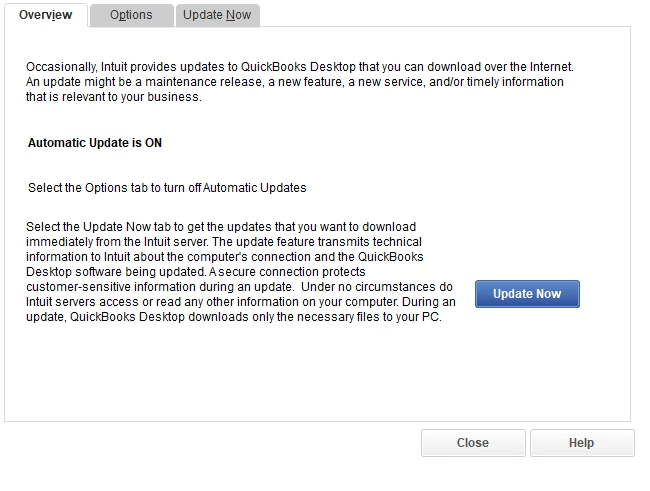
Start with the QuickBooks Desktop program update, not the payroll update. Payroll update problems often continue when the desktop application itself is behind on maintenance releases.
- Open QuickBooks Desktop.
- Select Help.
- Select Update QuickBooks Desktop.
- Go to the Update Now tab.
- If updates have failed before, select Reset Update.
- Select Get Updates.
- After the update downloads, close and reopen QuickBooks Desktop.
- Install the available program update when prompted.
Why this matters: Payroll updates depend on QuickBooks Desktop being able to read and install current update components. If the application is outdated, the payroll tax table update may fail even if your payroll subscription is active.
Expected result: QuickBooks Desktop should reopen without requiring a pending program update.
If it does not work: Run QuickBooks Desktop as administrator and try the update again. If you are on a network or locked-down workstation, Windows permissions may be preventing the update from installing.
2. Confirm Your Payroll Subscription Is Active
After the program update is complete, confirm that QuickBooks recognizes your payroll subscription.
- Open the company file in QuickBooks Desktop.
- Go to Employees.
- Select My Payroll Service.
- Review the payroll subscription status.
Why this matters: QuickBooks Desktop Payroll tax table updates require an active subscription. If billing information is outdated, the subscription is expired, or the company file is not connected properly, the update may fail with PS032 or another PSXXX error.
Expected result: The payroll service should show as active.
If it does not work: Resolve the subscription or billing issue before continuing. Repeatedly downloading tax table updates will not fix PS032 if the payroll service is inactive.
3. Verify the Payroll Service Key and EIN
The service key connects your company file to your QuickBooks Desktop Payroll subscription. If the wrong service key is entered, or if the EIN does not match the payroll subscription, QuickBooks may not install payroll updates correctly.
- Go to Employees.
- Select My Payroll Service.
- Select Manage Service Key.
- Review the payroll service key.
- Confirm that the EIN in the company file matches the payroll subscription.
Why this matters: A service key tied to a different EIN or company file can create payroll access and update problems. This is especially common when a business has multiple entities, multiple company files, or a file restored from backup.
Important warning: Do not share payroll service keys publicly or send them through insecure channels. They are tied to payroll subscription access.
Expected result: The service key and EIN should match the active payroll subscription for the company file you are updating.
4. Download the Entire Payroll Update
Once QuickBooks Desktop is current and the subscription details are correct, download a fresh payroll tax table update.
- Go to Employees.
- Select Get Payroll Updates.
- Select Download Entire Update.
- Select Download Latest Update.
Why this matters: The entire update option downloads a full payroll update package instead of relying on partial update files. When PS032 is caused by incomplete or damaged payroll update files, this step can often resolve the issue.
Expected result: QuickBooks should complete the payroll update and display confirmation that the latest tax table has been installed.
If it does not work: Close QuickBooks completely and continue to the CPS folder step below. Do not keep retrying the same download indefinitely if the error returns each time.
5. Rename the CPS Folder
The CPS folder stores payroll update components used by QuickBooks Desktop. If files in that folder are damaged, QuickBooks may fail when attempting to read or install the payroll update. Renaming the folder forces QuickBooks to recreate fresh payroll update files.
Before you do this: Close QuickBooks Desktop on the workstation. If QuickBooks is open, do not rename payroll component folders.
- Close QuickBooks Desktop.
- Open File Explorer in Windows.
- Locate the QuickBooks payroll components folder. The exact location can vary by QuickBooks Desktop version and installation path, but it is commonly under the QuickBooks program files area in a Components or Payroll folder.
- Find the folder named CPS.
- Rename it to something like CPSOLD or CPS_backup.
- Reopen QuickBooks Desktop.
- Go back to Employees, then Get Payroll Updates.
- Select Download Entire Update and download the latest update again.
Why rename instead of delete? Renaming is safer. It allows QuickBooks to create a new folder while keeping the old files available if you need to review or restore them later.
Expected result: QuickBooks should rebuild the payroll update files and complete the tax table download without PS032.
If it does not work: The issue may be related to company file data, QuickBooks installation problems, Windows permissions, or internet security software.
6. Test Whether the Problem Is Company-File-Specific
If PS032 appears in only one company file, focus on that file’s payroll subscription linkage, EIN, service key, or data condition. If the same error appears in every company file on the workstation, the issue is more likely related to the QuickBooks installation, Windows permissions, update components, or internet access.
A useful diagnostic step is to open a sample company file and attempt the relevant payroll update workflow where available. This can help separate company file problems from workstation-level problems.
Important: Do not process real payroll in a sample file. Use it only for troubleshooting.
7. Run Verify Data and Rebuild Data
If the payroll update still fails after updates, subscription checks, service key verification, and CPS folder repair, check the company file for data damage.
Back up the company file before continuing. Rebuild Data makes repairs to the file, so a current backup is essential.
- Open the affected company file.
- Go to File.
- Select Utilities.
- Select Verify Data.
- If QuickBooks reports data problems, go back to File, then Utilities.
- Select Rebuild Data.
- Follow the prompts to create or confirm a backup.
- After Rebuild Data finishes, run Verify Data again.
Why this matters: Payroll updates rely on data in the company file. If payroll items, employee records, subscription linkage, or related company file data are damaged, the update may not install properly.
Expected result: Verify Data should report no problems after repair. Then retry the payroll update.
If Verify Data continues to report problems: Avoid repeated rebuild attempts without understanding the issue. Continued repairs on a damaged file can create confusion if you do not have a clean backup and a clear recovery plan.
How to Confirm PS032 Is Fixed
Do not assume the issue is resolved just because the error message disappeared once. Confirm the payroll update installed correctly before running payroll.
| Check | How to Verify | Expected Result |
|---|---|---|
| QuickBooks Desktop update | Close and reopen QuickBooks Desktop. | No pending program update is required. |
| Payroll subscription | Review My Payroll Service. | Subscription shows active. |
| Service key and EIN | Review Manage Service Key and company payroll details. | They match the active payroll subscription. |
| Payroll tax table | Open Employees, then Get Payroll Updates. | Latest tax table is installed. |
| Payroll records | Open employee and payroll item records. | Records open without data errors. |
| Company file condition | Run Verify Data after repairs. | QuickBooks reports no problems. |
Common Mistakes to Avoid
- Troubleshooting the wrong product. PS032 applies to QuickBooks Desktop Payroll, not QuickBooks Online Payroll tax table downloads.
- Skipping the QuickBooks Desktop update. Updating payroll without updating the desktop program can leave the underlying issue unresolved.
- Running payroll with an old tax table. This can lead to incorrect tax calculations and filing discrepancies.
- Using the wrong service key. A service key connected to a different EIN or company file can prevent payroll validation.
- Renaming folders while QuickBooks is open. Always close QuickBooks before changing program or payroll component folders.
- Running Rebuild Data without a backup. Backups protect you if the repair does not produce the expected result.
- Ignoring security software. If updates fail across multiple files or workstations, firewall or security settings may be blocking update connections.
Best Practices for Preventing Payroll Update Errors
Payroll update errors are not always preventable, but good maintenance reduces the risk.
- Update QuickBooks Desktop before scheduled payroll runs.
- Download the entire payroll update when troubleshooting PS032 or related PSXXX errors.
- Keep payroll subscription billing, EIN, and service key information current.
- Use a supported QuickBooks Desktop version.
- Run QuickBooks as administrator when installing program or payroll updates.
- Check the payroll tax table version after each successful update.
- Back up the company file before repair steps or major payroll changes.
When Professional Help Makes Sense
Many PS032 cases can be resolved with the steps above. Professional help becomes more valuable when the error keeps returning, affects multiple company files, appears after a file restore, or is accompanied by data verification problems.
It is also worth getting help if you are close to a payroll deadline. Rushed payroll troubleshooting can lead to incorrect tax table use, manual payroll adjustments, or changes that are difficult to unwind later.
From a bookkeeping and payroll compliance perspective, the biggest risk is not the error message itself. The bigger risk is processing payroll before you know the tax table, payroll subscription, employee records, and payroll items are working correctly.
FAQ
What is QuickBooks Payroll Error PS032?
QuickBooks Payroll Error PS032 is a QuickBooks Desktop Payroll update error. It usually means QuickBooks cannot download, read, or install payroll tax table update files.
Does PS032 happen in QuickBooks Online Payroll?
No. PS032 is related to QuickBooks Desktop Payroll tax table downloads. QuickBooks Online Payroll handles payroll updates differently, so this troubleshooting workflow is for QuickBooks Desktop users.
Can I run payroll if PS032 appears?
You should not run payroll until the latest payroll tax table update is installed and verified. Running payroll with an outdated tax table may produce incorrect payroll tax calculations.
Why should I update QuickBooks Desktop before downloading payroll updates?
The payroll update process depends on the QuickBooks Desktop program being current enough to install payroll components correctly. An outdated program release can cause payroll updates to fail.
What is the CPS folder in QuickBooks Payroll?
The CPS folder stores payroll update components used by QuickBooks Desktop. If files in that folder are damaged, renaming the folder can force QuickBooks to recreate fresh payroll update files.
Should I delete the CPS folder?
Renaming the CPS folder is usually safer than deleting it. Renaming lets QuickBooks create a new folder while preserving the old folder in case it needs to be reviewed later.
What if PS032 happens in only one company file?
If the error occurs in only one company file, check that file’s payroll subscription linkage, service key, EIN, and data condition. Company-file-specific errors may require Verify Data, Rebuild Data, or deeper file review.
What if PS032 happens in every company file?
If PS032 appears across multiple company files, look at workstation-level causes such as QuickBooks installation issues, Windows permissions, internet connection problems, security software, or outdated program files.
Do I need an active payroll subscription to fix PS032?
Yes. QuickBooks Desktop Payroll tax table updates require an active payroll subscription. If the subscription is expired or not linked correctly, the update may continue to fail.
Key Takeaways
- PS032 is a QuickBooks Desktop Payroll update error, not a QuickBooks Online Payroll issue.
- Start by updating QuickBooks Desktop before downloading payroll updates.
- Confirm the payroll subscription, service key, and EIN before changing payroll folders.
- Use Download Entire Update when troubleshooting payroll tax table problems.
- Rename the CPS folder only after QuickBooks Desktop is closed.
- Back up the company file before running Verify Data or Rebuild Data.
- Do not process payroll until the latest tax table is installed and verified.
Conclusion
QuickBooks Payroll Error PS032 is usually fixable, but it should be handled carefully because it affects payroll updates and tax table accuracy. Work through the issue in a controlled order: update QuickBooks Desktop, confirm the payroll subscription, verify the service key and EIN, download the entire payroll update, refresh the CPS folder if needed, and repair company data only after backing up the file.
If the error continues after those steps, do not guess your way through payroll changes right before a payroll run. At that point, the issue may involve company file damage, installation conflicts, permissions, or subscription linkage that needs a closer review.
Need Expert Help with QuickBooks?
If QuickBooks Payroll Error PS032 is still preventing payroll updates, Databrax can help review your QuickBooks Desktop setup, payroll subscription linkage, service key details, update process, and company file condition. We provide practical QuickBooks Error Resolution, QuickBooks Support, Cleanup, and data repair guidance so you can get payroll working correctly without risking unnecessary changes to your financial records.