
If your QuickBooks bank feed keeps downloading old transactions, the most important thing is this: do not add them to your books until you know whether they are duplicates. Old bank feed items are often harmless while they are sitting in the review screen, but they can create serious cleanup work if they are added as new expenses, deposits, transfers, or credit card charges.
This problem usually happens after a bank connection refresh, a reconnect, a manual file upload with overlapping dates, a change in the bank’s feed, or an initial setup date that reaches too far back. The fix is usually to review the date range, match legitimate transactions, exclude duplicates, and only reconnect the bank feed after you understand what QuickBooks has already recorded.
Table of Contents
Quick Answer
When QuickBooks downloads old bank transactions, first confirm whether those transactions already exist in your register. If they do, do not add them again. In QuickBooks Online, use the bank transactions area to match valid items or exclude downloaded duplicates. In QuickBooks Desktop, review the Bank Feeds transaction list and use the available match, ignore, or remove option for items that should not be posted. If old transactions were already added, you may need to undo, delete, or clean up the duplicate entries carefully, especially if they affect reconciled periods.
Why QuickBooks Downloads Old Transactions Again
Bank feeds are not a perfect duplicate-control system. QuickBooks receives transaction data from your financial institution or a bank connection provider, then tries to compare that feed data to what is already in the company file. If the downloaded transaction does not line up cleanly with an existing transaction, QuickBooks may show it again for review.
Common reasons include:
- The bank account was recently connected or reconnected. QuickBooks may download a new batch of available transactions from the bank.
- The original connection date went too far back. During setup, QuickBooks may allow you to choose a starting point or may import the date range available from the bank.
- A manual bank file was uploaded with overlapping dates. CSV, QBO, or other bank files can create duplicate feed items if the same period was already downloaded.
- The bank changed transaction IDs or feed formatting. If the bank sends the same transaction with different identifying details, QuickBooks may not recognize it as already downloaded.
- Transactions were deleted, excluded, or undone. Depending on what happened, QuickBooks may show items again because they are not currently posted or matched.
- Rules or auto-add settings posted transactions incorrectly. If a rule added old items automatically, they may already be affecting your books.
- The account was mapped to the wrong QuickBooks account. For example, a credit card feed could be connected to the wrong credit card register.
From a bookkeeping perspective, the risk is not that old items appear in the feed. The risk is adding them again and creating duplicate income, duplicate expenses, incorrect bank balances, and reconciliation differences.
Before You Fix It, Check These Three Things
Do not start deleting or excluding transactions blindly. First, determine what QuickBooks has already recorded.
| Check | Why It Matters | What You Are Looking For |
|---|---|---|
| Bank register | Shows transactions already in the books | Same date, amount, payee, check number, or memo |
| Reconciliation status | Deleting reconciled transactions can break prior reconciliations | Transactions marked as cleared or reconciled |
| Bank feed review list | Shows downloaded items not yet handled | Old dates, duplicate amounts, or repeated batches |
If the old downloaded item is only in the bank feed review list and has not been added, it usually has not affected your financial statements yet. If it was added, matched incorrectly, or posted through a rule, you may need a cleanup step.
How to Fix Old Transactions in QuickBooks Online
QuickBooks Online bank feed screens can vary slightly depending on the current interface. You may see the area labeled Transactions, Bank transactions, or Banking. The overall process is the same: review first, match when appropriate, exclude duplicates, and avoid posting old items as new transactions.
1. Stop adding transactions until you identify the pattern
If you see a large group of old transactions, pause before clicking Add, Confirm, or applying rules in bulk. Adding first and cleaning up later can create unnecessary work.
Look at the dates. Are the downloaded transactions from one old month, the entire previous year, or the same dates as a manual upload? A clear pattern tells you whether this is a one-time overlap, a reconnect issue, or a recurring feed problem.
Expected result: You should know whether the old transactions are a small batch, a large historical download, or repeated duplicates that keep returning after being handled.
2. Compare the downloaded items to the register
Open the relevant bank or credit card register and search for a few of the old transactions. Compare the amount first, then the date, payee, and memo. Bank feed dates can differ by a day or two from the transaction date, especially with card transactions, so do not rely on the date alone.
If the transaction already exists in the register, it should generally be matched or excluded, not added as a new transaction.
What to check if it does not match: Look for differences in amount, split transactions, transfers, checks, payments that were entered manually, or deposits that were grouped differently from the bank feed.
3. Match valid old transactions when they already exist
If QuickBooks finds a likely match, review it before accepting. Matching tells QuickBooks that the downloaded bank item corresponds to a transaction already in the books.
This is commonly appropriate when:
- A check, expense, deposit, payment, or transfer was entered manually before the bank feed downloaded it.
- The amount is the same and the transaction belongs in the same bank or credit card account.
- The date difference is explainable, such as a payment entered on the issue date but cleared a few days later.
Do not force a match just to clear the feed. A wrong match can make the register look cleaner while hiding an accounting problem.
4. Exclude old downloaded items that are duplicates
If the old bank feed transactions are duplicates and should not be posted, exclude them from the review list. In QuickBooks Online, you can usually select the transactions in the bank transactions area and choose the exclude option. Depending on your interface, excluded items may move to an Excluded tab or similar area where they can be reviewed or undone if needed.
Why this matters: Excluding a downloaded bank feed item tells QuickBooks not to add that feed item to the books. It is different from deleting a posted transaction from the register.
Important warning: Excluding is usually safe for duplicate feed items that were never added. Deleting or changing transactions already in the register is different and can affect reports and reconciliations.
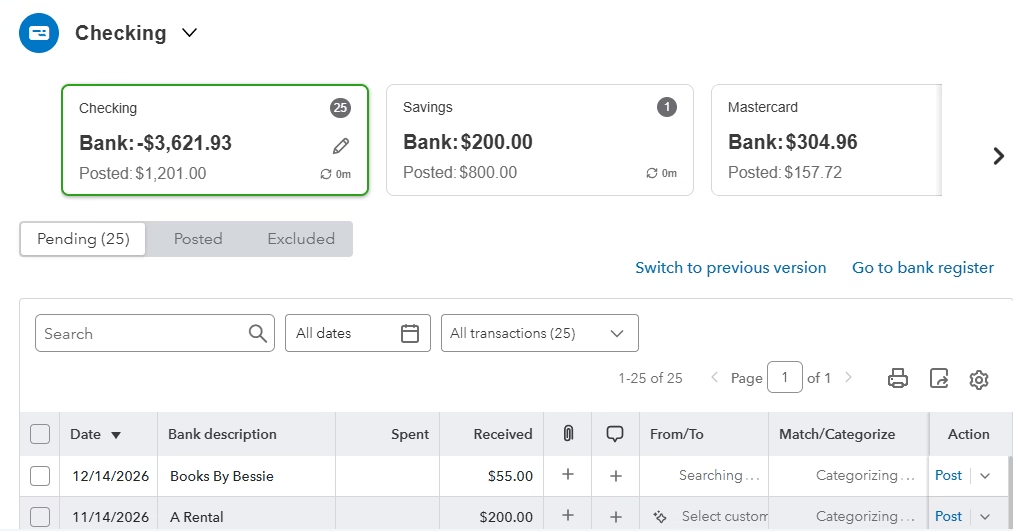
5. Undo transactions that were accidentally added
If old downloaded transactions were already added to the books, review the categorized or reviewed bank feed area. QuickBooks Online commonly provides an Undo option for bank feed actions, but the exact label and behavior can vary. Undoing a bank feed action may remove a transaction that was created from the feed or unmatch a downloaded item from an existing transaction.
Before undoing anything, check whether the transaction has been reconciled, used in a sales tax filing, tied to payroll activity, included in a closed period, or connected to an invoice or bill payment. If it affects prior financial statements, cleanup should be handled carefully.
Expected result: The duplicate should no longer affect the register as a posted transaction. The downloaded item may return to the review list, where you can exclude it if it is not needed.
6. Review bank rules and auto-add settings
If old transactions were added automatically, check your bank rules. A rule that automatically adds transactions can turn a bank feed overlap into dozens or hundreds of duplicate entries.
Temporarily disable auto-add behavior while you are troubleshooting. Rules are helpful when the feed is clean, but they can quickly magnify a duplicate problem.
7. Reconnect only if the feed keeps redownloading the same items
If you exclude the old transactions and the same items keep coming back, the problem may be with the bank connection or the way the bank is sending data. At that point, disconnecting and reconnecting the account may help, but it should not be your first step.
Before disconnecting a bank feed in QuickBooks Online, review any transactions still waiting in the feed. Disconnecting can affect downloaded items that have not been added or matched. Make sure anything important has been handled or documented first.
When reconnecting, be careful with the start date or date range if QuickBooks gives you that option. Choose the date that avoids importing a period already entered or reconciled.
How to Handle Old Bank Feed Transactions in QuickBooks Desktop
QuickBooks Desktop uses Bank Feeds differently from QuickBooks Online, so do not assume the same screens or buttons apply. The exact options can vary by Desktop version and bank connection method.
In general, you should:
- Open the Bank Feeds area for the affected account.
- Review the downloaded transaction list before approving anything.
- Match downloaded items to existing checks, deposits, payments, or transfers when appropriate.
- Use the available ignore, delete, or remove-from-list option for downloaded feed items that should not be posted.
- Check the account register afterward to confirm no duplicate transaction was created.
If the feed is connected to the wrong account, or if the same old transactions continue to download, you may need to deactivate Bank Feeds for that account and set it up again. In QuickBooks Desktop, online service settings are typically managed from the account setup or account edit area, but the exact path depends on your version and connection type.
Important warning: Do not delete posted Desktop transactions simply because they resemble old downloaded bank feed items. First confirm whether they are actual duplicates and whether they have been reconciled.
Not every old transaction is a duplicate. Sometimes QuickBooks downloads old items because the transactions were never entered, the bank account was newly connected, or a prior bookkeeper left gaps in the register.
| Situation | Likely Action | Reason |
|---|---|---|
| Transaction is old but missing from the register | Add or categorize after review | It may be a legitimate missing transaction |
| Transaction already exists with the same amount | Match or exclude | Adding it again would duplicate activity |
| Transaction is part of a reconciled period | Review carefully before changing | Changes may affect prior reconciliations |
| Transaction came from an overlapping CSV or bank file upload | Exclude duplicates | The same period was imported twice |
| Transaction was posted by an incorrect rule | Undo or clean up rule-created entries | The rule may have created wrong accounting records |
A good rule of thumb: if the transaction affects a period that has already been reconciled or reported, slow down. The cost of a wrong cleanup can be greater than the annoyance of old feed items.
What Not to Do
Several common reactions make this problem worse.
- Do not add everything just to clear the feed. A clean bank feed screen does not mean the books are correct.
- Do not delete reconciled transactions without checking the reconciliation impact. This can cause beginning balance changes and unexplained reconciliation differences.
- Do not rely only on the payee name. Bank descriptions change. Match by amount, date range, account, and business context.
- Do not upload a bank file for dates already downloaded. Overlapping imports are one of the easiest ways to create duplicate feed items.
- Do not reconnect repeatedly without reviewing the date range. Reconnecting can download the same historical window again.
How to Verify the Problem Is Fixed
After excluding, matching, undoing, or cleaning up old transactions, verify the result instead of assuming the feed is corrected.
- Check the bank feed review list. Old duplicate items should no longer be waiting for action.
- Open the register. Search for several transaction amounts that appeared in the old feed batch.
- Look for duplicate deposits and expenses. Pay special attention to identical amounts on nearby dates.
- Review the reconciliation screen. Confirm that the beginning balance has not unexpectedly changed.
- Run a profit and loss report for the affected period. Look for unusually high expense or income categories caused by duplicate entries.
- Review bank rules. Make sure automatic rules are not continuing to post old or duplicate transactions.
If your balance sheet, profit and loss, or reconciliation changed after the cleanup, investigate before moving on. The bank feed may look fixed while the accounting records still contain duplicates.
When Professional Help Makes Sense
You may be able to handle a small batch of old downloaded transactions yourself. Professional help is worth considering when the issue affects reconciled periods, a large number of transactions, multiple accounts, or prior-year financial reports.
It is also wise to get help if old transactions were already added and you are not sure which entries are duplicates. Cleanup can be more complicated when payments are linked to invoices, deposits are grouped, transfers appear in two accounts, or credit card payments were categorized as expenses instead of transfers.
Databrax can help with QuickBooks cleanup, bank feed troubleshooting, duplicate transaction review, reconciliation problems, and training on safer bank feed workflows. The goal is not just to clear the bank feed. The goal is to keep the accounting records accurate.
Key Takeaways
- Old bank feed items are not necessarily a problem until they are added, matched incorrectly, or posted through rules.
- Always compare old downloaded transactions to the bank register before adding them.
- Use matching for legitimate existing transactions and exclusion for duplicate feed items that should not enter the books.
- Be very careful with reconciled or closed periods.
- Overlapping manual uploads and reconnecting bank feeds are common causes of repeated old transactions.
- If duplicates were already posted, verify the cleanup with the register, reconciliation screen, and financial reports.
FAQ
Why is QuickBooks showing transactions from months ago?
QuickBooks may show old transactions after a new connection, reconnect, bank feed refresh, or manual file upload. The bank may also provide a historical batch of transactions. Review the items before adding them because many may already exist in the register.
Should I add old bank feed transactions?
Only add old bank feed transactions if they are genuinely missing from your books. If the same transaction already exists in the register, adding it again will usually create a duplicate. Match it if appropriate or exclude it if it is only a duplicate feed item.
Does excluding a transaction delete it from QuickBooks?
Excluding a downloaded bank feed item generally prevents that feed item from being added to the books. It is not the same as deleting a posted transaction from the register. However, you should still review excluded items carefully before removing or ignoring them permanently.
What if I already added the old transactions?
Review the categorized or reviewed bank feed area and the account register. You may need to undo the bank feed action or delete duplicate posted transactions. Be careful with reconciled transactions, closed periods, sales tax, payroll, and linked invoice or bill payments.
Why do excluded transactions come back?
If the same transactions keep returning, the bank may be sending them again, the account may have been reconnected, or the downloaded data may be coming through with different identifiers. Manual uploads with overlapping dates can also make old items reappear.
Can bank rules create duplicate transactions?
Yes. If a rule is set to automatically add transactions and old feed items appear, the rule may post duplicates before you notice. Turn off auto-add behavior while troubleshooting and review rule-created transactions carefully.
Will reconnecting the bank feed fix old transactions?
Sometimes, but reconnecting can also download another historical batch if the date range overlaps. First review and clear the existing feed items. If you reconnect, choose the start date carefully when that option is available.
Can old downloaded transactions affect reconciliation?
Downloaded feed items sitting in review usually do not affect reconciliation until they are added or matched. Once they become posted transactions, duplicates or wrong matches can change the register and create reconciliation differences.
Conclusion
When a QuickBooks bank feed keeps downloading old transactions, the safest approach is to slow down and separate feed clutter from actual accounting activity. Match transactions that already exist, exclude duplicate downloaded items, and clean up anything that was accidentally posted. If the issue touches reconciled periods or large batches of transactions, treat it as a bookkeeping cleanup project, not just a bank feed annoyance.
Need Expert Help with QuickBooks?
If your QuickBooks bank feed keeps downloading old transactions, Databrax can help you review the affected accounts, identify duplicates, clean up incorrectly added transactions, and protect your reconciliations. We can also help troubleshoot recurring bank feed issues and set up a safer workflow so old transactions do not keep creating accounting problems.