
If your QuickBooks bank balance doesn’t match your bank statement, do not assume QuickBooks is wrong and do not force the reconciliation to finish. A mismatch can be normal, especially when checks, payments, or deposits are recorded in QuickBooks but have not cleared the bank yet. It can also point to a real bookkeeping problem, such as a missing transaction, duplicate bank feed entry, changed reconciled transaction, or incorrect opening balance.
The correct fix depends on which balance you are comparing and what statement date you are using. QuickBooks can show more than one balance for the same bank account, and comparing today’s QuickBooks balance to last month’s bank statement balance will almost always create confusion.
Table of Contents
Quick Answer
To troubleshoot a QuickBooks bank balance that does not match the bank statement, compare QuickBooks to the bank statement using the statement ending date and ending balance. Open the correct bank account, review transactions through that statement date, match or add missing bank activity, remove duplicates, confirm prior reconciliations have not changed, and complete the reconciliation only when the difference is zero.
The key is to reconcile by statement period, not by looking only at the current bank balance on the dashboard.
First, Understand Which QuickBooks Balance You Are Looking At
One of the most common reasons users think QuickBooks is wrong is that they are comparing the wrong balances. In QuickBooks Online, for example, you may see a bank feed balance and an “In QuickBooks” balance. These are not the same thing.
| Balance | What It Usually Means | Why It May Not Match |
|---|---|---|
| Bank feed balance | The balance imported from the connected bank feed. | It may reflect recent posted bank activity, but bank feed timing can vary. |
| QuickBooks register balance | The balance based on transactions recorded in the QuickBooks account register. | It includes transactions you entered, matched, added, imported, or adjusted in QuickBooks. |
| Bank statement ending balance | The official balance on the bank statement as of the statement ending date. | It only includes transactions cleared by the bank through that statement date. |
| Reconciled balance | The balance after cleared transactions are matched to the statement during reconciliation. | It can be affected if previously reconciled transactions were changed or deleted. |
From a bookkeeping perspective, the bank statement is the source you reconcile against for a specific period. The goal is not to make every balance on the screen look identical at all times. The goal is to prove that QuickBooks matches the bank’s cleared activity for the statement period.
When a Difference Is Normal
A difference is not always a problem. QuickBooks may include transactions that the bank has not processed yet. These are timing differences.
For example, suppose you mailed a vendor check on March 28 and entered it in QuickBooks the same day. The check does not clear the bank until April 3. Your March bank statement will not include that check, but QuickBooks will. That difference is expected. During the March reconciliation, you would leave that check unchecked because it did not clear by the March statement ending date.
Other normal timing differences include:
- Checks written in QuickBooks that have not cleared the bank
- Deposits recorded in QuickBooks but posted by the bank after the statement date
- Credit card or payment processor deposits that are still in transit
- ACH payments entered before the bank posts them
- Transfers recorded in QuickBooks before the receiving bank account shows the deposit
The issue becomes a problem when the difference is caused by incorrect data rather than timing.
Common Reasons QuickBooks Does Not Match the Bank Statement
Most bank balance differences come from a small group of causes. Work through them in a logical order instead of making random adjustments.
| Problem | What It Looks Like | What to Check |
|---|---|---|
| Wrong account selected | The reconciliation difference is large or unrelated to the statement. | Confirm the QuickBooks account matches the exact bank account on the statement. |
| Wrong statement ending date | Transactions after the statement period appear to affect the comparison. | Use the ending date printed on the bank statement. |
| Wrong ending balance entered | The reconciliation difference equals the amount entered incorrectly. | Re-enter the statement ending balance exactly, including cents. |
| Missing transactions | A bank fee, deposit, payment, check, or interest entry appears on the statement but not in QuickBooks. | Add or match the missing item in the correct account and period. |
| Duplicate transactions | The same bank activity appears twice in QuickBooks. | Look for transactions added from the bank feed instead of matched to existing entries. |
| Changed reconciled transactions | The beginning balance no longer matches the prior reconciliation. | Review prior reconciliation reports and discrepancy reports. |
| Incorrect opening balance | The account has never reconciled cleanly, or the first reconciliation starts wrong. | Review the original opening balance and first statement period. |
Before You Start Troubleshooting
Before making changes, gather the right information. This prevents accidental edits that make the reconciliation harder to fix.
- Have the bank statement with the exact statement ending date and ending balance.
- Make sure you are reviewing the correct bank account in QuickBooks.
- Update connected bank feeds if you use online banking.
- Confirm your QuickBooks user role allows you to view and edit banking transactions if corrections are needed.
- Check whether a closing date has been set. Changes to closed periods may require a password or administrator approval.
- Have prior reconciliation reports available if the beginning balance does not match.
- In QuickBooks Desktop, create a company file backup before making major reconciliation corrections.
Do not start by deleting transactions. Deleting a transaction that was already reconciled can affect prior financial statements, sales tax records, vendor balances, customer balances, and bank reconciliation history.
How to Fix the Difference in QuickBooks Online
The exact layout in QuickBooks Online can vary as Intuit updates the interface, but the reconciliation logic remains the same: compare QuickBooks to the bank statement for the same account and same statement period.
1. Confirm the statement ending date and ending balance
Open the bank statement and write down the statement ending date and ending balance exactly as shown. Include cents. If the bank statement says the period ends on June 30, do not use July 1 or today’s date.
This matters because reconciliation is date-specific. Transactions that cleared after the statement ending date should not be checked in that reconciliation, even if they already appear in QuickBooks.
2. Update the bank feed if the account is connected
In QuickBooks Online, go to Transactions, then Bank transactions. If you use bank feeds, update the connected account before reviewing downloaded transactions.
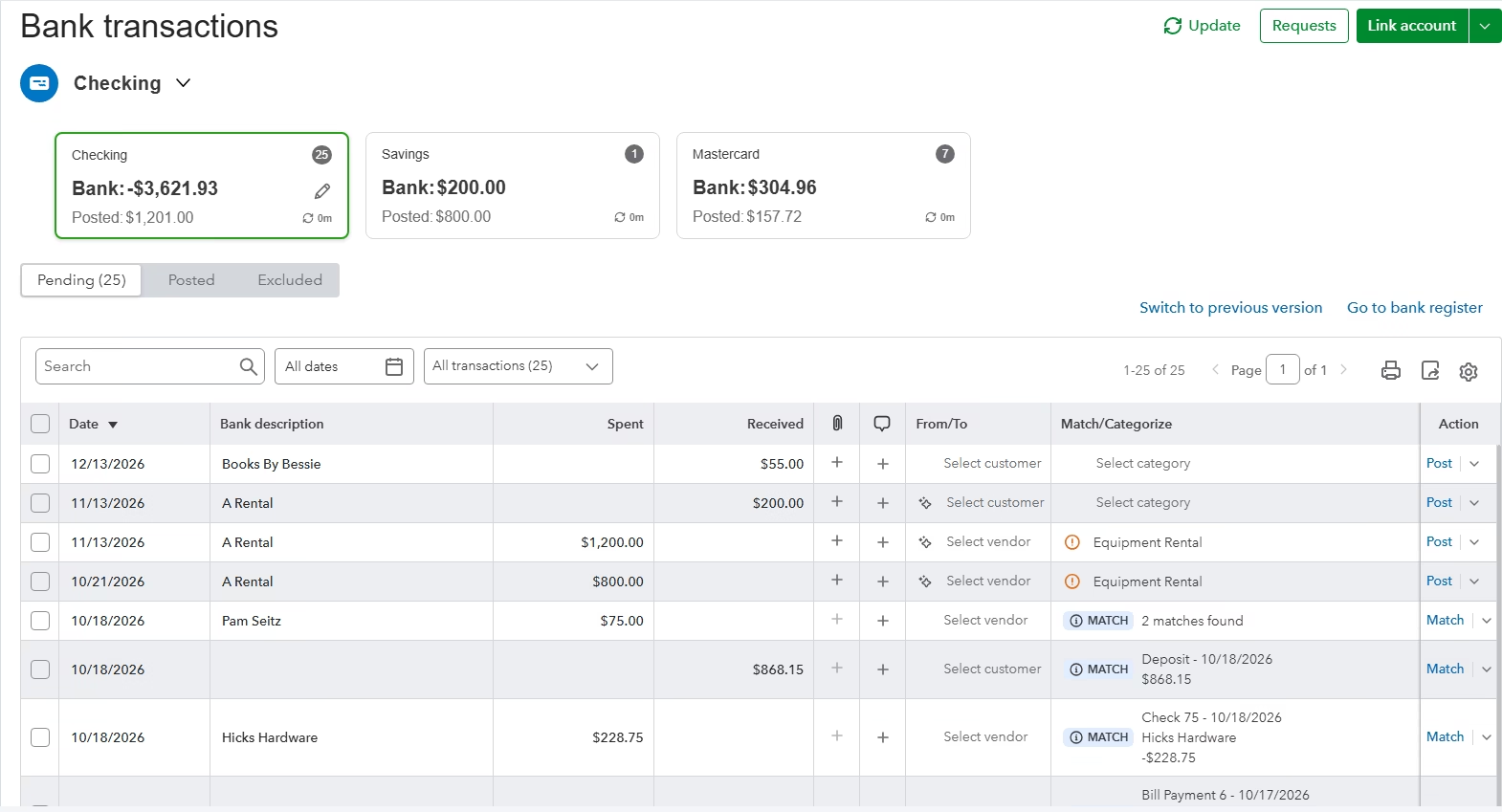
After updating, compare the bank feed balance and the balance shown in QuickBooks. If the bank feed balance is current but the QuickBooks balance is off, the issue is probably in the register, bank feed matching, or reconciliation status.
3. Open the bank account register
Go to Accounting, then Chart of accounts, and open the register for the bank account you are reconciling. Review transactions dated on or before the statement ending date.
Look for:
- Transactions with the wrong date
- Amounts that do not match the bank statement
- Duplicate deposits or expenses
- Transfers posted to the wrong bank account
- Missing bank fees or interest
- Old uncleared checks or deposits
Pay close attention to transactions downloaded from bank feeds. A common mistake is adding a downloaded transaction when QuickBooks already has the original transaction. That creates a duplicate. In many cases, the correct action is to match the bank feed item to the existing QuickBooks transaction instead of adding it again.
4. Start the reconciliation with the correct account
Go to Settings, then Reconcile. Select the correct bank account. Enter the statement ending balance and ending date exactly as shown on the bank statement.
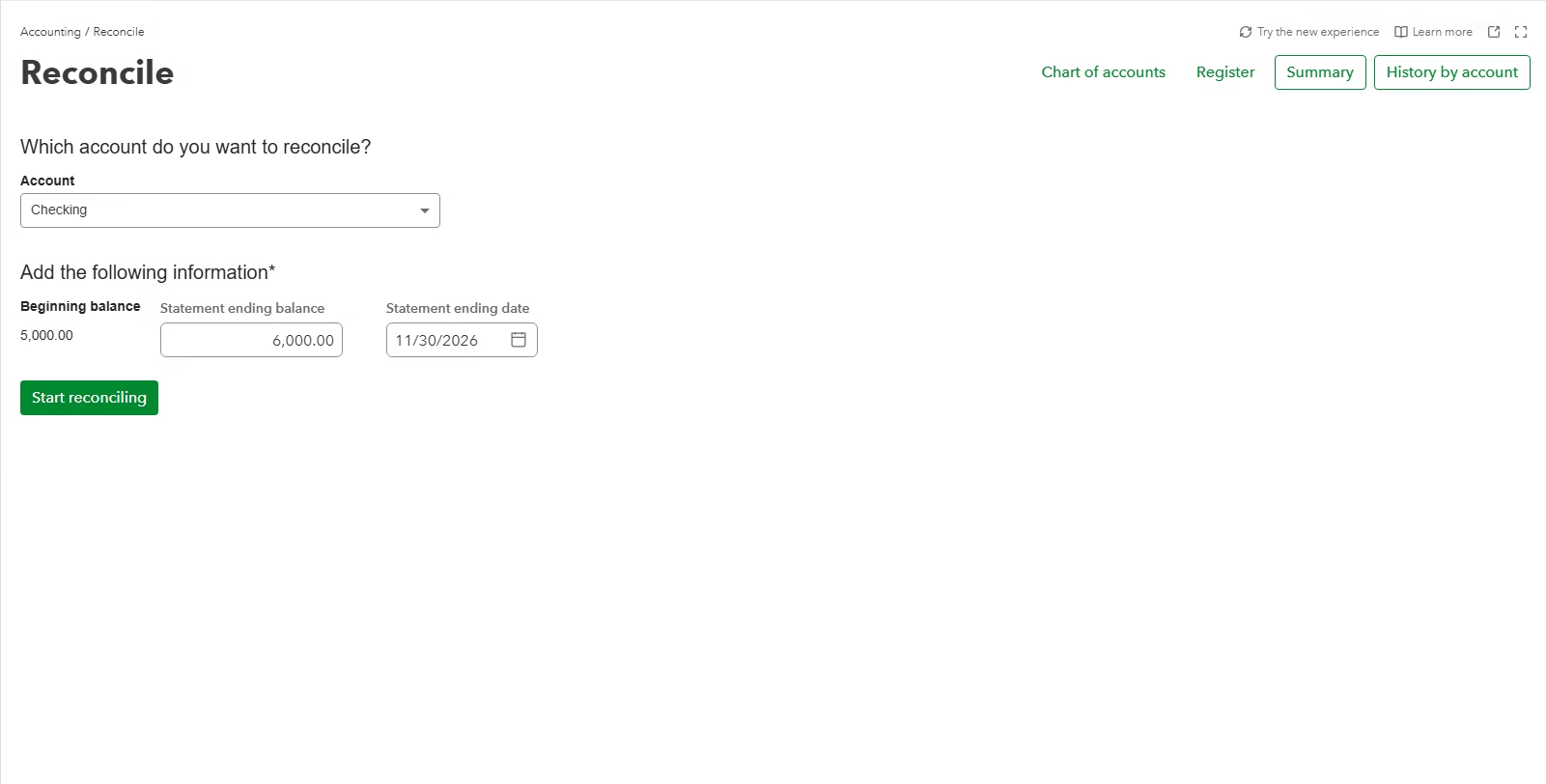
If the beginning balance does not match the previous reconciliation ending balance, stop and investigate before checking current transactions. A beginning balance problem usually means something changed in a prior reconciled period.
5. Check only transactions that appear on the bank statement
In the reconciliation screen, mark only the transactions that cleared the bank during the statement period. If a QuickBooks transaction is dated within the period but does not appear on the statement, leave it unchecked.
This is where many reconciliation errors happen. Users sometimes check every visible transaction because they assume the date is enough. The bank statement is the controlling document. If the item did not clear the bank by the statement ending date, it should not be checked for that period.
6. Add missing bank activity
If the bank statement shows a transaction that is not in QuickBooks, add it carefully. Common missing items include monthly service charges, interest earned, automatic loan payments, merchant fees, ACH payments, and bank transfers.
Use the correct transaction type and account coding. For example, bank service charges should typically be recorded as an expense to an appropriate bank fees account, not as a random adjustment to opening balance equity.
7. Investigate duplicates before deleting anything
If the same bank activity appears twice, determine which entry is correct. One transaction may be the original check, bill payment, sales receipt, deposit, or transfer. The duplicate may have been added from the bank feed later.
Before deleting or voiding, check whether either transaction has been reconciled, linked to an invoice or bill, included in a deposit, or used in a prior report. If the duplicate is in a closed period, get approval before changing it.
8. Review reconciliation discrepancies if prior activity changed
If the beginning balance is wrong, use a reconciliation discrepancy report or review prior reconciliation reports to identify changed, deleted, or unreconciled transactions. The problem may not be in the current month at all.
Examples include:
- A reconciled check was deleted
- A reconciled deposit amount was edited
- A transaction was changed from reconciled to uncleared
- A transaction was moved to a different bank account
- A prior-period transaction date was changed
Correcting prior reconciled activity requires care because it can alter historical reports. If the period is closed, do not override the closing date without understanding the accounting impact.
9. Finish only when the difference is zero
When all cleared transactions are checked and missing items are entered, the reconciliation difference should be zero. If the difference is not zero, save the reconciliation for later and investigate.
Do not complete a reconciliation with a difference just to get past the screen. A forced reconciliation adjustment may hide the real problem, and the issue can resurface later in financial reports or future reconciliations.
How to Fix the Difference in QuickBooks Desktop
QuickBooks Desktop uses a different interface, but the troubleshooting approach is similar. Before making significant changes, create a backup of the company file. This is especially important if you need to edit prior reconciled transactions.
1. Open the Reconcile window
Go to Banking, then Reconcile. Select the correct bank account, then enter the statement date and ending balance exactly as shown on the bank statement.
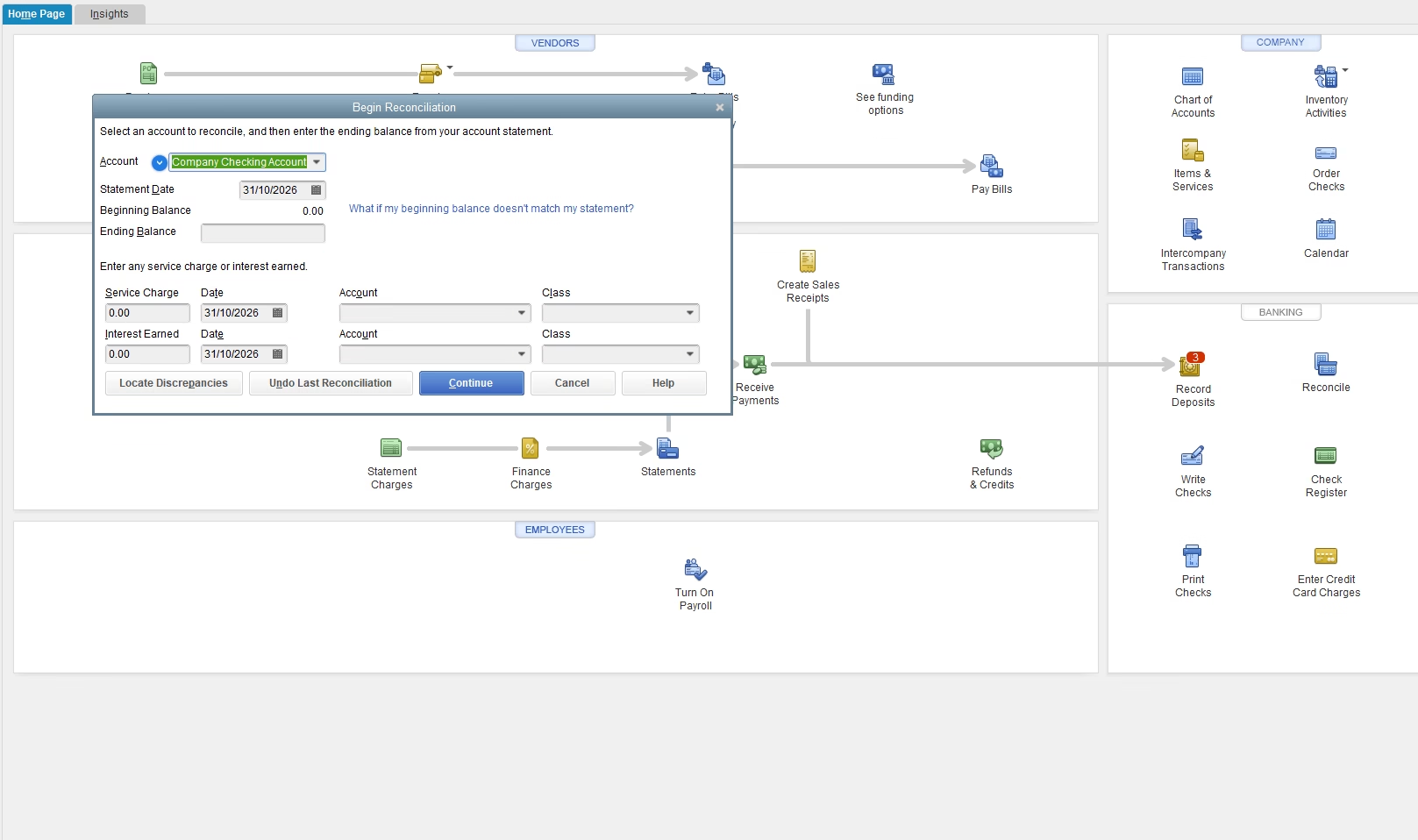
2. Compare the reconciliation window to the bank statement
Check only the transactions that appear on the statement. If a transaction is in QuickBooks but not on the statement, leave it unchecked unless you confirm it cleared during that statement period.
3. Use the register to inspect unusual items
Open the bank account register and look for incorrect dates, duplicate entries, missing checks, missing deposits, and wrong amounts. If the amount in QuickBooks differs from the bank statement, determine whether the QuickBooks entry or the bank record is correct before editing.
4. Use discrepancy tools when the beginning balance is wrong
If the beginning balance does not match, use Locate Discrepancies where available. Review discrepancy reports, missing checks reports, or transaction detail reports to find prior reconciled transactions that may have changed.
The beginning balance must be resolved before you can trust the current reconciliation. Otherwise, you may waste time searching the current month for a problem that happened months ago.
5. Enter service charges or interest if needed
If the bank statement includes service charges or interest earned, you can enter them during reconciliation if the window provides that option, or record them separately in the register. Make sure the date and amount match the bank statement.
6. Reconcile only when the difference is zero
When the checked transactions match the bank statement, the difference should be zero. If it is not, leave the reconciliation and continue investigating.
Verification Checklist
Use this checklist before completing the reconciliation. It catches the most common errors before they become bigger bookkeeping problems.
- The selected QuickBooks account matches the bank statement account.
- The statement ending date in QuickBooks matches the bank statement.
- The statement ending balance is entered exactly, including cents.
- The beginning balance matches the previous reconciliation ending balance.
- Every checked transaction appears on the bank statement.
- No transaction is checked if it cleared after the statement ending date.
- Bank fees and interest have been entered if they appear on the statement.
- Downloaded bank feed transactions are matched to existing records when appropriate.
- Duplicate transactions have been reviewed before deletion.
- The reconciliation difference is zero before finishing.
What Not to Do
Some fixes seem quick but create long-term problems. Avoid these unless you fully understand the accounting effect.
Do not change the opening balance casually
The opening balance affects the starting point for the bank account. Changing it to force the account to match can distort historical records and make future reconciliations harder.
Do not delete old reconciled transactions without review
A reconciled transaction has already been matched to a bank statement. Deleting it can change the beginning balance for later reconciliations and may affect prior financial statements.
Do not add downloaded bank feed transactions without checking for matches
If a transaction already exists in QuickBooks, adding the downloaded bank transaction creates a duplicate. Matching is usually the correct approach when the bank feed item represents an existing transaction.
Do not complete reconciliation with a nonzero difference
A nonzero difference means QuickBooks does not match the statement for that period. Completing anyway may create an adjustment that hides the real issue.
When the Difference Points to a Bigger Cleanup Problem
Sometimes the current reconciliation reveals a broader bookkeeping issue. For example, a business may have months of unreconciled bank activity, old uncleared checks, duplicated bank feed transactions, and prior reconciled entries that were edited after the fact.
In that situation, the best approach is usually not to fix one transaction at a time randomly. A cleaner process is to identify the last accurate reconciliation, review the account register from that point forward, correct duplicate or missing activity, and reconcile each statement period in order.
Professional help makes sense when:
- Several months or years have not been reconciled
- The beginning balance is wrong and you cannot identify why
- Prior reconciled transactions were deleted or changed
- The bank feed created many duplicate entries
- The account has old uncleared items that may or may not be valid
- Financial statements have already been issued from the affected periods
- You are unsure whether changes will affect taxes, payroll, sales tax, or closed books
QuickBooks cleanup is not just about making the bank balance look right. The goal is to protect the accuracy of the financial records behind your balance sheet, profit and loss, cash flow, and tax reporting.
Key Takeaways
- A QuickBooks bank balance mismatch is often caused by timing differences, missing transactions, duplicates, or changed reconciled activity.
- Always compare QuickBooks to the bank statement using the statement ending date and ending balance.
- QuickBooks may show more than one balance for the same bank account, so confirm which balance you are reviewing.
- Only check transactions that actually cleared the bank during the statement period.
- If the beginning balance is wrong, investigate prior reconciliations before continuing.
- Do not complete a reconciliation until the difference is zero.
- Use caution when editing closed periods or previously reconciled transactions.
FAQ
Why does my QuickBooks bank balance not match my bank statement?
The most common reasons are uncleared transactions, missing bank activity, duplicate bank feed entries, incorrect transaction dates or amounts, a wrong statement ending balance, or changes to previously reconciled transactions.
Should my QuickBooks balance always match my bank balance?
Not necessarily. QuickBooks may include checks, deposits, payments, or transfers that have not cleared the bank yet. The more important test is whether QuickBooks reconciles to the bank statement for the correct statement period.
What is the difference between bank balance and QuickBooks balance?
The bank balance is based on information from the financial institution, often through a bank feed. The QuickBooks balance is based on transactions recorded in the QuickBooks register. They can differ because of timing, missing transactions, duplicates, or bank feed matching issues.
Can I just enter an adjustment to make the reconciliation balance?
You should avoid using an adjustment unless you understand exactly why the difference exists and have determined that an adjustment is appropriate. A forced adjustment can hide missing or duplicate transactions and create inaccurate financial reports.
What should I do if my beginning balance is wrong?
Stop and review prior reconciliations. A wrong beginning balance usually means a previously reconciled transaction was changed, deleted, unreconciled, or moved to another account. Review reconciliation reports and discrepancy reports before continuing.
Why are downloaded bank transactions causing duplicates?
Duplicates often happen when a downloaded bank feed transaction is added instead of matched to an existing QuickBooks transaction. Before adding bank feed items, check whether the transaction already exists in the register.
Should I delete uncleared transactions from old periods?
Not automatically. Some old uncleared transactions may be duplicates or errors, but others may represent valid outstanding checks or deposits. Review each item before deleting, voiding, or adjusting it, especially if it is from a closed period.
Does this process work for both QuickBooks Online and Desktop?
The reconciliation concept is the same, but the menus and tools differ. QuickBooks Online uses areas such as Bank transactions, Chart of accounts, and Reconcile. QuickBooks Desktop uses Banking, Reconcile, and tools such as Locate Discrepancies where available.
Conclusion
When the QuickBooks bank balance does not match the bank statement, the safest approach is to slow down and reconcile by statement period. Confirm the correct account, statement date, and ending balance first. Then look for timing differences, missing activity, duplicates, incorrect amounts, and changed prior reconciliations.
If the difference is simple, such as a missing bank fee or an uncleared check, you may be able to correct it quickly. If the beginning balance is wrong, transactions were changed in closed periods, or months of bank feeds were added incorrectly, the issue deserves a more careful cleanup process.
Need Expert Help with QuickBooks?
If your QuickBooks bank balance still does not match the bank statement, Databrax can help review the account, identify missing or duplicate transactions, troubleshoot reconciliation differences, and clean up bank records without creating unnecessary damage to prior periods. This is especially useful when the issue involves old reconciliations, bank feed duplicates, closed accounting periods, or multiple months of unreconciled activity.