
If you need to export inventory from QuickBooks Online, the first thing to know is this: inventory data lives in more than one place. Your item setup details are in the Products and services list, while quantities and values usually come from inventory reports.
That distinction matters. If you export only the item list, you may get names, SKUs, prices, costs, and item types, but you may not get the inventory valuation information your accountant or warehouse team needs. For quantity on hand, inventory value, or month-end review, you’ll usually export an Inventory Valuation Summary or Inventory Valuation Detail report.
Below, I’ll walk you through the right export method for each situation, how to verify the file, and what to check when the numbers don’t look right.
Table of Contents
Quick Answer
To export inventory from QuickBooks Online, go to Settings, select Export data, open the Lists tab, choose Products and services, and export the list to Excel. You can also open Sales or Get paid & pay, select Products and services, filter for inventory items, and use the export icon.
If you need inventory quantities or values, don’t rely only on the Products and services list. Go to Reports, open Inventory Valuation Summary or Inventory Valuation Detail, set the correct report date, and export the report to Excel.
| What You Need | Best QuickBooks Online Export | Use This For |
|---|---|---|
| Item names, SKUs, prices, costs, item type | Products and services list | Item setup review or cleanup |
| Quantity on hand and inventory value | Inventory Valuation Summary | Month-end, year-end, accountant review |
| Transaction-level inventory movement | Inventory Valuation Detail | Investigating quantity or value changes |
| Manual stock count | Physical Inventory Worksheet, if available in your reports | Counting inventory in the warehouse |
What Is Export Inventory from QuickBooks Online?
Exporting inventory from QuickBooks Online means downloading inventory-related information from your company file into a spreadsheet, usually Excel. Depending on the export, the file may include item names, SKUs, descriptions, sales prices, costs, quantities, reorder points, asset values, or transaction details.
Businesses use inventory exports for stock counts, item cleanup, price reviews, financial reporting, backup reference, purchasing analysis, and accountant requests. A retailer may export the Products and services list to review SKUs. A manufacturer or distributor may export Inventory Valuation Summary to support month-end inventory value on the balance sheet.
The key is choosing the right source. The Products and services list tells you how items are set up. Inventory reports tell you what QuickBooks believes you have on hand and what it’s worth as of a specific date.
Why It Matters
A clean inventory export saves time because you can sort, filter, and review hundreds or thousands of items in Excel instead of clicking through QuickBooks one item at a time.
It also improves accuracy. Inventory affects cost of goods sold, the inventory asset account, purchasing decisions, and financial statements. If your export uses the wrong date or includes non-inventory items by mistake, your review can lead to bad decisions.
For compliance and reporting, accountants often need inventory value as of month-end or year-end. That value should come from an inventory valuation report, not a sales report and not only the item list.
For productivity, exporting lets your operations team review reorder points, identify inactive items, update count sheets, and investigate quantity differences without disrupting daily QuickBooks activity.
Requirements Before You Begin
Before you start, confirm that your QuickBooks Online company can track inventory. Full quantity tracking is available in QuickBooks Online Plus and Advanced. Simple Start and Essentials do not support full inventory quantity tracking.
You also need inventory tracking turned on in Account and settings. If it’s off, inventory quantity fields may be missing, even if your subscription supports inventory.
| Requirement | Why It Matters |
|---|---|
| QuickBooks Online Plus or Advanced | Required for full inventory quantity tracking |
| Inventory tracking enabled | Allows quantity on hand and inventory asset tracking |
| Correct user permissions | Needed to access Products and services or inventory reports |
| Supported browser with downloads allowed | Prevents export files from being blocked or hidden |
| Excel or compatible spreadsheet software | Needed to open and review the exported file |
| Correct report date | Critical for accurate inventory valuation |
Things to Prepare
Taking a few minutes to prepare prevents most export problems. Use this checklist before downloading your inventory data:
- Confirm your goal: Decide whether you need item setup data, quantity on hand, inventory value, or transaction history.
- Check user permissions: Make sure your login can view Products and services and run reports.
- Choose the report date: For valuation, use the exact date your accountant or management team needs.
- Review filters: Remove unwanted filters or apply an inventory item filter if you want inventory items only.
- Show inactive items if needed: Inactive products may still matter for historical review.
- Prepare Excel: Open the file in Excel or another spreadsheet program that supports Excel files.
- Save an original copy: Keep the first export unchanged before sorting, editing, or adding formulas.
Step-by-Step Guide
Step 1: Decide which inventory export you need
Start by identifying the business question you’re trying to answer. If you’re reviewing item names, SKUs, sales prices, purchase costs, or item types, export the Products and services list. If you’re checking quantity on hand or inventory value, use an inventory report.
This step matters because the wrong export can look useful but still be incomplete. A common mistake is sending the Products and services list to an accountant when the accountant actually asked for inventory value as of year-end.
Expected result: You know whether to export a list, a summary report, or a detailed report.
Step 2: Export the Products and services list from Export data
Open QuickBooks Online, select the Settings gear icon, and choose Export data. Open the Lists tab and select Products and services. Then choose Export to Excel.
This method is useful when you want item setup information in bulk. It gives you a spreadsheet you can review for naming consistency, SKU formatting, missing costs, inactive products, or incorrect item types.
Expected result: QuickBooks downloads an Excel file containing your Products and services list.
Step 3: Export directly from Products and services
You can also export from the item list itself. In QuickBooks Online, go to Sales or Get paid & pay, then select Products and services. If your screen layout differs, use the left navigation search or menu to find the Products and services list.
Apply filters before exporting. For example, filter by item type if you only want inventory items. The Products and services list can include inventory, non-inventory, service, and bundle items, so exporting without filters may create extra cleanup work.
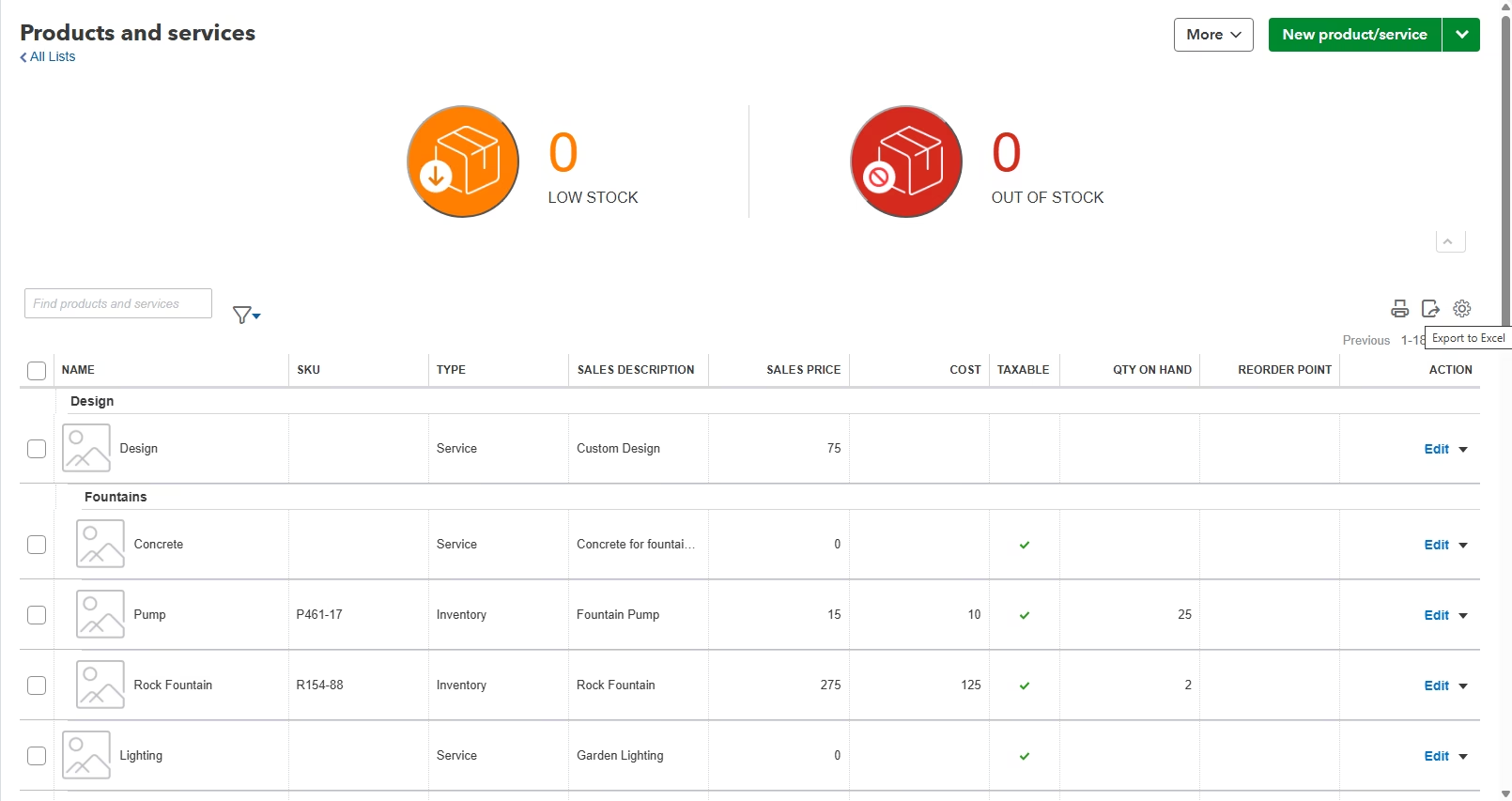
Expected result: You receive a spreadsheet of the visible product and service records based on your current filters.
Step 4: Export quantity and value using Inventory Valuation Summary
For quantity on hand and inventory value, go to Reports and open Inventory Valuation Summary. Set the report date carefully. If you need year-end inventory, don’t leave the report on today’s date unless today is the date you’re reporting.
Run the report, review the columns, and then select the export icon. Choose Export to Excel. This report is usually the best starting point for accountants because it summarizes inventory by item as of the selected date.
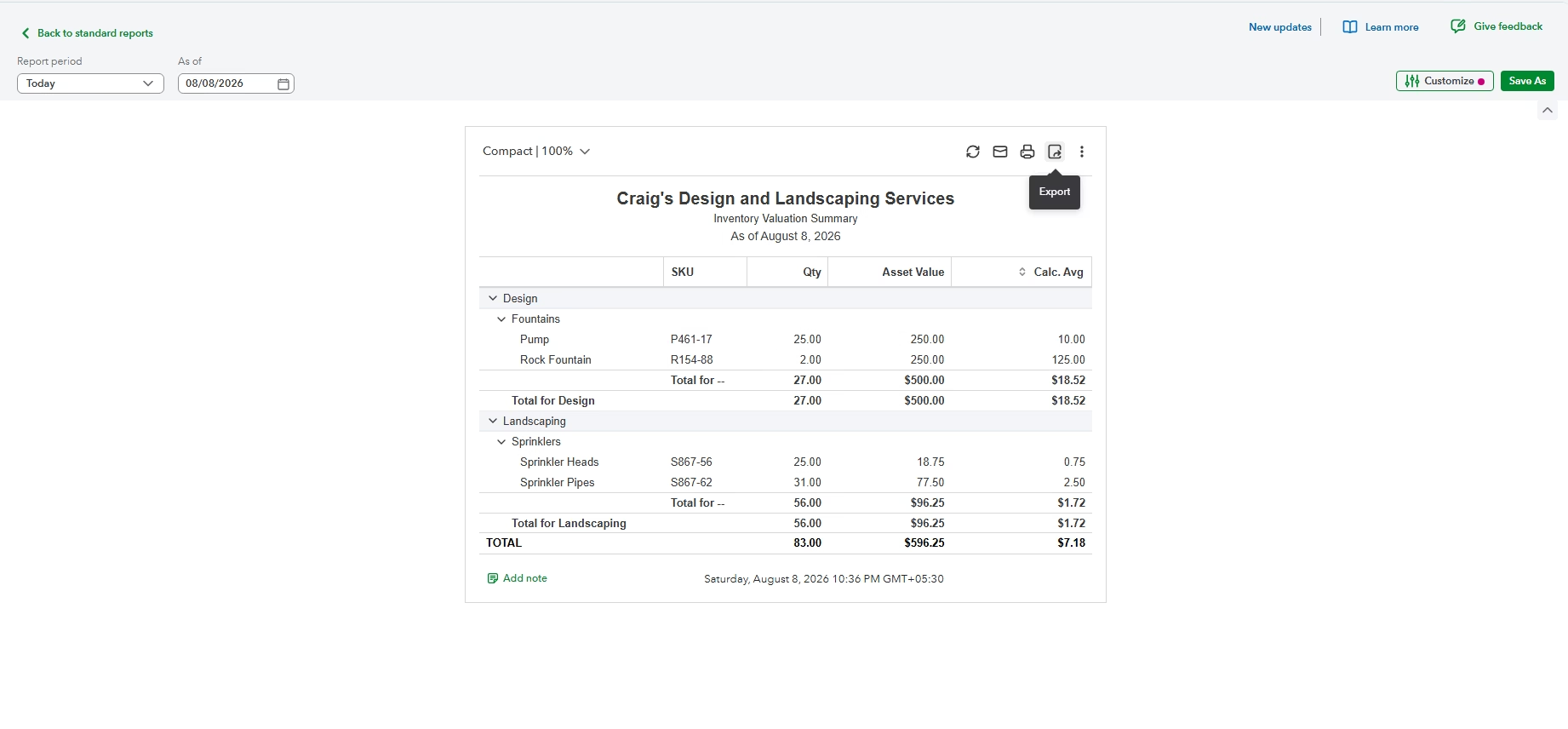
Expected result: The Excel file shows inventory balances by item, including quantity and value based on the report date.
Step 5: Use Inventory Valuation Detail when numbers don’t make sense
If the summary report shows a quantity or value that doesn’t match expectations, open Inventory Valuation Detail. This report helps you review the transactions behind the balance, such as bills, invoices, sales receipts, purchase transactions, and inventory adjustments.
Set the correct date range, customize the report if needed, and export it to Excel. This is the report I typically use when a client says, “We don’t know why this item went negative,” or “The value changed but no one knows what caused it.”
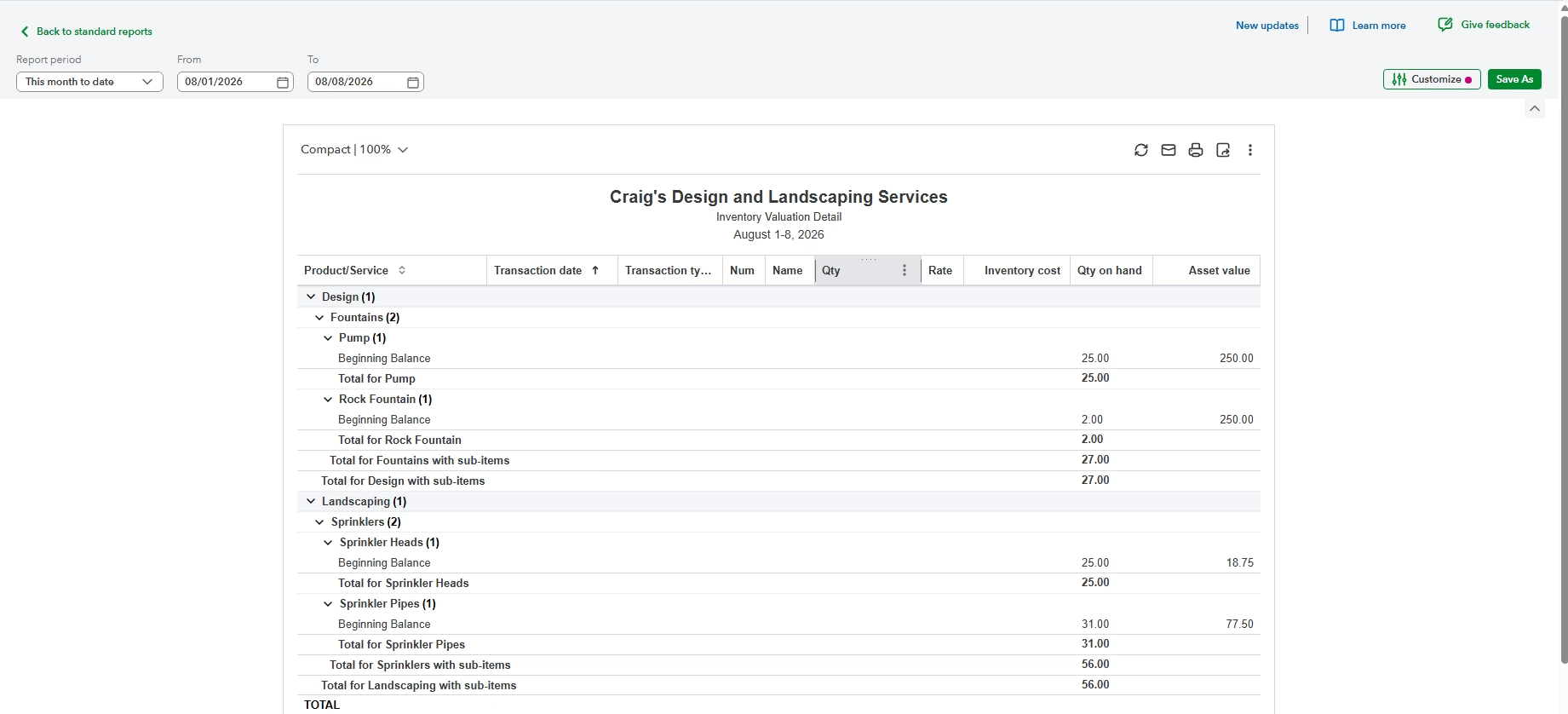
Expected result: You can trace inventory movement at the transaction level and identify unusual entries.
Step 6: Open the file and save a working copy
After the file downloads, open it in Excel. Immediately save an unchanged original copy, then create a working copy for filtering, formulas, notes, or formatting.
This protects your source export. If someone accidentally sorts only one column, overwrites SKU values, or changes number formatting, you can return to the original file without exporting again.
Expected result: You have one untouched export and one spreadsheet you can safely edit.
Verification Checklist
| Check | How to Verify | Expected Result |
|---|---|---|
| File opens correctly | Open the downloaded file in Excel | Rows and columns display without errors |
| Inventory items are included | Review item type or product type columns | Inventory items appear in the export |
| Inactive items are included if needed | Check list settings and filters before export | Inactive products appear when required |
| Quantity matches QuickBooks | Compare to Inventory Valuation Summary | Quantity on hand agrees for the same date |
| Report date is correct | Review the date shown on the exported report | Valuation reflects the intended period |
| Important columns exist | Check for SKU, name, cost, price, quantity, reorder point | The file contains the fields needed for review |
Common Problems
| Problem | Cause | Solution |
|---|---|---|
| Inventory option is missing | Plan does not support inventory or tracking is off | Use Plus or Advanced and enable inventory tracking |
| Quantity fields are missing | Exported item list instead of valuation report | Run Inventory Valuation Summary for quantities |
| Export includes services | Products and services list includes multiple item types | Filter by inventory items before exporting |
| Inactive items are missing | List is set to show active items only | Change the list view to include inactive items |
| Inventory value looks wrong | Incorrect report date or transaction issues | Confirm date and review Inventory Valuation Detail |
| SKU formatting changes in Excel | Excel may remove leading zeros | Format SKU columns as text before editing |
| File does not download | Browser blocked or hid the download | Allow downloads and check the Downloads folder |
Common Mistakes
The biggest mistake is exporting only the Products and services list when inventory valuation is needed. The list is excellent for setup data, but it’s not a substitute for an inventory valuation report.
Another common issue is using today’s date for a prior-period inventory balance. Inventory reports are date-sensitive. If your accountant asks for December 31 inventory, the report must be run as of December 31.
Users also forget about inactive items. An inactive item may not be sold anymore, but it can still be important for historical reporting, cleanup, or audit support.
Finally, remember that editing an Excel export does not update QuickBooks Online. If you need to correct item setup, quantities, or values, those changes must be handled properly inside QuickBooks or through an approved import/update process.
Best Practices
- Export both list and report data: Use Products and services for setup and Inventory Valuation Summary for balances.
- Name files clearly: Include the export date and report date, such as inventory-valuation-2024-12-31-exported-2025-01-05.xlsx.
- Keep originals unchanged: Save a separate working copy before sorting or editing.
- Customize before exporting: Add or remove columns in QuickBooks first to reduce spreadsheet cleanup.
- Reconcile inventory value: Compare the exported valuation report to the inventory asset account on the balance sheet.
- Review inactive items: Include them before month-end or year-end if historical completeness matters.
Frequently Asked Questions
Can I export inventory from QuickBooks Online to Excel?
Yes. You can export the Products and services list and most inventory reports to Excel using the export option in QuickBooks Online.
Where are inventory items stored in QuickBooks Online?
Inventory items are stored in the Products and services list. This list can also include non-inventory items, services, and bundles.
Which report should I export for quantity on hand?
Use the Inventory Valuation Summary report for quantity and value by item as of a specific date.
How do I export transaction-level inventory history?
Run the Inventory Valuation Detail report, set the needed date range, and export it to Excel.
Why don’t I see inventory fields in QuickBooks Online?
Your subscription may not support inventory tracking, or inventory tracking may not be enabled in Account and settings.
Does exporting inventory create a full QuickBooks backup?
No. An Excel export is useful for review and reference, but it does not create a full company backup that can restore QuickBooks Online.
Will editing the Excel file update QuickBooks Online?
No. Changes made in Excel do not automatically update QuickBooks Online. Updates must be entered or imported through the proper QuickBooks workflow.
Can I export inactive inventory items?
Yes, but you may need to change the Products and services list settings to show inactive items before exporting.
Why does my inventory value not match my balance sheet?
The report date, filters, inventory transactions, or accounting setup may be different. Compare the Inventory Valuation Summary to the inventory asset account for the same date.
Key Takeaways
- Use Products and services to export item setup data.
- Use Inventory Valuation Summary to export quantity on hand and inventory value.
- Use Inventory Valuation Detail to investigate inventory changes.
- Always set the correct report date before exporting valuation data.
- Keep an unchanged original export and work from a copy.
- Excel exports are not full QuickBooks Online backups.
Conclusion
Exporting inventory from QuickBooks Online is straightforward once you know which source to use. The Products and services list is best for item setup, while inventory valuation reports are best for quantity, value, and accounting review.
Before you send the file to your accountant, warehouse manager, or management team, verify the report date, filters, inactive items, and key columns. Those small checks prevent most inventory export mistakes.
If your exported numbers don’t match your physical stock or financial statements, don’t guess. Review the Inventory Valuation Detail report and inventory adjustments before making changes.
Need Expert Help with QuickBooks?
Databrax can help with QuickBooks data migration, bulk imports, inventory cleanup, error resolution, reporting, and ongoing support. Whether you need a clean inventory export, help reconciling valuation reports, or assistance fixing item setup problems, our QuickBooks specialists can help you get reliable data you can trust.