
Table of Contents
Step-by-Step Guide to Fix QuickBooks Error H505
Follow these steps in order. Start with the safest checks first, then move into network, service, and firewall settings.
Step 1: Check Hosting Settings on Every Computer
Incorrect hosting is one of the most common causes of QuickBooks Error H505.
On each workstation
- Open QuickBooks Desktop.
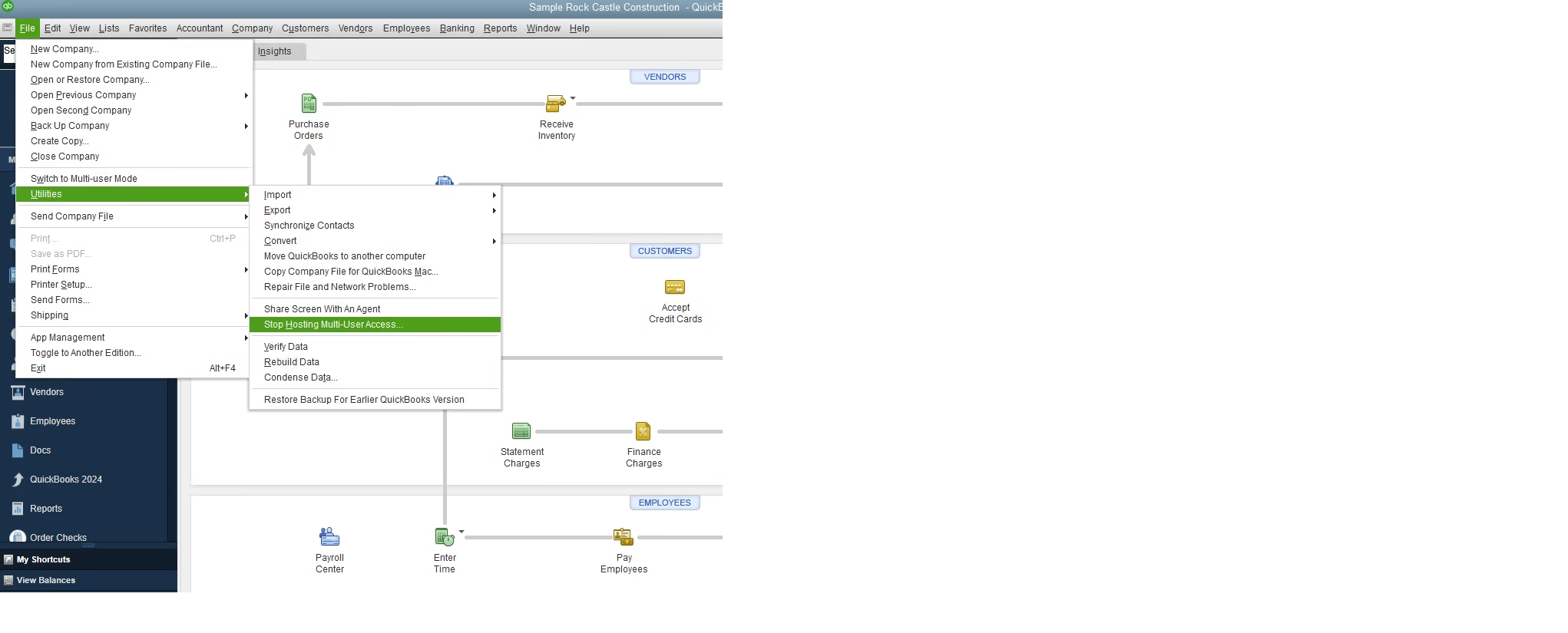
- Go to File.
- Select Utilities.
- Look at the hosting option.
Use this rule:
- If you see Host Multi-User Access, do not click it. This means hosting is already off, which is correct for a workstation.
- If you see Stop Hosting Multi-User Access, click it. This means the workstation is hosting, which can cause conflicts.
On the server or host computer
The server is the computer where the company file is stored.
- Open QuickBooks Desktop on the server, if QuickBooks is installed there.
- Go to File > Utilities.
- Confirm the server is the only computer allowed to host multi-user access.
Warning: Do not turn on hosting on every computer. Only the server or host computer should handle multi-user hosting.
Step 2: Run QuickBooks Tool Hub
QuickBooks Tool Hub is Intuit’s troubleshooting utility for QuickBooks Desktop issues.
- Close QuickBooks Desktop on all computers.
- Download the latest QuickBooks Tool Hub from Intuit.
- Install it on the server or host computer.
- Open QuickBooks Tool Hub.
- Select Company File Issues.
- Run QuickBooks File Doctor.
- Choose your company file.
- Select the option to check both file damage and network issues, if available.
- Let the tool complete the scan.
If File Doctor finds a network issue, follow the prompts.
Tip: If only one workstation has the problem, you may also run Tool Hub on that affected workstation.
Step 3: Run QuickBooks Database Server Manager
QuickBooks Database Server Manager helps workstations access the company file over the network.
- Open QuickBooks Tool Hub on the server.
- Select Network Issues.
- Open QuickBooks Database Server Manager.
- Select Browse.
- Choose the folder that contains your active
.QBWcompany file. - Click Start Scan.
- Wait for the scan to finish.
- Close the tool.
This scan helps refresh the network configuration QuickBooks uses for multi-user access.
Important: Scan the actual folder where the live company file is stored. Scanning the wrong folder will not fix the connection.
Step 4: Restart QuickBooks Services on the Server
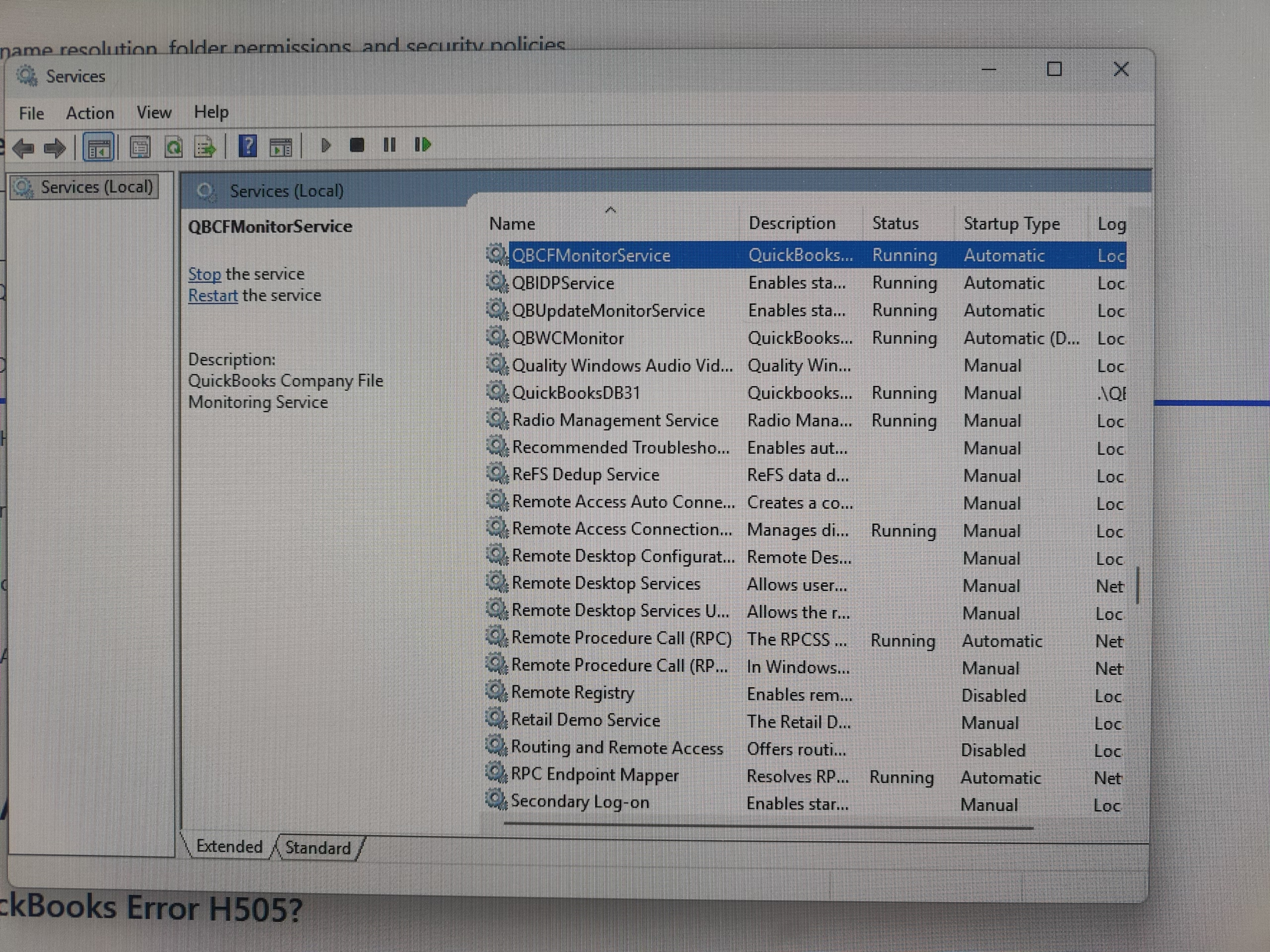
QuickBooks Desktop uses Windows services to manage shared company file access.
- On the server, press Windows + R.
- Type
services.msc. - Press Enter.
- Look for the QuickBooks database service, such as QuickBooksDBXX.
The “XX” changes by QuickBooks version. - Also look for QBCFMonitorService.
- Right-click each service.
- Select Restart.
- If a service is stopped, select Start.
- Set the startup type to Automatic, if appropriate for your setup.
Then try opening the company file again from a workstation.
Note: Service names vary by QuickBooks Desktop version. If you use QuickBooks Enterprise or a managed server, ask IT before changing service settings.
Step 5: Rename the .ND and .TLG Files
The .ND file supports network access. The .TLG file supports transaction logging and recovery processes. If either file is outdated or damaged, QuickBooks may fail to connect in multi-user mode.
Do not delete these files. Rename them so QuickBooks can recreate them.
- Close QuickBooks Desktop on all computers.
- Go to the folder that contains the company file.
- Find the files with the same name as your company file but ending in:
.ND.TLG
- Right-click the
.NDfile. - Select Rename.
- Add
.oldto the end of the file name. - Do the same for the
.TLGfile.
Example:
CompanyFile.qbw.ndbecomesCompanyFile.qbw.nd.oldCompanyFile.qbw.tlgbecomesCompanyFile.qbw.tlg.old
After renaming the files:
- Open QuickBooks Desktop on the server.
- Open the company file.
- Switch to multi-user mode if needed.
- Try opening the file from a workstation.
Warning: Rename only the
.NDand.TLGfiles connected to the correct company file. Do not rename the.QBWcompany file.
Step 6: Configure Windows Firewall for QuickBooks
Windows Firewall or third-party security software can block QuickBooks network traffic.
Start with Windows Firewall:
- Open the Windows Start menu.
- Search for Windows Defender Firewall.
- Select Allow an app or feature through Windows Defender Firewall.
- Click Change settings.
- Confirm QuickBooks-related programs are allowed on the correct network type, such as private business networks.
- If QuickBooks programs are missing, add them manually.
QuickBooks executable files may vary by version and installation path. Common QuickBooks components include the QuickBooks Desktop program and database server components.
You may also need to open QuickBooks Desktop ports. Port numbers vary by QuickBooks Desktop year and version, so confirm the current port requirements from Intuit’s official documentation.
Warning: Do not leave your firewall turned off as a permanent fix. If disabling it temporarily makes QuickBooks work, create proper firewall exceptions instead.
Step 7: Check Folder Sharing and Windows Permissions
Even if QuickBooks is set up correctly, Windows can still block access to the company file folder.
On the server:
- Right-click the folder that contains the company file.
- Select Properties.
- Go to the Sharing tab.
- Confirm the folder is shared.
- Go to the Security tab.
- Confirm the right Windows users have access.
- Make sure users have enough permission to read and write to the folder.
QuickBooks services may also need access through the appropriate QuickBooks database service user, such as a QuickBooksDataServiceUser account.
Tip: Avoid storing shared company files in personal folders like Desktop, Downloads, or Documents if multiple users need access. Use a dedicated shared folder instead.
Step 8: Test the Server Name and Network Path
A workstation must be able to find the server before QuickBooks can open the company file.
Test access from the workstation
- Go to the affected workstation.
- Press Windows + R.
- Type the server path, such as:
\\ServerName
- Press Enter.
- Confirm the shared company file folder appears.
If the folder does not open, the issue may be Windows networking, DNS, permissions, or server availability.
Use a UNC path when possible
A UNC path looks like this:
\\ServerName\SharedFolder
This is often more reliable than a mapped drive letter, especially after network changes.
Pro Tip: If the workstation can open the shared folder in Windows but QuickBooks still shows H505, focus next on firewall rules, QuickBooks services, and Database Server Manager.
Step 9: Move the Company File to a New Shared Folder if Needed
If folder permissions are messy or damaged, creating a clean shared folder can help.
Only do this if you are comfortable managing file locations, or have IT help.
- On the server, create a new folder, such as
QBData. - Share the folder.
- Set proper Windows permissions.
- Copy the company file into the new folder.
- Open QuickBooks on the server.
- Open the company file from the new location.
- Run QuickBooks Database Server Manager and scan the new folder.
- Open the file from the workstation using the new network path.
Important: Do not move the file while users are working in QuickBooks. Make sure everyone is signed out first.
Verify the Results
After making changes, test QuickBooks carefully before assuming the issue is fixed.
Basic verification steps
- Open QuickBooks Desktop on the server.
- Open the company file.
- Go to File.
- Select Switch to Multi-user Mode, if it is not already enabled.
- Go to one workstation.
- Open QuickBooks Desktop.
- Open the company file from the shared network location.
- Repeat the test on other workstations.
If the file opens without QuickBooks Error H505, the main connection problem is likely resolved.
What to confirm after the fix
| Check | Where to Perform It | What Success Looks Like |
|---|---|---|
| Hosting settings | Server and workstations | Only the server hosts multi-user access |
| Database Server Manager scan | Server | Company file folder scans successfully |
| QuickBooks services | Server | QuickBooksDBXX and QBCFMonitorService are running |
| Shared folder access | Workstation | User can open the shared folder in Windows |
| Firewall access | Server and workstation | QuickBooks opens the network file without H505 |
| Multi-user access | All affected computers | Multiple users can open the file at the same time |
If the error returns
If QuickBooks Error H505 comes back, write down what changed right before it returned.
Common triggers include:
- Windows updates
- QuickBooks updates
- Antivirus updates
- Server restart
- Router or network changes
- Company file moved to a new folder
- A workstation accidentally enabled hosting
This information helps you fix the pattern instead of repeating the same repair.
Common Mistakes
1. Enabling hosting on every computer
This is one of the biggest mistakes.
Workstations should not host the company file. If several computers try to host the same file, QuickBooks can run into conflicts and show H-series errors.
2. Running Database Server Manager on the wrong computer
QuickBooks Database Server Manager should be used on the computer that stores the company file.
Running it only on a workstation may not fix the server connection.
3. Scanning the wrong folder
The scan must point to the folder that contains the active .QBW file.
If you scan an old backup folder or a previous file location, QuickBooks may still fail in multi-user mode.
4. Deleting .ND or .TLG files without understanding them
Renaming these files is safer than deleting them.
Never delete the main .QBW company file while troubleshooting.
5. Ignoring Windows permissions
QuickBooks permissions and Windows permissions are not the same thing.
A user may have a valid QuickBooks login but still be blocked by Windows folder security.
6. Using old shortcuts or mapped drives
If the company file moved, old desktop shortcuts may point to the wrong path.
Use the correct shared folder path, preferably the UNC path.
7. Turning off the firewall permanently
Disabling the firewall may help test the issue, but it is not a safe long-term solution.
Create proper QuickBooks exceptions instead.
Best Practices
Keep QuickBooks Desktop updated on all computers
All computers in the multi-user setup should run compatible QuickBooks Desktop updates.
This helps prevent version conflicts between the server and workstations.
Use a stable server or host computer
The computer storing the company file should stay powered on, connected, and awake during business hours.
Avoid using a workstation that frequently shuts down or disconnects from the network.
Use a dedicated shared folder
Store the company file in a clearly named shared folder, such as:
\\ServerName\QBData
This makes permissions and troubleshooting easier.
Review firewall rules after updates
Windows and antivirus updates can change security behavior.
If QuickBooks Error H505 appears after an update, review firewall exceptions and QuickBooks services.
Keep regular backups
Create scheduled backups of your QuickBooks company file.
A backup will not directly fix H505, but it protects your business if file movement, permissions, or repairs go wrong.
Document your QuickBooks network setup
Keep a simple record of:
- Server name
- Company file location
- Shared folder path
- QuickBooks version
- Workstations using the file
- Security software used
- Backup location
This saves time the next time you need support.
Expert Tips
Use the UNC path instead of relying only on mapped drives
Mapped drives can break after login changes, server changes, or network updates.
A UNC path like \\ServerName\QBData is usually easier to troubleshoot.
Restart in the right order
If users still cannot connect, restart in this order:
- Server
- QuickBooks services on the server
- Workstations
- QuickBooks Desktop
This helps reset the connection cleanly.
Test one workstation before testing every computer
After making a change, test one affected workstation first.
If it works, then test the others. This keeps troubleshooting organized.
Check whether the issue affects one user or everyone
If only one workstation has H505, focus on that computer’s firewall, network path, QuickBooks installation, and Windows profile.
If every workstation has H505, focus on the server, services, hosting, shared folder, and firewall.
Involve IT for domain networks
If your company file is hosted on a domain server, do not guess on DNS, IP, or permission settings.
Ask IT to verify server name resolution, folder permissions, and security policies.
Do not troubleshoot during heavy activity
Avoid making hosting, firewall, or file-location changes while users are entering transactions.
Have everyone close QuickBooks first.
Frequently Asked Questions
1. What is QuickBooks Error H505?
QuickBooks Error H505 is a QuickBooks Desktop multi-user mode error. It usually means a workstation cannot connect to the company file stored on another computer or server.
The issue is commonly related to hosting settings, firewall rules, QuickBooks services, network access, or folder permissions.
2. Does QuickBooks Error H505 happen in QuickBooks Online?
No. QuickBooks Error H505 applies to QuickBooks Desktop.
QuickBooks Online does not use local company files, hosting mode, QuickBooks Database Server Manager, or .ND files.
3. What is the fastest way to fix QuickBooks Error H505?
Start by checking hosting settings. Make sure hosting is off on workstations and enabled only on the server or host computer.
Then run QuickBooks Tool Hub, scan the company file folder with QuickBooks Database Server Manager, restart QuickBooks services, and check firewall permissions.
4. Can QuickBooks Error H505 damage my company file?
Usually, no. H505 is most often a connection or configuration problem, not a sign that the company file is damaged.
Still, you should back up the company file before making changes to file locations, permissions, or network settings.
5. Should I delete the .ND file to fix H505?
Do not delete it as your first choice. Rename it instead by adding .old to the file name.
QuickBooks can recreate the .ND file when the company file is reopened and the folder is scanned again.
6. Why does QuickBooks Error H505 keep coming back?
Recurring H505 errors often happen because of changing network paths, firewall updates, stopped QuickBooks services, server restarts, or hosting accidentally turned on at a workstation.
Track when the error returns. The timing often points to the real cause.
7. When should I call IT or QuickBooks support?
Call IT or QuickBooks support if:
- Every workstation is blocked
- The company file is on a domain server
- Firewall or DNS settings are managed by IT
- QuickBooks services will not start
- H505 returns after every restart
- You are not comfortable changing Windows permissions
Key Takeaways
- QuickBooks Error H505 is a QuickBooks Desktop multi-user connection issue.
- The company file is usually on a server or host computer that the workstation cannot reach correctly.
- Hosting should be enabled only on the server, not on every workstation.
- QuickBooks Tool Hub and QuickBooks Database Server Manager are the best starting tools.
- Windows Firewall, security software, folder permissions, and QuickBooks services can all cause H505.
- Rename
.NDand.TLGfiles instead of deleting them. - Use a reliable shared folder and UNC path for network access.
- If the error affects every user, focus on the server first.
- If it affects one user, focus on that workstation first.
Conclusion
QuickBooks Error H505 usually means QuickBooks Desktop cannot connect to a company file stored on another computer in multi-user mode. In most cases, the fix involves correcting hosting settings, running QuickBooks Tool Hub, scanning the company file folder, restarting QuickBooks services, checking firewall rules, and verifying Windows folder permissions.
Start with the simple steps first. Confirm hosting, test the network path, and make sure the server is running properly. If the error continues or your company file is hosted on a managed server, involve IT or QuickBooks support before making advanced network changes.
With the right setup, you can restore multi-user access and reduce the chance of QuickBooks Error H505 coming back.
Need Expert Help with QuickBooks?
Whether you’re importing data, fixing QuickBooks errors, migrating company files, or cleaning up your accounting records, our QuickBooks specialists are here to help.
- ✓ QuickBooks Data Import & Export
- ✓ Company File Migration
- ✓ QuickBooks Error Resolution
- ✓ File Cleanup & Repair
- ✓ Personalized QuickBooks Support
Save time, avoid costly mistakes, and get reliable QuickBooks assistance from experienced professionals.