
Table of Contents
Introduction
Setting up your chart of accounts is one of the most important steps when starting with QuickBooks Online. It controls how your income, expenses, assets, liabilities, and equity are organized. If your accounts are structured correctly from the beginning, your reports become much easier to read and trust.
If you already have a chart of accounts in a spreadsheet, you do not have to enter every account manually. QuickBooks Online lets you import a chart of accounts from a CSV or Excel file, which can save time and reduce typing errors.
In this guide, you will learn how to import chart of accounts into QuickBooks Online, how to prepare your file, what to check before importing, and how to avoid common setup mistakes. This article is written for beginners, small business owners, bookkeepers, and accountants who want a clean and reliable QuickBooks setup.
Quick Answer
To import chart of accounts into QuickBooks Online, go to the Gear icon, select Import Data, choose Chart of Accounts, upload your CSV or Excel file, map your spreadsheet columns to QuickBooks fields, review the imported accounts, and then complete the import.
Before importing, make sure your file includes clear account names, correct account types, and detail types. Also remove duplicate accounts and confirm whether you want to use account numbers.
What Is Importing a Chart of Accounts into QuickBooks Online?
Importing a chart of accounts into QuickBooks Online means uploading a spreadsheet that contains your account list instead of creating each account one by one.
Your chart of accounts is the list of categories QuickBooks uses to organize your financial activity. For example, when you record a sale, QuickBooks posts it to an income account. When you enter a bill for office supplies, QuickBooks posts it to an expense account. When you receive a loan, QuickBooks tracks it as a liability.
A chart of accounts usually includes accounts such as:
- Checking accounts
- Savings accounts
- Accounts receivable
- Inventory or other assets
- Credit cards
- Loans and other liabilities
- Owner’s equity or retained earnings
- Sales or service income
- Cost of goods sold
- Operating expenses
When you import the list, QuickBooks reads your spreadsheet and creates matching accounts inside your QuickBooks Online company. The import does not replace good accounting judgment. You still need to choose the right account type and detail type so your financial reports display correctly.
Why It Matters
Your chart of accounts affects almost every part of QuickBooks Online. If it is messy, duplicated, or misclassified, your reports can become confusing. If it is clean, your bookkeeping becomes easier and your financial statements become more useful.
Importing your chart of accounts can help when you are:
- Setting up a new QuickBooks Online company
- Moving from another accounting system
- Creating a standard account structure for multiple businesses
- Working with an accountant’s recommended account list
- Cleaning up and rebuilding a company file
A properly imported chart of accounts helps your Profit and Loss report show meaningful income and expense categories. It also helps your Balance Sheet separate assets, liabilities, and equity correctly.
For example, a business loan should be set up as a liability, not as income. A checking account should be a bank account, not an expense account. These choices matter because QuickBooks uses account types to decide where amounts appear on financial reports.
Requirements Before You Begin
Before you import chart of accounts into QuickBooks Online, confirm that you have the right access and a properly prepared file.
| Requirement | Why It Matters |
|---|---|
| QuickBooks Online company access | You need access to the company where the chart of accounts will be imported. |
| Permission to manage company data | Importing accounts affects financial setup, so the user must have appropriate access. |
| CSV or Excel file | QuickBooks Online imports chart of accounts data from a spreadsheet file. |
| Account names | Each account needs a clear name so it can be identified after import. |
| Account type and detail type | These fields tell QuickBooks how to classify each account in reports. |
| Backup copy of your spreadsheet | A backup lets you restore or revise the file if the import needs changes. |
If you are importing into a company that already has transactions, be extra careful. Adding unnecessary duplicate accounts can make reporting harder. In that case, review the existing chart of accounts before importing anything new.
Things to Prepare
A clean spreadsheet is the key to a smooth import. QuickBooks Online will ask you to match your spreadsheet columns to QuickBooks fields. If your file is organized well, this mapping step is much easier.
Prepare your spreadsheet with simple column headings. Common columns include:
- Account Name: The name you want to see in QuickBooks, such as Office Supplies or Checking.
- Account Type: The main category, such as Bank, Income, Expense, Asset, Liability, Equity, or Cost of Goods Sold.
- Detail Type: A more specific QuickBooks classification under the account type.
- Account Number: Optional, if you use account numbers in your accounting structure.
- Description: Optional notes that explain the purpose of the account, if supported in your import mapping.
Keep names short but descriptive. For example, use Bank Fees instead of Miscellaneous Fees and Other Bank Related Charges. Clear names help users choose the right category when entering transactions.
You should also remove blank rows, extra totals, formulas, and unrelated notes from the file. QuickBooks needs a list of accounts, not a full financial report.
| Good Import File | Problem Import File |
|---|---|
| One account per row | Multiple accounts combined in one row |
| Clear column headings | Missing or confusing headings |
| Valid account types | Account types that do not match QuickBooks options |
| No duplicate names | Same account listed more than once |
| No totals or report formatting | Spreadsheet includes subtotals, formulas, or notes |
Step-by-Step Guide
Follow these steps to import chart of accounts into QuickBooks Online.
Step 1: Review Your Current Chart of Accounts
Before importing, open your existing chart of accounts in QuickBooks Online. This helps you avoid duplicate accounts and decide whether your new accounts are really needed.
In QuickBooks Online, go to the accounting area where the chart of accounts is listed. Review account names, account types, and any accounts that already exist by default. QuickBooks Online companies often include standard accounts, so your import file may not need to include every possible account.
If an account already exists, do not import another account with a slightly different name unless you truly need a separate category. For example, Office Supplies and Office Supply Expense may create unnecessary confusion.
Step 2: Prepare Your Spreadsheet
Download sample file to map your data correctly
Open your CSV or Excel file and confirm that each row represents one account. Make sure your columns are consistent. At minimum, you should be ready to map the account name, account type, and detail type.
If you use account numbers, confirm that your numbering system is consistent. Many businesses use ranges, such as 1000-series for assets, 2000-series for liabilities, 3000-series for equity, 4000-series for income, and 5000-series or higher for expenses. Your business may use a different structure, and that is fine as long as it is logical and consistent.
Save a copy of the original file before making changes. Then save the import-ready version separately.
Step 3: Open the Import Tool in QuickBooks Online
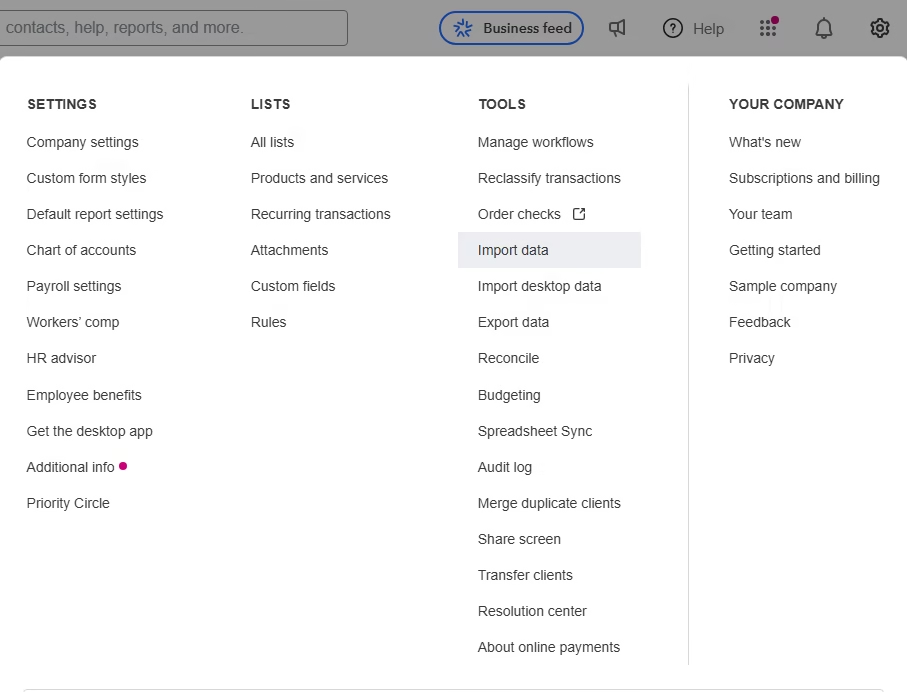
Sign in to QuickBooks Online. Select the Gear icon, then choose Import Data. From the list of import options, select Chart of Accounts.
This is the built-in import path for adding account lists to QuickBooks Online. The exact layout may vary slightly as QuickBooks updates its interface, but the import option is located under the company settings area.
Step 4: Upload Your File
Choose your spreadsheet file from your computer. QuickBooks Online supports spreadsheet-based imports, commonly using CSV or Excel files. Select the file and continue to the next screen.
If QuickBooks cannot read the file, open it again and check the format. A simple CSV file often works well because it removes extra spreadsheet formatting.
Step 5: Map Your Columns
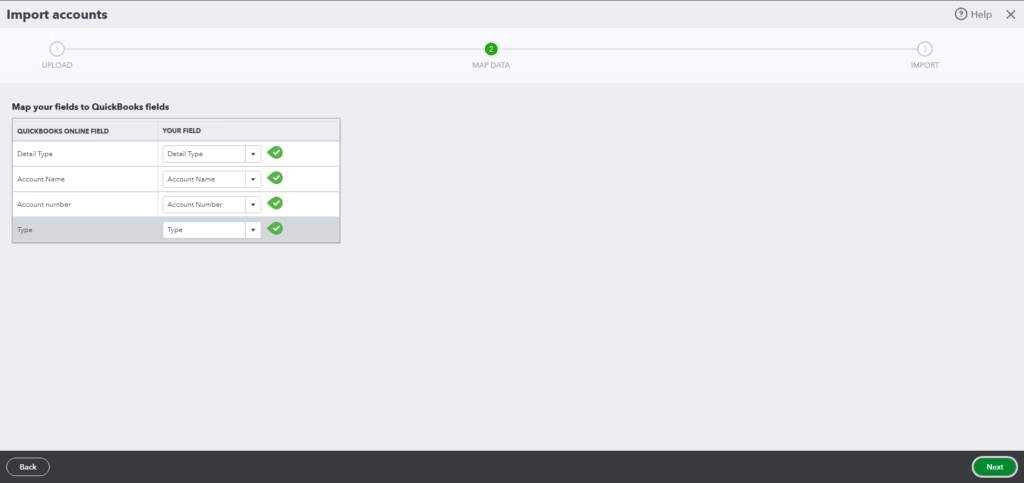
Column mapping means telling QuickBooks which spreadsheet column belongs to which QuickBooks field. For example, your spreadsheet column called Name may need to be mapped to the QuickBooks Account Name field.
Review each mapping carefully. The most important fields are the account name, account type, and detail type. If account numbers are included and enabled in your setup, map that field as well.
Do not rush this step. A wrong mapping can cause accounts to import incorrectly. For example, if your account type column is mapped as the account name, QuickBooks may create confusing account records.
Step 6: Review the Import Preview
QuickBooks Online will show a preview before the import is completed. Review every account in the preview. Look for misspellings, wrong account types, missing detail types, blank names, and duplicates.
If something looks wrong, go back and fix the spreadsheet before importing. It is usually easier to correct the file before the import than to clean up the chart of accounts afterward.
Step 7: Complete the Import
When the preview looks correct, complete the import. QuickBooks Online will add the new accounts to your chart of accounts.
After the import finishes, go back to your chart of accounts and confirm that the new accounts appear as expected. Open a few accounts and review their settings.
Step 8: Make Final Adjustments
Some cleanup may still be needed after import. You may need to edit account names, adjust descriptions, make accounts inactive, or merge duplicates if your setup allows it and if merging is appropriate.
Be careful when editing accounts that already have transactions. Changes to account types can affect reports. If you are unsure, ask a QuickBooks professional or accountant before making major changes.
Verification Checklist
Use this checklist after you import chart of accounts into QuickBooks Online.
- Confirm all expected accounts were imported.
- Check that account names are spelled correctly.
- Verify each account type is correct.
- Verify each detail type is appropriate.
- Confirm account numbers appear correctly if you use them.
- Look for duplicate or unnecessary accounts.
- Run a sample Profit and Loss report and review income and expense sections.
- Run a sample Balance Sheet and review asset, liability, and equity sections.
- Make inactive any accounts that should not be used.
- Ask your accountant to review the setup before entering large amounts of data.
Common Problems
Import issues usually come from file formatting, duplicate names, or incorrect account classifications. The table below explains common problems and practical fixes.
| Problem | Likely Cause | What to Do |
|---|---|---|
| QuickBooks does not accept the file | The file format or formatting is not readable | Save the file as a clean CSV or Excel file and remove extra formatting. |
| Columns do not map correctly | Column headings are unclear or missing | Rename columns clearly, such as Account Name, Account Type, and Detail Type. |
| Accounts appear under the wrong report section | Incorrect account type was selected | Edit the account classification if appropriate, or consult an accountant. |
| Duplicate accounts appear | The imported file included accounts already in QuickBooks | Review duplicates and decide whether to merge, rename, or make one inactive. |
| Account numbers are missing | Account numbers were not mapped or enabled | Review your QuickBooks settings and import mapping, then edit accounts if needed. |
| Some accounts did not import | Rows had missing required information or invalid values | Fix the spreadsheet and import only the missing accounts. |
Common Mistakes
The biggest mistake is importing too many accounts. A long chart of accounts may look detailed, but it can make bookkeeping slower and reports harder to understand.
Another common mistake is using broad accounts such as Miscellaneous too often. A few general accounts may be fine, but overusing them hides useful financial details.
Watch out for these mistakes:
- Importing accounts without reviewing the default QuickBooks accounts first
- Using duplicate names for the same purpose
- Choosing an expense account type for loans or credit cards
- Creating too many narrow categories that will rarely be used
- Ignoring detail types
- Importing old accounts from a prior system without cleanup
- Letting non-accounting users create extra accounts after setup
A clean chart of accounts should be detailed enough for decision-making but simple enough for daily bookkeeping.
Best Practices
Start with your reporting needs. Ask yourself what you need to see on your financial statements each month. If you do not need to track an expense separately, it may not need its own account.
Use consistent naming. For example, choose either Travel or Travel Expense, but avoid using both for the same purpose.
Keep your account types accurate. QuickBooks uses account types to organize financial statements, so this is more than a label. It controls report placement.
If multiple people work in QuickBooks, create rules for adding new accounts. This prevents your chart of accounts from growing out of control.
Also, consider having your accountant review your import file before you upload it. A short review before import can prevent hours of cleanup later.
Expert Tips
Use a test review process. Before importing a large account list, review the spreadsheet line by line. If possible, have a second person check the account type and detail type columns.
Do not import opening balances unless you have a clear migration plan. The chart of accounts import is mainly for account setup. Beginning balances and historical transactions should be handled carefully so your reports stay accurate.
Keep the chart flexible. Your business may grow, add departments, or change services. Use account names that can still make sense later.
Avoid over-customizing too early. Beginners often create dozens of accounts for every small expense. Start practical, then add accounts only when the reporting benefit is clear.
Document your account structure. Keep a simple note explaining what each account is used for. This helps bookkeepers and staff categorize transactions consistently.
Frequently Asked Questions
1. Can I import a chart of accounts into QuickBooks Online?
Yes. QuickBooks Online includes an import option for the chart of accounts. You can upload a spreadsheet file, map the columns, review the preview, and complete the import.
2. What file type should I use?
QuickBooks Online commonly uses spreadsheet files such as CSV or Excel for importing a chart of accounts. A clean CSV file is often a good choice because it avoids extra formatting issues.
3. What fields are required?
You should prepare at least the account name, account type, and detail type. Account numbers and descriptions may be optional depending on your setup and the fields available during mapping.
4. Can I import account numbers?
Yes, you can include account numbers if your QuickBooks Online setup uses them and the import screen allows you to map the account number column. Review settings and mapping before completing the import.
5. Will importing a chart of accounts import transactions?
No. Importing the chart of accounts creates account categories. It does not import invoices, bills, payments, deposits, journal entries, or full transaction history.
6. Can I import opening balances with the chart of accounts?
Do not assume opening balances should be imported with the account list. Beginning balances require careful handling during setup or migration. Work with an accountant if you are moving balances from another system.
7. What happens if I import duplicate accounts?
Duplicate accounts can make reports confusing and increase bookkeeping errors. Review your existing chart of accounts before importing. If duplicates are created, review them carefully before merging, renaming, or making accounts inactive.
8. Can I undo a chart of accounts import?
QuickBooks Online does not treat a chart of accounts import like a simple undo button. If you import incorrect accounts, you may need to edit, merge, or make accounts inactive. This is why reviewing the preview is important.
9. Should I import the same chart of accounts from QuickBooks Desktop?
If you are moving from QuickBooks Desktop to QuickBooks Online, the process may involve more than a simple chart of accounts import. Desktop and Online do not always handle every setup item the same way. Review the migration plan before importing data manually.
10. Do I need an accountant to import my chart of accounts?
You can import it yourself if your file is simple and you understand the account types. However, an accountant or QuickBooks specialist can help prevent classification problems, duplicate accounts, and reporting issues.
Key Takeaways
- You can import chart of accounts into QuickBooks Online using the built-in import tool.
- Prepare a clean CSV or Excel file before starting.
- Account name, account type, and detail type are the most important fields to review.
- Check your existing chart of accounts before importing to avoid duplicates.
- Review the import preview carefully before completing the process.
- A clean chart of accounts improves bookkeeping accuracy and financial reporting.
Conclusion
Learning how to import chart of accounts into QuickBooks Online can save time and help you start with a stronger accounting structure. The process is straightforward, but the details matter. Your spreadsheet must be clean, your account types must be accurate, and your final chart of accounts should match the way your business needs to report financial activity.
Before importing, review your existing accounts, prepare your file carefully, and check the preview screen before you confirm. After the import, run reports and verify that accounts appear in the right places. A little extra care during setup can prevent major cleanup work later.
If you are unsure about account types, detail types, beginning balances, or migration from another system, get professional help before importing. A well-built chart of accounts is the foundation for reliable QuickBooks reporting.
Need Expert Help with QuickBooks?
Databrax can help you import chart of accounts into QuickBooks Online and set up your company file correctly. Our team provides QuickBooks Data Import & Export, QuickBooks Data Migration, QuickBooks Company File Cleanup, QuickBooks Error Resolution, QuickBooks Setup & Configuration, QuickBooks Training, and Bookkeeping Support.
- ✓ Expert QuickBooks Specialists
- ✓ Fast Turnaround
- ✓ Secure Data Handling
- ✓ Personalized Support
- ✓ Reliable Solutions