
Need to export payroll data from QuickBooks Online for your accountant, tax review, audit file, or internal payroll analysis? In QuickBooks Online Payroll, payroll information is usually exported via reports rather than a single download button.
The key is choosing the right payroll report, setting the correct date range, applying the right filters, and then exporting the report to Excel or PDF. If any of those details are wrong, your exported file may miss employees, show unexpected totals, or not match payroll tax filings.
This guide walks you through the full process in plain English, including which reports to use, how to export them, what to verify, and how to troubleshoot the most common problems.
Table of Contents
Quick Answer
To export payroll data from QuickBooks Online, sign in to the correct company, go to Reports, open a payroll report such as Payroll Summary, Payroll Details, Payroll Tax Liability, or Paycheck History, set the date range and filters, run the report, then select the export icon and choose Export to Excel or Export to PDF when available.
For most accounting review work, Excel is the better choice because you can sort, filter, total, and compare the data. PDF is better when you need a fixed copy for sharing or recordkeeping.
| Need | Best Export Choice | Why |
|---|---|---|
| Payroll totals by employee | Payroll Summary | Shows gross pay, taxes, deductions, and net pay totals |
| Paycheck-level detail | Payroll Details or Paycheck History | Useful for reviewing individual payroll runs and checks |
| Payroll tax review | Payroll Tax Liability | Helps compare taxes owed, paid, or reported |
| Sharing a locked report | Keeps formatting consistent | |
| Analysis or reconciliation | Excel | Allows formulas, filtering, and comparison |
What Is Export Payroll Data from QuickBooks Online?
Exporting payroll data means creating a downloadable copy of payroll information from your QuickBooks Online Payroll reports. Depending on the report, the export may include employee wages, paycheck dates, pay types, employee taxes, employer taxes, deductions, contributions, and net pay.
Businesses commonly export payroll reports when preparing files for an accountant, reviewing payroll expenses, reconciling payroll liabilities, supporting tax filings, or keeping period-end documentation. The exported file is a snapshot of the report at the time you download it.
Important: An exported payroll file does not update automatically. If you later void, correct, or recreate payroll checks, export the report again so your saved copy matches the updated QuickBooks data.
Why It Matters
Payroll affects wages, taxes, benefits, job costing, compliance, and cash flow. A clean export saves time because your accountant or payroll reviewer can work from organized report data instead of asking for screenshots or manual summaries.
Accuracy also matters. If you export the wrong date range or use the wrong report, your totals may not match payroll filings or your general ledger. That can create confusion during month-end close, payroll tax review, or year-end reporting.
Good payroll exports improve productivity because they reduce back-and-forth questions. They also create a useful backup trail for management review, lender requests, workers’ compensation audits, and internal controls.
Requirements Before You Begin
Before you export, confirm you have the right access and the right company open. Payroll data is sensitive, so QuickBooks limits access based on payroll permissions.
| Requirement | Why It Matters |
|---|---|
| Active QuickBooks Online company | You must be signed in to the company that contains the payroll records |
| Active QuickBooks Online Payroll subscription | Payroll reports may not appear without an active payroll subscription |
| Payroll permissions | Your user role must allow access to employee and payroll details |
| Payroll data for the period | The report will be blank if no payroll checks exist in the selected dates |
| Supported browser with downloads allowed | Blocked downloads or pop-ups can stop the export file from saving |
| Excel or spreadsheet software | Needed if you export the report as an XLSX file |
Things to Prepare
Preparing before you run the report prevents most payroll export problems. Use this checklist before downloading anything:
- Confirm you are in the correct QuickBooks Online company.
- Confirm your payroll subscription is active.
- Confirm your user profile has payroll access.
- Decide which report best matches your purpose.
- Choose the correct date range.
- Know whether the report is based on paycheck date or pay period date.
- Decide whether to include inactive or terminated employees.
- Apply employee, pay schedule, work location, or tax filters if needed.
- Create a secure folder for the exported payroll file.
- Plan a clear file name, such as company name, report name, and date range.
Step-by-Step Guide
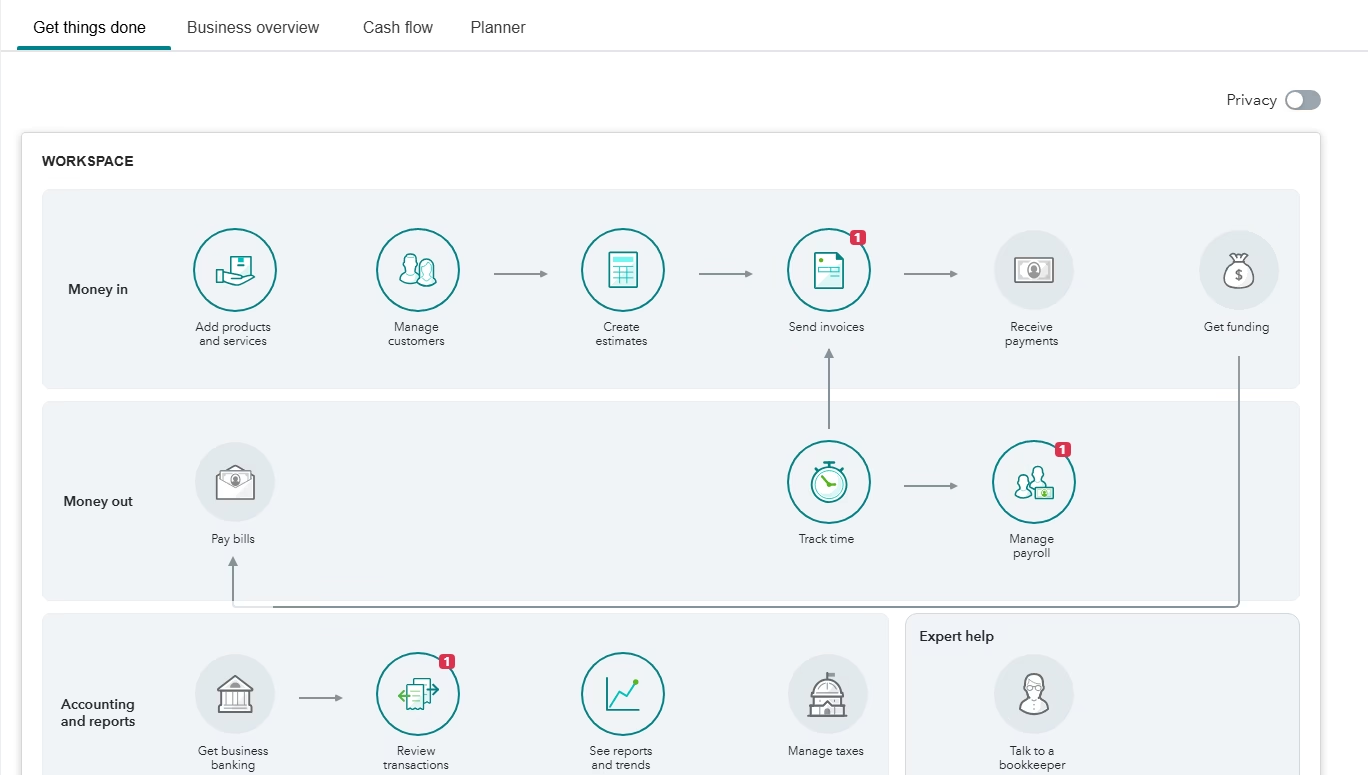
Step 1: Sign in and open the correct company
Start by signing in to QuickBooks Online and confirming the company name at the top of the screen. This matters because many accountants and business owners have access to more than one QuickBooks company.
If you export from the wrong company, the file may look valid but contain the wrong payroll records. After you confirm the company, you can safely move to the reports area.
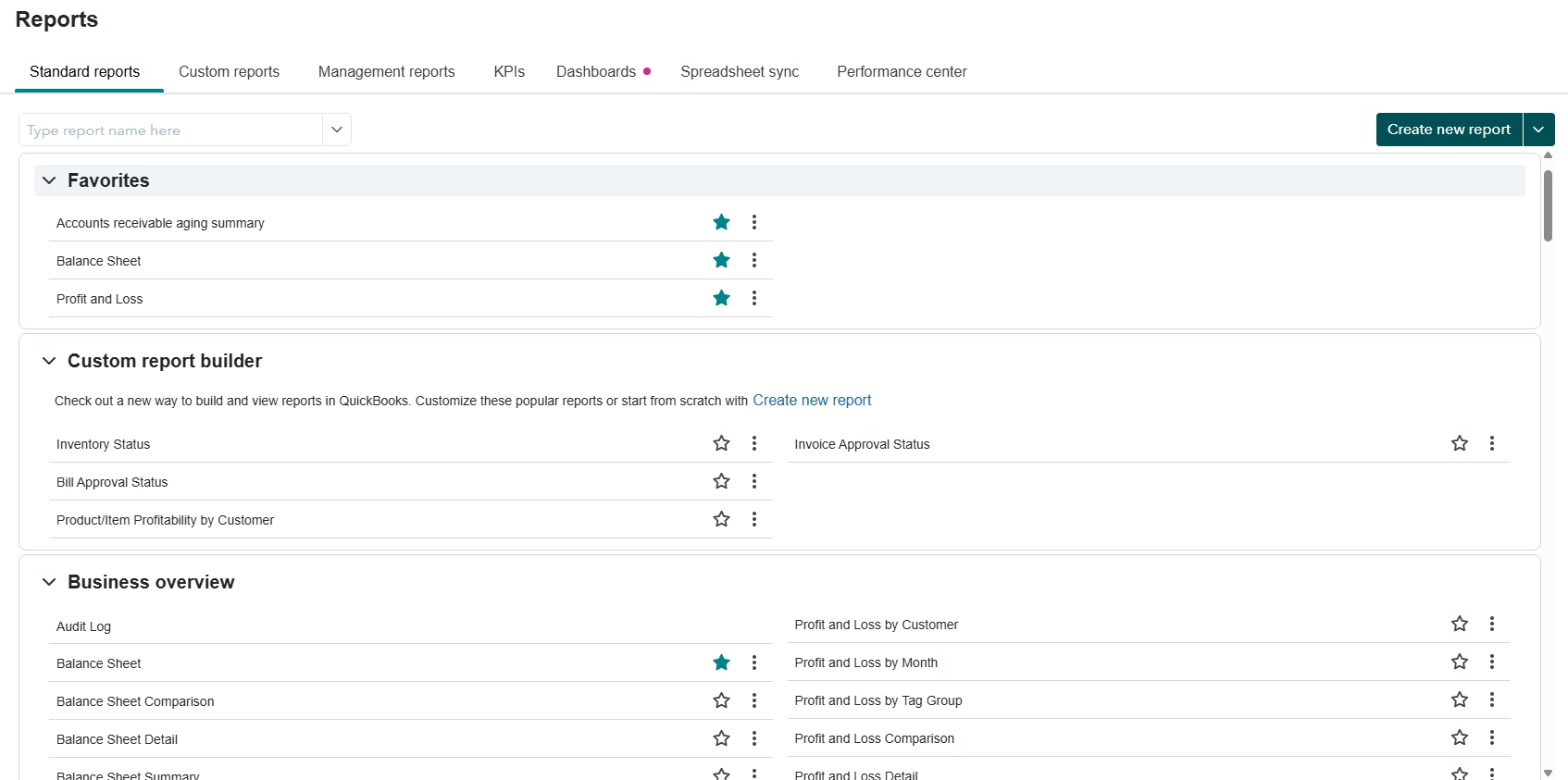
Step 2: Go to Reports
From the left navigation menu, select Reports. Payroll exports in QuickBooks Online usually begin from reports because the report controls determine what data appears in the downloaded file.
If you do not see the Reports menu or payroll reports are missing, check your permissions. A standard user without payroll access may not be able to view employee pay information.
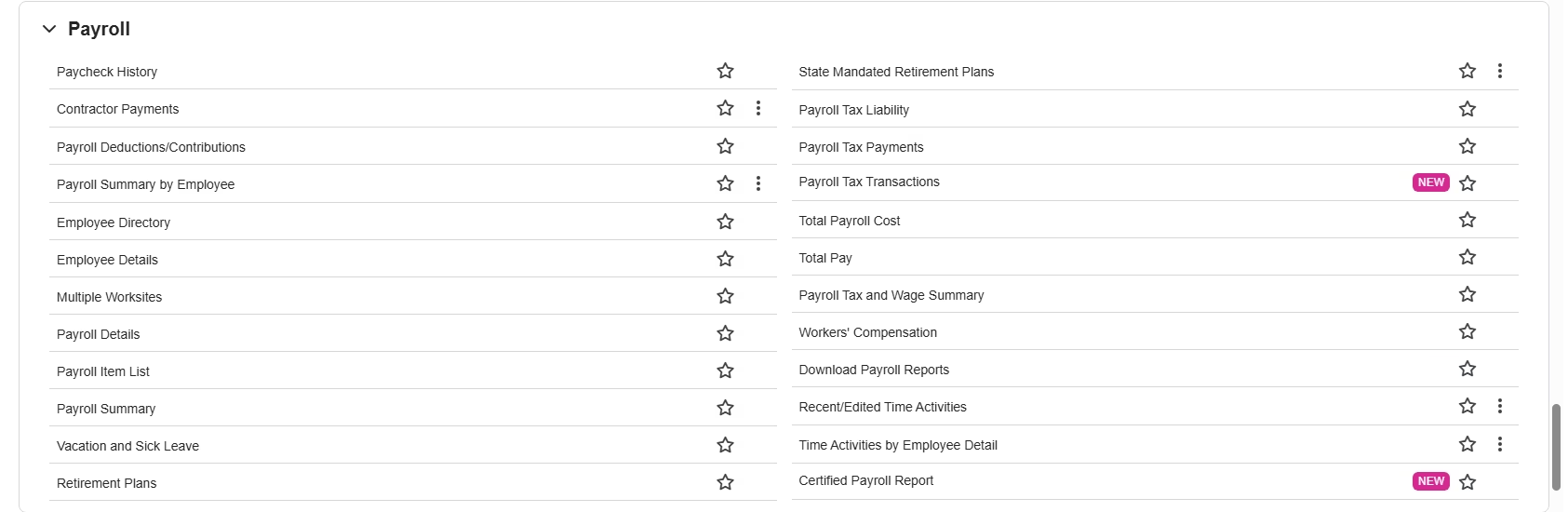
Step 3: Choose the right payroll report
Use the report search bar to find a payroll report. Common options include Payroll Summary, Payroll Details, Payroll Tax Liability, Employee Details, and Paycheck History.
The report you choose should match your goal. For example, use Payroll Summary for high-level totals by employee. Use Payroll Details or Paycheck History when you need paycheck-level review. Use Payroll Tax Liability when reviewing employer and employee tax amounts.
Step 4: Set the correct date range
Enter the date range for the payroll period you want to review. This step controls which payroll checks and totals appear in the export.
Be careful with paycheck dates versus pay period dates. Some payroll reports use the date employees were paid, not the dates they worked. If payroll was run on January 2 for work performed in December, that detail can affect year-end reporting and tax comparisons.
After selecting dates, run or refresh the report if QuickBooks does not update automatically.
Step 5: Apply filters if needed
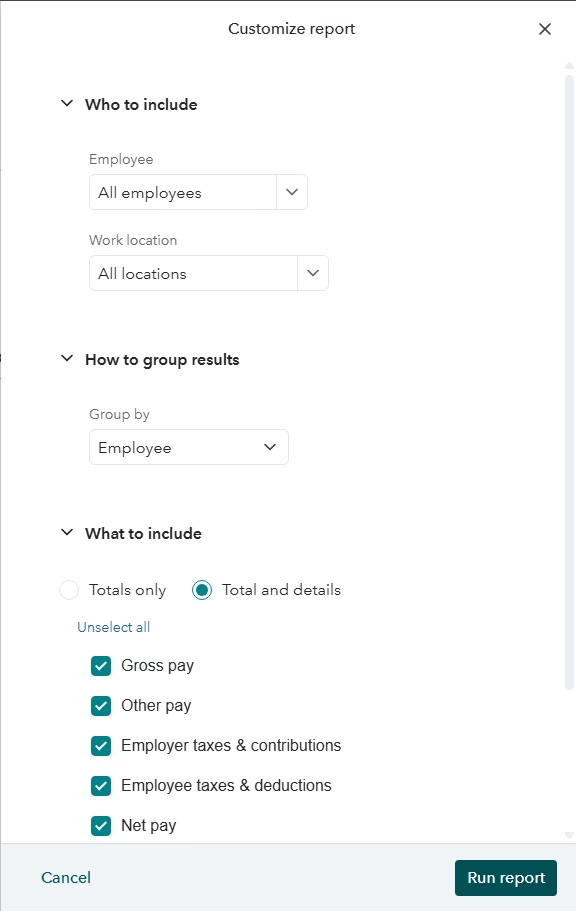
Depending on the report, you may be able to filter by employee, pay schedule, work location, tax category, or other payroll details. Filters help narrow the export so it includes only the records you need.
Use filters carefully. A common mistake is exporting a filtered report and later assuming it includes all employees. If the export is for tax review, audit support, or accounting reconciliation, make sure filters do not exclude people or locations unintentionally.
Step 6: Review the report on screen before exporting
Before downloading the file, scan the on-screen report. Check the report title, date range, employee list, gross pay, net pay, employee taxes, employer taxes, deductions, and contributions where applicable.
This step saves time because export files simply copy the report results. If the on-screen report is wrong, the Excel or PDF file will be wrong too.
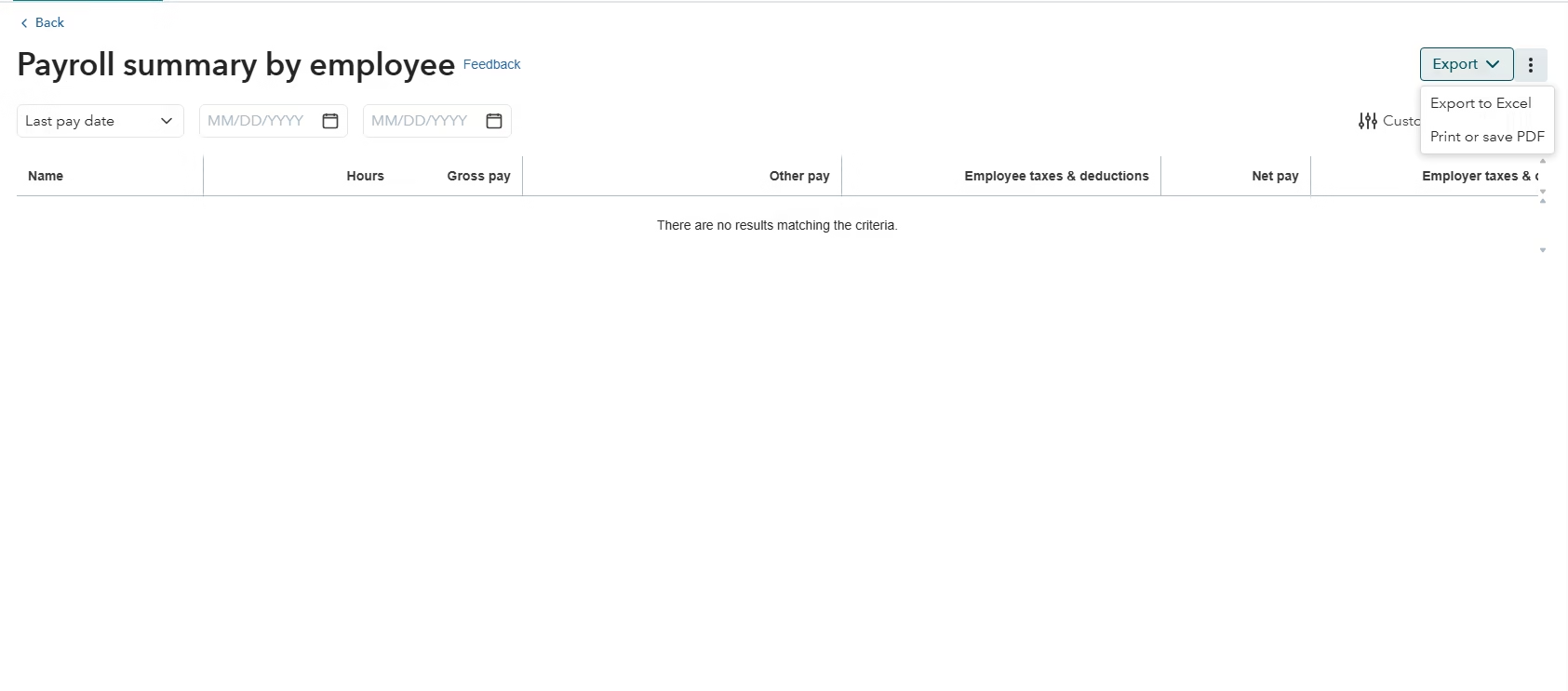
Step 7: Select the export icon
Look for the export icon near the top of the report. It is often shown with the report action icons. If you cannot see it, widen your browser window or reduce the browser zoom because report controls can be hidden on smaller screens.
Select the icon and choose Export to Excel or Export to PDF when available. Excel is best for analysis. PDF is best for sending a read-only style copy.
Step 8: Save and rename the exported file
After the download finishes, save the file in a secure payroll folder. Payroll exports contain sensitive wage and tax information, so avoid saving them to a shared desktop, unsecured downloads folder, or email thread unless your company’s security policy allows it.
Rename the file clearly. A good naming format is CompanyName-PayrollSummary-2024-Q4.xlsx. Clear names make it easier to identify the file later during audits, tax review, or cleanup work.
Step 9: Open the file and confirm the export
Open the Excel or PDF file after downloading it. Confirm the rows, columns, totals, and formatting came through correctly. Do not assume the download worked just because a file appeared in your downloads folder.
If you are sending the file to an accountant, verify the totals first. That one minute of review can prevent several rounds of questions later.
Verification Checklist
| Check | How to Verify | Expected Result |
|---|---|---|
| Report name | Compare the exported file to the report you intended to use | The report matches the payroll question you need answered |
| Date range | Review the dates shown on the report and file | Only the intended payroll checks are included |
| Paycheck or pay period basis | Check how the report defines its dates | Totals align with your reporting purpose |
| Employees included | Scan active, inactive, and terminated employees if needed | No required employee is missing |
| Gross and net pay | Compare exported totals to the on-screen report | Totals match exactly |
| Payroll taxes | Compare employee and employer taxes to payroll reports | Tax totals are consistent |
| File access | Open the Excel or PDF file | The file opens without errors |
| Security | Confirm where the file is stored | Payroll data is saved in a secure location |
Common Problems
| Problem | Cause | Solution |
|---|---|---|
| Payroll reports do not appear | No active payroll subscription or limited user access | Confirm the subscription and ask the admin to review payroll permissions |
| Report shows no data | Date range does not include payroll checks | Change the date range and confirm the paycheck dates |
| Export file will not download | Browser blocks downloads or pop-ups | Allow downloads for QuickBooks Online and try again |
| Export icon is missing | Browser zoom or window size hides report controls | Zoom out, maximize the browser, or try another supported browser |
| Totals do not match tax forms | Voided, corrected, or recreated checks changed payroll history | Review paycheck history and rerun the report using the correct date basis |
| Employees are missing | Filters exclude inactive, terminated, or specific employees | Clear filters or adjust employee selections before exporting |
Common Mistakes
The biggest mistake is exporting before checking the report on screen. QuickBooks exports what the report displays, so incorrect filters or dates carry directly into the file.
Another common issue is confusing paycheck dates with pay period dates. This is especially important around month-end, quarter-end, and year-end. Always confirm which date basis supports the purpose of your export.
Users also forget that exported files are static. If payroll changes after the export, the saved file is outdated. Re-export the report after corrections, voids, or late payroll adjustments.
Best Practices
- Use Excel for analysis. It lets you filter employees, calculate totals, and compare payroll data to the general ledger.
- Use PDF for formal sharing. PDF is better when you want a fixed report that is less likely to be edited accidentally.
- Save payroll exports securely. Payroll files contain confidential wage, tax, and personal employee information.
- Name files consistently. Include company name, report name, and date range so the file is easy to identify later.
- Keep a copy of the report settings. If an accountant asks how totals were created, the date range and filters matter.
Frequently Asked Questions
Can I export payroll data from QuickBooks Online to Excel?
Yes. Open the payroll report you need, set the date range and filters, then use the export icon to export to Excel when that option is available.
Can I export QuickBooks Online payroll reports to PDF?
Yes. Many QuickBooks Online reports allow PDF export. PDF is useful when you need a clean report copy for review, sharing, or documentation.
Why can’t I see payroll reports in QuickBooks Online?
You may not have an active QuickBooks Online Payroll subscription, or your user role may not include payroll permissions. Ask the company admin to review access.
Which payroll report should I export?
Use Payroll Summary for totals, Payroll Details or Paycheck History for paycheck-level review, and Payroll Tax Liability for payroll tax review.
Do exported payroll files update automatically?
No. Exported files are copies of the report at the time of download. If payroll changes, you need to export a new file.
Why does my payroll export show no data?
The selected date range may not include payroll checks, or filters may be excluding employees. Check paycheck dates and remove unnecessary filters.
Can I export payroll data for one employee?
Yes, if the report includes employee filters. Select the employee before running and exporting the report.
Is payroll export available in QuickBooks Desktop too?
Yes, but the process is different. In QuickBooks Desktop, go to Reports, then Employees & Payroll, choose a payroll report, and use the Excel option at the top of the report.
Should I send payroll exports to my accountant?
Yes, when requested, but send them securely. Payroll exports contain sensitive employee wage and tax information.
Key Takeaways
- QuickBooks Online Payroll data is usually exported through payroll reports.
- The report date range and filters control what appears in the export.
- Excel is best for analysis; PDF is best for fixed report sharing.
- Always verify gross pay, net pay, taxes, employees, and date basis before relying on the file.
- Exported payroll files are static copies and should be stored securely.
Conclusion
Exporting payroll data from QuickBooks Online is straightforward once you know where the information lives. The most important part is not the export button itself; it is choosing the correct report, setting the right dates, and verifying the totals before you share or file the export.
If you are using the export for tax review, audit support, cleanup, or management reporting, take a few extra minutes to confirm the report settings. That small step can prevent mismatched totals and unnecessary rework.
Need Expert Help with QuickBooks?
Databrax can help you get accurate payroll and accounting data out of QuickBooks without the guesswork. Our QuickBooks specialists assist with data migration, bulk imports, cleanup, error resolution, reporting, and ongoing support so your books stay organized and reliable.