
Table of Contents
Introduction
If you have a list of open estimates sitting in Excel, another accounting system, or a project management tool, moving them into QuickBooks Online can save hours of manual entry. The challenge is that QuickBooks Online does not include a standard built-in Excel or CSV import option specifically for estimates.
That does not mean you are stuck retyping every estimate. You can still import estimates into QuickBooks Online using the right method, clean source data, and a careful review process. The key is understanding what QuickBooks can and cannot do natively before you start.
This guide explains the practical options, the setup work you should complete first, and the checks you should run after the import so your estimates are accurate and usable.
Quick Answer
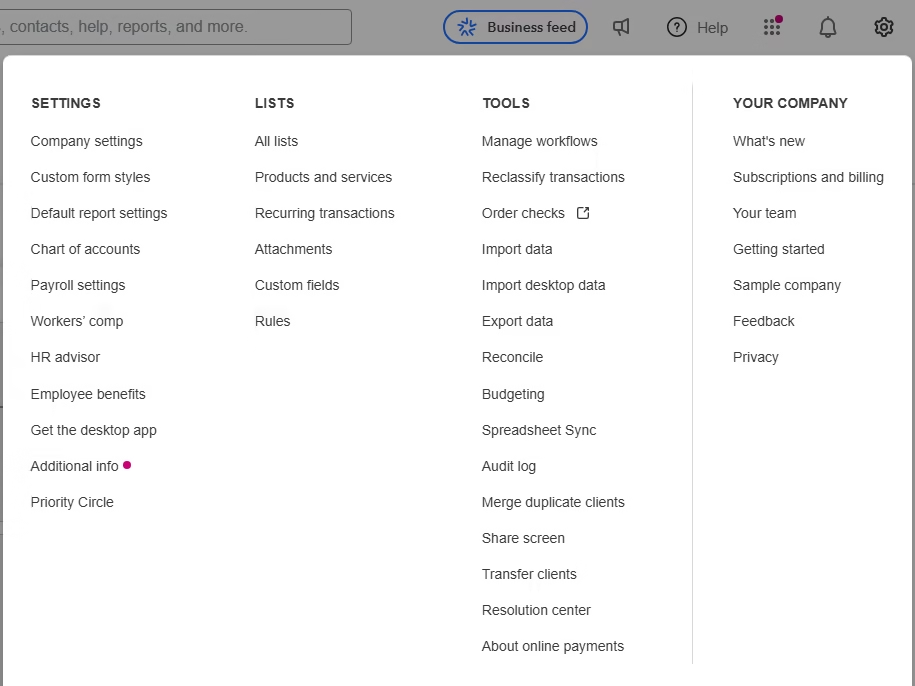
QuickBooks Online does not currently provide a native Import data option for estimate transactions. If you open the Gear icon and choose Import data, you will typically see list imports such as customers, suppliers, chart of accounts, and products or services, but not estimates.
To import estimates into QuickBooks Online in bulk, most businesses use an authorized third-party app, a custom QuickBooks Online API connection, or manual entry for smaller volumes. Before importing, customers, products or services, tax settings, and other related records should already exist in QuickBooks.
| Question | Short Answer |
|---|---|
| Can QuickBooks Online import estimates from Excel by default? | No, not with the standard Import data tool. |
| What method is usually used? | An approved app, API process, or manual entry. |
| Do estimates affect financial reports? | No. Estimates are non-posting until converted to invoices or sales forms. |
| What should be imported first? | Customers and products or services. |
What Is Importing Estimates into QuickBooks Online?
Importing estimates means creating estimate transactions in QuickBooks Online from data that already exists somewhere else. That source might be a spreadsheet, an old accounting system, a CRM, a construction estimating tool, or a job management platform.
An estimate in QuickBooks Online is a non-posting sales form. It helps you quote work, materials, services, or project costs to a customer. Because it is non-posting, it does not increase income, accounts receivable, or inventory by itself.
Businesses use estimates when customers need approval before work begins. Contractors, consultants, agencies, repair companies, and service businesses often rely on estimates before converting accepted work to invoices.
Why It Matters
Clean estimate imports matter because estimates often become the starting point for billing. If the imported estimate is wrong, the invoice created from it may also be wrong.
- Time savings: Bulk creation avoids entering the same customer, date, item, quantity, and rate fields over and over.
- Accuracy: Proper mapping reduces typing mistakes and missed line items.
- Compliance: Correct tax setup helps taxable and non-taxable lines calculate properly.
- Reporting: Accurate estimates support sales pipeline, project, customer, and conversion reporting.
- Productivity: Your team can work from one system instead of chasing old spreadsheets.
Requirements Before You Begin
Before you import estimates into QuickBooks Online, confirm that your company file and user access are ready. This preparation prevents most import failures.
| Requirement | Why It Matters |
|---|---|
| QuickBooks Online company with estimates enabled | You need access to the Sales workflow that supports estimates. |
| Admin or sales transaction permission | The user must be able to create estimates and authorize connected apps if needed. |
| Customers created first | Every estimate must be linked to a customer. |
| Products and services created first | Item-based estimate lines must match QuickBooks items. |
| Sales tax configured | Taxable estimates need correct tax agencies, rates, and settings. |
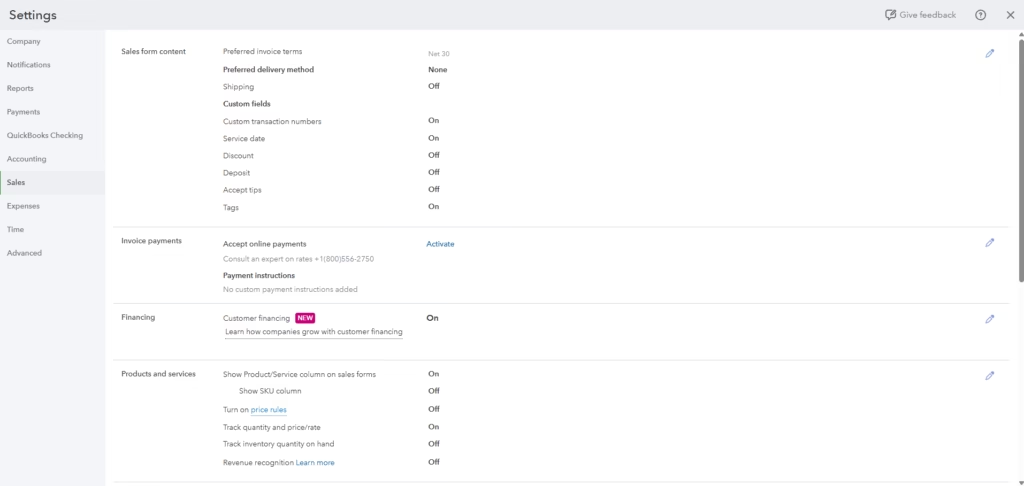
| Custom transaction numbers enabled | This helps preserve estimate numbers from the old system. |
| Multicurrency enabled if needed | Foreign-currency estimates must be created under the correct currency rules. |
Things to Prepare
Prepare your data before using any app, API, or manual process. A clean file is easier to map and easier to troubleshoot.
- ✔ A copy of the original CSV or Excel file
- ✔ Admin access or correct user permissions
- ✔ Customer names that match QuickBooks Online
- ✔ Product or service names that match QuickBooks Online
- ✔ Estimate date and expiration date columns
- ✔ Estimate number, if you want to preserve numbering
- ✔ Item, description, quantity, rate, amount, tax status, and memo fields
- ✔ Class, location, project, and currency fields if your company uses them
- ✔ A small test batch file with a few estimates
Step-by-Step Guide
Step 1: Confirm the Native Import Limitation
Start by checking the built-in options. In QuickBooks Online, select the Gear icon, then choose Import data. Review the available import types.
Why this matters: many users waste time looking for an Estimates option that is not there. QuickBooks Online supports several list imports and some transaction imports, but estimates are not part of the standard import menu.
Expected result: you should understand that a non-native method is required for bulk estimate import.
Step 2: Import or Create Customers First
Each estimate needs a customer. If a customer in your spreadsheet does not exist in QuickBooks Online, the import may fail or create incorrect records, depending on the tool used.
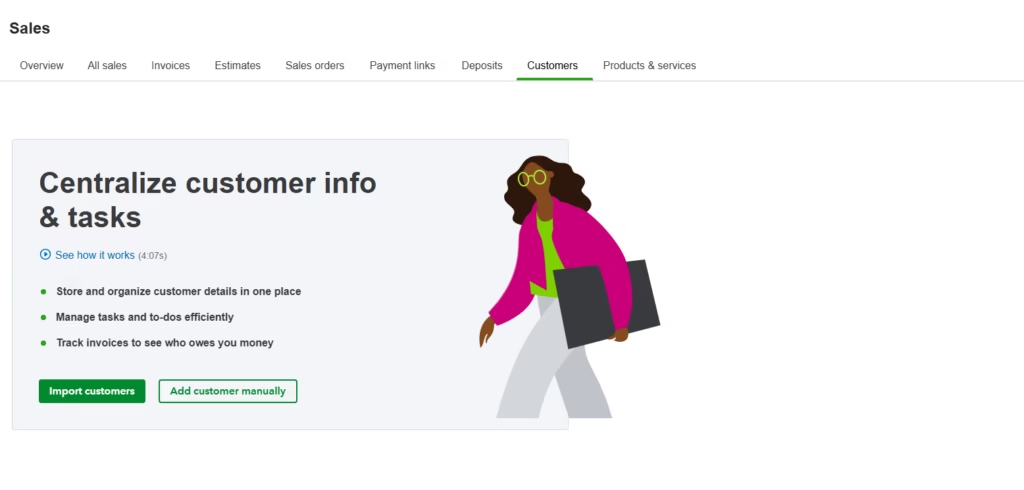
Go to Sales, then Customers, and review your customer list. Add missing customers manually or import them using QuickBooks Online customer import.
Expected result: every customer in your estimate file has a matching customer record in QuickBooks Online.
Step 3: Set Up Products and Services
Most estimates include item lines, such as labor, materials, consulting hours, or parts. Those line items should match products and services already set up in QuickBooks Online.
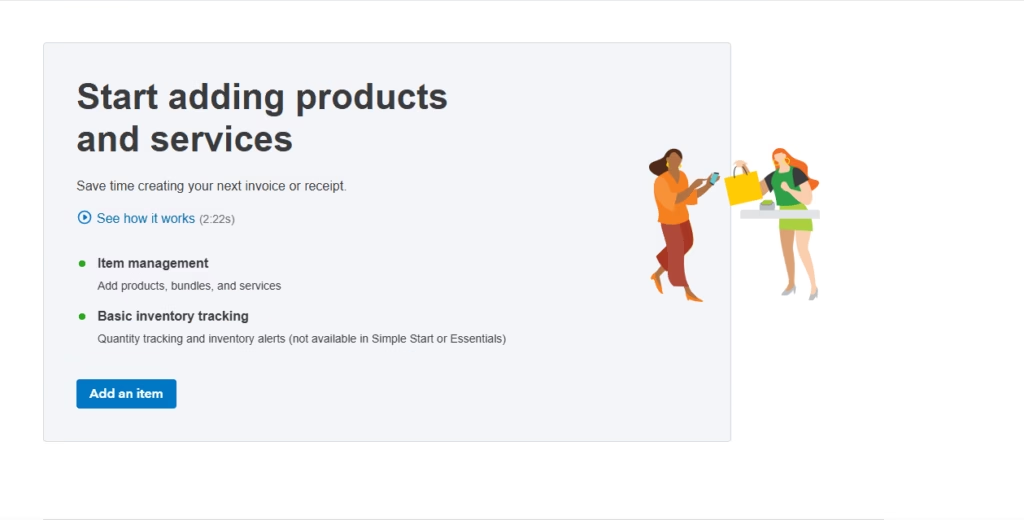
Go to Sales, then Products and services. Check item names, income accounts, descriptions, and sales tax settings.
Expected result: each item in your source file can be mapped to the correct QuickBooks product or service.
Step 4: Configure Sales Settings
Review settings before importing. If you need to keep existing estimate numbers, turn on custom transaction numbers. If you use classes, locations, projects, sales tax, or multicurrency, configure those features first.
Why this matters: some settings cannot be changed cleanly after transactions are created. Multicurrency, for example, must be enabled before foreign-currency transactions are entered.
Expected result: QuickBooks is ready to receive estimate data with the correct numbering, tax, tracking, and currency behavior.
Step 5: Clean and Structure the Source File
Your file should have one clear structure. At minimum, include customer, estimate date, expiration date, estimate number, product or service, quantity, rate, amount, tax status, and memo.
If one estimate has multiple lines, make sure the import method understands how to group lines under the same estimate number. This is one of the most important mapping rules.
Expected result: the source file is readable, consistent, and ready to map.
Step 6: Choose an Import Method
Because QuickBooks Online does not offer native estimate import, choose a supported outside method. Common choices include an authorized QuickBooks app, a custom API process, or manual entry for a small number of estimates.
When using an app, confirm that it specifically supports creating Estimate transactions in QuickBooks Online. Do not assume that invoice import support also means estimate import support.
Expected result: you have a method that can create estimate transactions, not just import lists.
Step 7: Map Fields Carefully
During mapping, connect each column in your file to the correct QuickBooks field. Common fields include Customer, Estimate Date, Expiration Date, Product or Service, Description, Quantity, Rate, Amount, Tax, Message, Class, and Location.
Why this matters: field mapping controls where your data lands. A quantity column mapped to an amount field can produce incorrect totals across every estimate.
Expected result: source fields align with the correct QuickBooks estimate fields.
Step 8: Run a Small Test Import
Import three to five estimates before importing the full file. Include simple and complex examples, such as a taxable estimate, a multi-line estimate, and an estimate with a custom number.
Expected result: the test estimates appear in QuickBooks Online with correct customers, dates, lines, tax, totals, and numbers.
Step 9: Review Estimates in QuickBooks Online
Go to Sales, then All sales. Filter the transaction type to Estimates. Open a few imported records and compare them to your source file.
Expected result: imported estimates are visible, accurate, and ready for normal use.
Step 10: Import the Full File and Save Your Audit Trail
After the test looks correct, run the full import. Keep the original source file, the final import file, and any import success or error report.
Expected result: your estimate history is moved into QuickBooks Online, and you have documentation to support later review.
Verification Checklist
| Check | How to Verify | Expected Result |
|---|---|---|
| Estimate count | Compare QuickBooks estimate count to the source file | Totals match |
| Customer | Open sample estimates | Correct customer is assigned |
| Estimate number | Compare numbers to the source file | Numbers match if custom numbering is enabled |
| Dates | Review estimate and expiration dates | Dates are accurate |
| Line items | Check products, quantities, rates, and descriptions | Lines match the source data |
| Tax and totals | Compare subtotal, tax, discount, and total | Amounts match |
| Tracking fields | Review class, location, project, and currency | Fields are correct where used |
| Duplicates | Search by customer and estimate number | No duplicate estimates exist |
Common Problems
| Problem | Cause | Solution |
|---|---|---|
| No Estimates option under Import data | QuickBooks Online has no native estimate import tool | Use an app, API process, or manual entry |
| Import fails for customers | Customers do not exist or names do not match | Create or import customers first |
| Items import incorrectly | Product or service names are inconsistent | Clean item names and match QuickBooks exactly |
| Tax totals are wrong | Sales tax was not configured before import | Set up tax codes and test taxable lines |
| Duplicate estimates appear | File was imported more than once | Use unique estimate numbers and review test results |
Common Mistakes
A common mistake is trying to force estimate data through an invoice import tool. Estimates and invoices are different transaction types. An invoice posts to accounts receivable and income, while an estimate does not.
Another mistake is importing before customers and products are ready. This often creates mapping errors, missing lines, or duplicate names. Always set up lists first.
Beginners also forget to test. A small test import can reveal tax, number, date, and line grouping problems before they affect hundreds of records.
Best Practices
- Use a test batch first: It helps catch mapping issues early.
- Keep original files: They provide an audit trail if questions come up later.
- Use exact names: Matching customer and item names reduces import errors.
- Import open estimates only when possible: Closed or outdated estimates can clutter your sales workflow.
- Document your mapping: A simple field map helps future imports stay consistent.
- Review totals before invoicing: Once an estimate becomes an invoice, errors may affect accounting reports.
Frequently Asked Questions
Can I import estimates into QuickBooks Online from Excel?
Not directly with the standard QuickBooks Online Import data tool. You usually need an authorized app, API process, or manual entry.
Why do I not see Estimates under Import data?
QuickBooks Online does not provide a native estimate transaction import option in that menu. This is expected behavior.
Are estimates posting transactions?
No. Estimates are non-posting. They do not affect income, accounts receivable, or inventory until converted to an invoice or related sales transaction.
Do customers need to exist before import?
Yes. Each estimate must be connected to a customer. Create or import customers first to avoid failures and duplicates.
Do products and services need to exist first?
Yes, if your estimates use item lines. Matching products and services helps QuickBooks calculate descriptions, rates, income accounts, and tax behavior correctly.
Can I preserve old estimate numbers?
Usually yes, if your import method supports it and custom transaction numbers are enabled in QuickBooks Online before import.
Can I import estimates with sales tax?
Yes, but sales tax should be enabled and configured first. Test taxable and non-taxable lines before importing the full file.
Can imported estimates be converted to invoices?
They should be able to convert if they are created correctly as estimate transactions. Always test this before relying on the imported data.
Is QuickBooks Desktop the same?
No. QuickBooks Desktop has different tools, including IIF and SDK-based options. Excel Advanced Import is mainly for lists, not estimate transactions.
Key Takeaways
- QuickBooks Online does not have a standard built-in estimate import tool.
- Bulk estimate import usually requires an app, API process, or manual entry.
- Customers, products, tax settings, and tracking fields should be ready first.
- A small test import protects you from large-scale errors.
- Verification is essential before converting imported estimates to invoices.
Conclusion
Importing estimates into QuickBooks Online takes planning because the standard import menu does not support estimate transactions. Once you understand that limitation, the process becomes much easier to manage.
Prepare your lists, clean your file, choose a method that truly supports estimates, and test before importing everything. A careful process gives your team reliable estimates that can support quoting, approvals, invoicing, and reporting.
Need Expert Help with QuickBooks?
Databrax can help you move estimate data into QuickBooks Online the right way. Our team supports Data Migration, Bulk Imports, Cleanup, Error Resolution, Reporting, and Ongoing Support so your QuickBooks file is accurate, organized, and ready for daily use.