
Table of Contents
Introduction
If you are trying to import purchase orders into QuickBooks Online, the first thing to know is this: QuickBooks Online does not include a standard built-in purchase order import screen like it does for some lists. That surprises many business owners, especially when they already have purchase orders stored in Excel, CSV files, another accounting system, or an approval platform.
The good news is that purchase order data can still be brought into QuickBooks Online when you use the right workflow. Most businesses do this with an approved third-party import app or a custom integration that connects through the QuickBooks Online API. The key is preparing your vendors, products, services, dates, quantities, rates, and purchase order numbers before the import starts.
This guide explains how to import purchase orders into QuickBooks Online the right way, what to prepare, what can go wrong, and how to verify the results before you rely on the data for purchasing and vendor follow-up.
Quick Answer
QuickBooks Online does not currently provide a native CSV or Excel import tool specifically for purchase orders. To import purchase orders into QuickBooks Online, you usually need QuickBooks Online Plus or Advanced, purchase orders enabled, clean vendor and item records, and a third-party app or custom integration that uses the QuickBooks Online API.
Purchase orders are non-posting transactions. That means they do not affect expenses, accounts payable, inventory quantity on hand, or bank balances until they are copied or converted into a bill, expense, or check.
| Question | Short Answer |
|---|---|
| Can QuickBooks Online import purchase orders directly? | No, not through the standard Import data page. |
| What do I need? | QuickBooks Online Plus or Advanced, enabled purchase orders, vendors, products, and an import app or API integration. |
| What file type is usually used? | CSV or Excel, depending on the import tool. |
| Do purchase orders affect accounting immediately? | No. They are non-posting until converted to a bill, expense, or check. |
What Is Importing Purchase Orders into QuickBooks Online?
Importing purchase orders means taking purchase order records from another source and creating them in QuickBooks Online in bulk. Instead of entering each purchase order manually, you prepare a spreadsheet or export file and load it through a connected import tool.
Businesses use this process when they are moving from another accounting system, replacing spreadsheets, adding historical open purchase orders, or connecting an external purchasing approval system to QuickBooks Online.
A purchase order tells a vendor what your company plans to buy. It usually includes the vendor name, purchase order date, item or service, quantity, rate, amount, shipping details, and optional tracking fields such as class, location, customer, or project. In QuickBooks Online, the purchase order remains open until you close it or copy it to a posting transaction.
Why It Matters
Time savings: Manual entry works for a few purchase orders, but it becomes slow and risky when you have hundreds of records. A controlled import reduces repetitive typing.
Accuracy: Clean import mapping helps preserve vendor names, item names, quantities, rates, and purchase order numbers. This reduces mismatches between purchasing records and vendor bills.
Compliance: Purchase orders support approval controls. If your company requires approved POs before vendor bills are paid, importing accurate open POs helps preserve that process.
Reporting: Properly imported purchase orders make it easier to review open commitments, expected purchases, and vendor activity.
Productivity: When purchase orders are already in QuickBooks Online, your team can copy them to bills instead of retyping details from emails or spreadsheets.
Requirements Before You Begin
Before you import purchase orders into QuickBooks Online, make sure your QuickBooks company and source file are ready. Most import problems come from missing setup records, unsupported subscription levels, or inconsistent names.
| Requirement | Why It Matters |
|---|---|
| QuickBooks Online Plus or Advanced | Purchase orders are not available in every QuickBooks Online subscription. |
| Purchase orders turned on | The feature must be enabled before purchase orders can be created manually or through an app. |
| User permissions | The user connecting the app must have permission to manage vendors, expenses, and connected apps. |
| Vendors created | Import tools usually need vendor names to match existing vendor records. |
| Products and services created | Line items must connect to QuickBooks product or service records when item-based lines are used. |
| Clean source file | Consistent dates, names, numbers, quantities, and rates reduce rejected rows. |
| Optional tracking enabled | Class, location, project, tax, and multicurrency fields must be enabled if included in the file. |
Things to Prepare
Use this checklist before starting the import. A few minutes of preparation can prevent hours of cleanup later.
- ✔ CSV or Excel file in the format required by your chosen import app.
- ✔ Admin or permitted QuickBooks Online user login.
- ✔ QuickBooks Online Plus or Advanced subscription.
- ✔ Purchase orders enabled in Account and settings.
- ✔ Vendor list reviewed for duplicates and spelling differences.
- ✔ Products and services reviewed for exact item names.
- ✔ Purchase order numbers checked for duplicates.
- ✔ Classes, locations, customers, projects, tax codes, or currencies enabled if used.
- ✔ Small test file prepared before the full import.
- ✔ Original source file saved for audit support.
Step-by-Step Guide
Step 1: Confirm Your QuickBooks Online Subscription
Why: Purchase orders are available in QuickBooks Online Plus and Advanced. If you use a lower plan, the purchase order feature may not appear.
How: In QuickBooks Online, open Settings and review your subscription details under your billing or account settings area. If purchase orders are not available, you may need to upgrade before importing or creating them.
Expected result: You confirm that your company file supports purchase orders before spending time preparing an import.
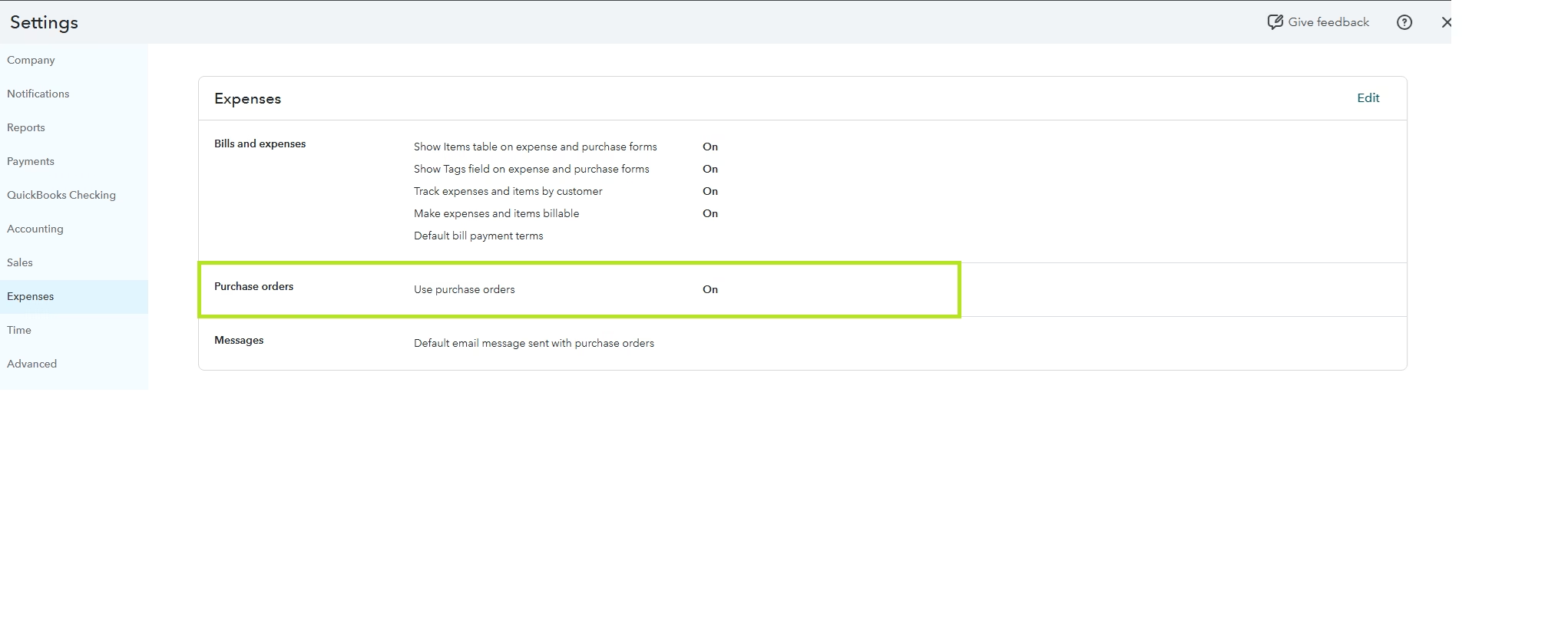
Step 2: Turn On Purchase Orders
Why: QuickBooks Online must have purchase orders enabled before connected tools can create them.
How: Go to Settings, select Account and settings, choose Expenses, and find the Purchase orders section. Turn on purchase orders and save your changes.
Expected result: Purchase order options become available in QuickBooks Online, and import tools can create purchase order transactions through supported connections.
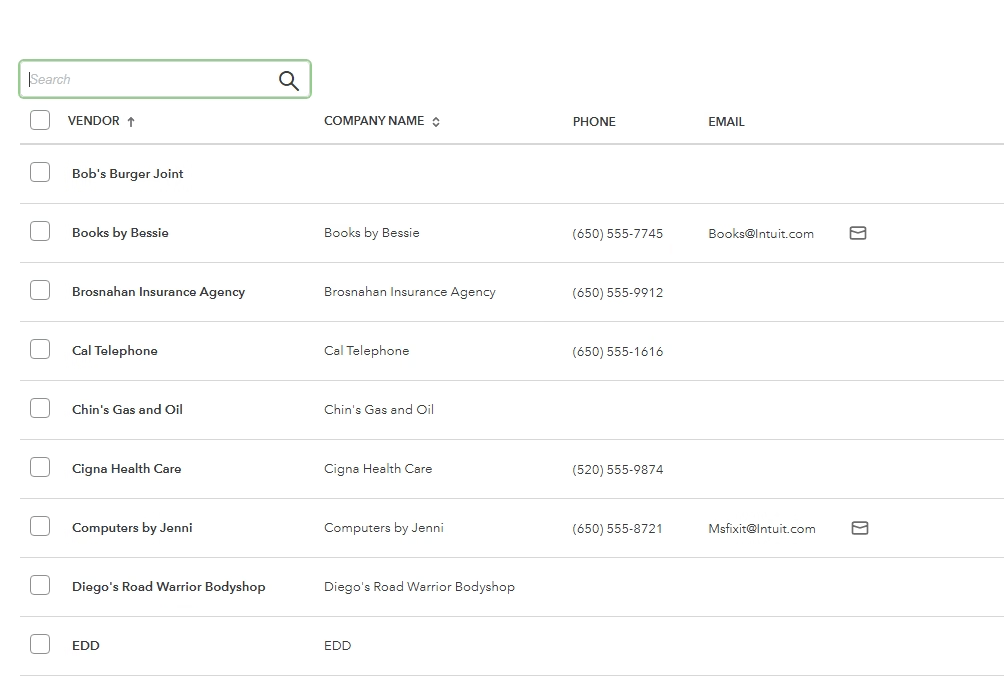
Step 3: Review Your Vendor List
Why: Purchase orders must be assigned to vendors. If the vendor name in your file does not match QuickBooks, the row may fail or the import tool may create an unwanted duplicate.
How: Open Expenses, then Vendors. Compare your source file vendor names against QuickBooks. Look for extra spaces, abbreviations, punctuation differences, and duplicate suppliers such as “ABC Supply” and “ABC Supply Inc.”
Expected result: Each purchase order vendor in your source file matches one clean vendor record in QuickBooks Online.
Step 4: Review Products and Services
Why: Purchase order lines often rely on product and service records. If the item does not exist or is named differently, the import can fail or post to the wrong item.
How: Go to Sales, then Products and services. Make sure each item in your source file exists in QuickBooks. For inventory items, confirm the type, SKU, name, expense account, income account, and inventory setup before importing.
Expected result: Purchase order line items map correctly to existing products and services.
Step 5: Prepare the Purchase Order File
Why: A clean file is the foundation of a successful import. Import apps cannot reliably interpret inconsistent columns, merged cells, blank rows, or unclear line groupings.
How: Create one header row and use consistent columns. Common fields include purchase order number, vendor, purchase order date, item or service, description, quantity, rate, amount, class, location, customer, project, and memo. If one purchase order has multiple lines, keep the same purchase order number on each related row so the tool can group the lines correctly.
Expected result: Your file is structured so each purchase order and line item can be mapped clearly.
Step 6: Choose an Approved Import App or Integration
Why: The standard QuickBooks Online Import data page does not import purchase orders. You need a connected app or a custom integration that creates purchase orders through the QuickBooks Online API.
How: Review import tools that support QuickBooks Online purchase orders. Confirm that the tool can import multi-line purchase orders, handle custom transaction numbers, and support any fields you need, such as class, location, project, tax, or multicurrency.
Expected result: You select a tool that supports your file structure and your QuickBooks setup.
Screenshot Placeholder: QuickBooks Online Apps Connection Screen
Step 7: Connect the App to QuickBooks Online
Why: The import tool must be authorized to create transactions in your QuickBooks company.
How: Sign in to the import app and choose the option to connect QuickBooks Online. Use an admin or properly permitted user. Review the access request carefully before authorizing the connection.
Expected result: The app can read required lists and create purchase order transactions in the selected QuickBooks Online company.
Step 8: Map Your File Columns
Why: Mapping tells the import tool which spreadsheet column belongs to each QuickBooks purchase order field.
How: Match your columns to fields such as Vendor, PO Date, PO Number, Item, Quantity, Rate, Amount, Memo, Class, and Location. If the app offers QuickBooks internal IDs, use them when available for vendors and items because IDs reduce name-matching errors.
Expected result: The import preview shows each source field flowing to the correct QuickBooks field.
Step 9: Run a Small Test Import
Why: A test import helps catch mapping errors before they affect hundreds of purchase orders.
How: Import a small file with two or three purchase orders. Include at least one multi-line purchase order if your real file has multi-line transactions. Then open the imported purchase orders in QuickBooks and compare them to the source file.
Expected result: You confirm that vendors, items, quantities, rates, totals, numbers, and tracking fields imported correctly.
Step 10: Import the Full File and Review Results
Why: Full imports should only run after the test file proves your setup is correct.
How: Upload the final file, run the import, and download or save the import results report. If rows fail, review the rejection reason, correct the file, and reimport only the failed or corrected records when the tool allows it.
Expected result: Your purchase orders appear in QuickBooks Online under the correct vendors with accurate open balances and line details.
Verification Checklist
| Check | How to Verify | Expected Result |
|---|---|---|
| Purchase orders enabled | Review Expenses settings | Purchase order feature is active |
| Subscription supports POs | Check company plan | Company uses Plus or Advanced |
| Vendors matched | Open vendor profiles | POs appear under correct vendors |
| Items matched | Open imported PO lines | Products and services are correct |
| Dates correct | Compare source file to QuickBooks | Dates use the intended format |
| Amounts correct | Recalculate quantity times rate | Totals match the source file |
| PO numbers unique | Search transaction numbers | No duplicate purchase orders exist |
| Status correct | Review open purchase orders | POs show open or closed as expected |
| Rejected rows reviewed | Check import results report | Failed rows are corrected or documented |
Common Problems
| Problem | Cause | Solution |
|---|---|---|
| Purchase orders do not appear on the Import data page | QuickBooks Online has no native PO import screen | Use an approved app or API integration |
| Purchase order feature is missing | Subscription does not support purchase orders | Use QuickBooks Online Plus or Advanced |
| Vendor rows fail | Vendor names do not match QuickBooks | Clean names or create vendors first |
| Item rows fail | Products or services are missing | Create or import items before PO import |
| Duplicate vendors are created | Names are formatted inconsistently | Standardize names before importing |
| Amounts do not match | Quantity, rate, tax, or discount mapping is wrong | Review field mapping and test again |
| Class or location fails | Feature is disabled or value does not exist | Enable tracking and create valid values first |
| App connection fails | User lacks permissions | Reconnect using an authorized user |
Common Mistakes
One common mistake is assuming the regular QuickBooks Online import tool can import purchase orders directly. It cannot, so users waste time looking for a menu that does not exist.
Another mistake is using an invoice or bill import template for purchase orders. Purchase orders have different behavior and fields. They are non-posting transactions, so they should not be treated like bills or expenses.
Beginners also import purchase orders before setting up vendors and products. This often creates rejected rows or duplicate records. Always clean your master lists first.
Finally, avoid reimporting the same file without checking what already came through. Duplicate purchase orders can create confusion for purchasing teams and vendors.
Best Practices
- Clean the file first: Remove blank rows, extra spaces, duplicate numbers, and inconsistent names before importing.
- Use exact QuickBooks names: Matching vendor and item names reduces import errors.
- Import master lists first: Vendors and products should be ready before transaction imports.
- Keep PO numbers consistent: If one purchase order has five lines, each line should use the same purchase order number.
- Test before full import: A small batch confirms your mapping before large-scale changes.
- Save import reports: Keep the source file and results report for audit support and troubleshooting.
- Review open POs after import: Confirm the records are correct before converting them to bills or expenses.
Frequently Asked Questions
Can I import purchase orders into QuickBooks Online from Excel?
Yes, but not through a standard QuickBooks Online purchase order import screen. You need a supported third-party app or integration that accepts Excel or CSV files and connects to QuickBooks Online.
Why do I not see purchase orders on the QuickBooks Online Import data page?
QuickBooks Online does not provide a built-in purchase order import option on that page. The standard import area is mainly for selected lists and certain data types, not purchase order transactions.
Which QuickBooks Online plans support purchase orders?
Purchase orders are generally available in QuickBooks Online Plus and Advanced. If you use another plan, confirm your subscription features before preparing an import.
Do imported purchase orders affect my financial statements?
No. Purchase orders are non-posting transactions. They do not affect your profit and loss, balance sheet, accounts payable, or bank balance until converted to a posting transaction.
Should I create vendors before importing purchase orders?
Yes. Creating or cleaning vendor records first improves matching and reduces duplicate vendor creation during import.
Can I import purchase orders with multiple line items?
Usually yes, if your chosen import tool supports multi-line purchase orders. The file typically needs the same purchase order number repeated on each related line.
Can I import class, location, or project details?
Many import tools support these fields, but the features must be enabled in QuickBooks Online and the values must already exist or be created during the import process.
What happens if my import creates duplicates?
You should stop importing, identify which records duplicated, and correct them before continuing. Some tools can prevent duplicates by checking purchase order numbers, but you should verify this before importing.
Is QuickBooks Desktop the same process?
No. QuickBooks Desktop uses a different workflow. Desktop imports may use IIF files through File, Utilities, Import, but you should back up the company file before importing transaction data.
Key Takeaways
- QuickBooks Online does not have a native CSV or Excel import screen for purchase orders.
- To import purchase orders into QuickBooks Online, use Plus or Advanced and turn on purchase orders first.
- Most purchase order imports require an approved app or custom QuickBooks Online API integration.
- Vendors and products or services should be created before importing purchase order transactions.
- Always run a small test import before loading the full file.
- Purchase orders are non-posting until converted to a bill, expense, or check.
Conclusion
Importing purchase orders into QuickBooks Online is very manageable when you understand the correct workflow. The important point is that QuickBooks Online does not offer a built-in purchase order import page, so the process depends on preparation and the right connected tool.
Start with your subscription, enable purchase orders, clean your vendors and products, then test a small file before importing everything. That approach protects your data, reduces cleanup, and gives your purchasing team reliable records to work from.
If your purchase order file includes complex fields such as classes, locations, projects, multicurrency, or inventory items, take extra time to validate the setup. A careful import is always faster than fixing hundreds of incorrect transactions later.
Need Expert Help with QuickBooks?
Databrax can help you import purchase orders into QuickBooks Online with confidence. Our QuickBooks specialists assist with data migration, bulk imports, cleanup, error resolution, reporting, and ongoing support so your records are accurate and ready for daily use.