
Table of Contents
Introduction
Duplicate customer records are one of the most common cleanup issues in QuickBooks Online. One team member may enter “ABC Company,” another may create “ABC Co.,” and payments or invoices can end up split between both names.
When that happens, your customer balances, open invoices, aging reports, and sales history become harder to trust. The good news is that you can merge duplicate customers in QuickBooks Online and keep the transactions attached to one clean customer record.
The important part is doing it carefully. A customer merge is permanent in QuickBooks Online, so you need to review the records before you click Save.
Quick Answer
To merge duplicate customers in QuickBooks Online, edit the duplicate customer you want to remove and change its Customer display name to exactly match the customer you want to keep. When QuickBooks asks if you want to merge the two names, select Yes.
QuickBooks moves the duplicate customer’s transactions to the remaining customer record. Invoices, payments, estimates, sales receipts, credits, and balances are retained, but the merge cannot be undone.
| Item | What Happens |
|---|---|
| Customer record kept | The record with the existing display name remains active |
| Duplicate record | Removed from the active customer list |
| Transactions | Moved to the remaining customer |
| Undo option | Not available in QuickBooks Online |
What Is Merge Duplicate Customers in QuickBooks Online?
Merging duplicate customers means combining two customer names into one customer record. QuickBooks Online does this by renaming the duplicate record to match the exact display name of the customer you want to keep.
Businesses use this when the same customer appears more than once in the customer list. For example, “Smith Electrical,” “Smith Electric,” and “Smith Electrical LLC” may all refer to the same company.
This matters because customer names connect directly to transactions. If invoices sit under one name and payments sit under another, your reports may look wrong even when the accounting entries exist.
Why It Matters
Clean customer records save time because your team does not have to search multiple names to find invoices, payments, or estimates.
They improve accuracy by keeping each customer’s activity in one place. That helps with open balances, accounts receivable aging, sales reports, and customer statements.
They also support compliance. If you need to document revenue, customer payments, or tax-related sales activity, duplicate records can create confusion during review.
From a productivity standpoint, a clean customer list helps bookkeepers, sales teams, and managers work faster. Everyone sees the same customer history instead of guessing which duplicate is correct.
Requirements Before You Begin
Before you merge duplicate customers in QuickBooks Online, decide which record should remain. The remaining record keeps its profile details, including address, phone, email, payment terms, tax settings, and notes.
You also need permission to view and edit customers. If you cannot edit customer details, ask your QuickBooks Online admin to update your access or complete the merge.
| Requirement | Why It Matters |
|---|---|
| Choose the customer to keep | The kept record’s profile details remain after the merge |
| Review open invoices and payments | Prevents surprises after balances combine |
| Check customer display names | Names must match exactly for the merge prompt to appear |
| Confirm currency | Multicurrency customers generally must use the same currency |
| Check sub-customer level | Sub-customers must be at the same hierarchy level |
| Show inactive customers | The duplicate may already be inactive |
Warning: The merge is permanent. Export or print your customer list before starting so you have a reference if questions come up later.
Things to Prepare
Use this checklist before you make any changes:
- ✔ Export your customer list to CSV or Excel.
- ✔ Confirm your QuickBooks user permissions.
- ✔ Review both customer profiles for addresses, emails, phone numbers, terms, and tax settings.
- ✔ Check open invoices, unapplied payments, credits, and balances.
- ✔ Confirm the customer is not confused with a vendor or employee name.
- ✔ Review classes, locations, and projects connected to customer transactions.
- ✔ Make inactive customers visible if the name does not appear in the active list.
Step-by-Step Guide
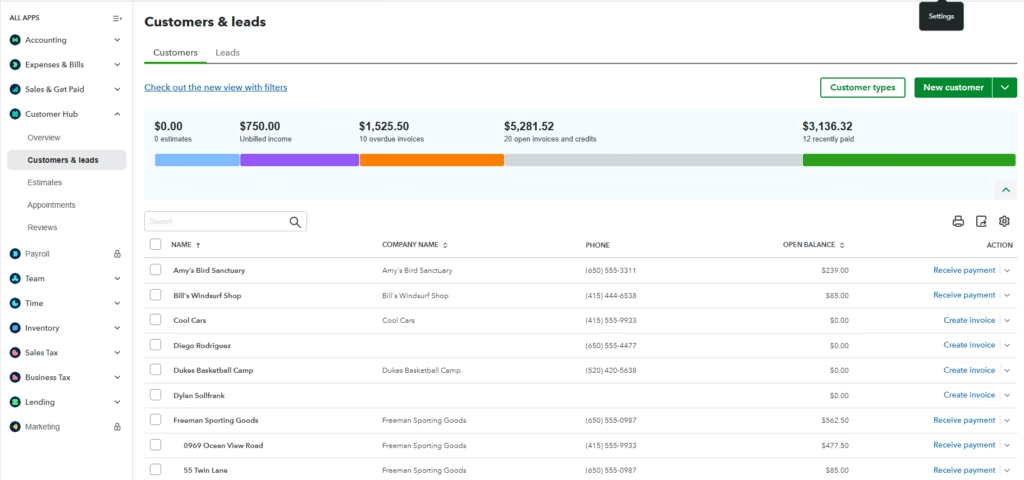
Step 1: Open the Customers List
Go to Sales, then select Customers. In some QuickBooks Online views, you may see Get paid & pay, then Customers.
This step matters because the merge starts from the customer profile, not from an invoice or report. You should now see your active customer list.
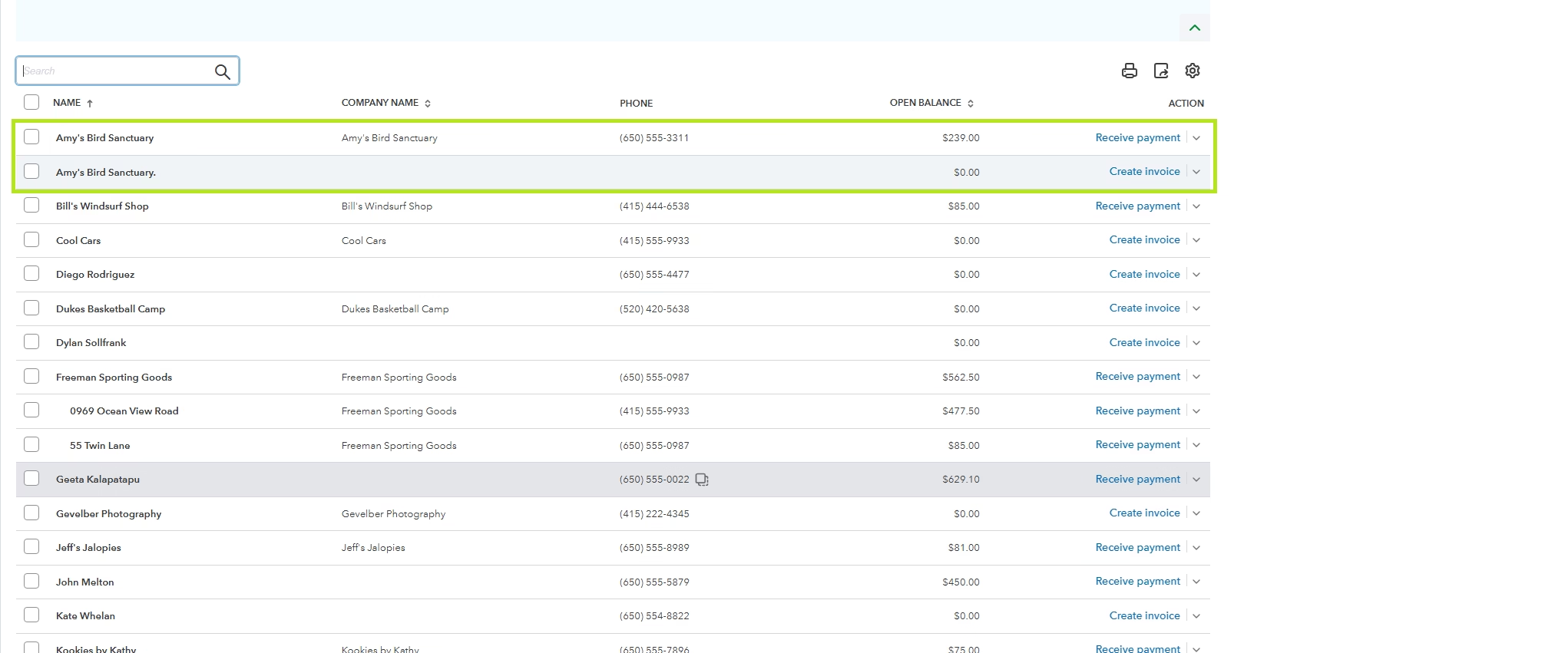
Step 2: Identify the Customer Record You Want to Keep
Compare the duplicate records and choose the one with the best profile details. Look at billing address, email, phone number, payment terms, tax settings, notes, and attachments.
The record you keep should be the cleanest master record. After the merge, this customer remains in the list and receives the combined transactions.
Step 3: Review Transactions on Both Records
Open each customer and review invoices, payments, estimates, sales receipts, credit memos, and open balances. Pay special attention to unapplied payments and credits.
This step helps you confirm that the two records really belong to the same customer. If they are different customers with similar names, merging them can create reporting problems.
Step 4: Edit the Duplicate Customer
Select the duplicate customer record that should be removed. Choose Edit to open the customer information window.
You edit the duplicate because QuickBooks merges the record you rename into the record that already has the matching display name.
Step 5: Enter the Exact Customer Display Name
In the Customer display name field, type the exact display name of the customer record you want to keep. Match spelling, punctuation, spaces, and capitalization as closely as possible.
For example, if the kept customer is “Bright Star Plumbing LLC,” enter that exact name in the duplicate customer’s display name field.
The expected result is that QuickBooks recognizes the duplicate name and prepares to merge the two customer records.
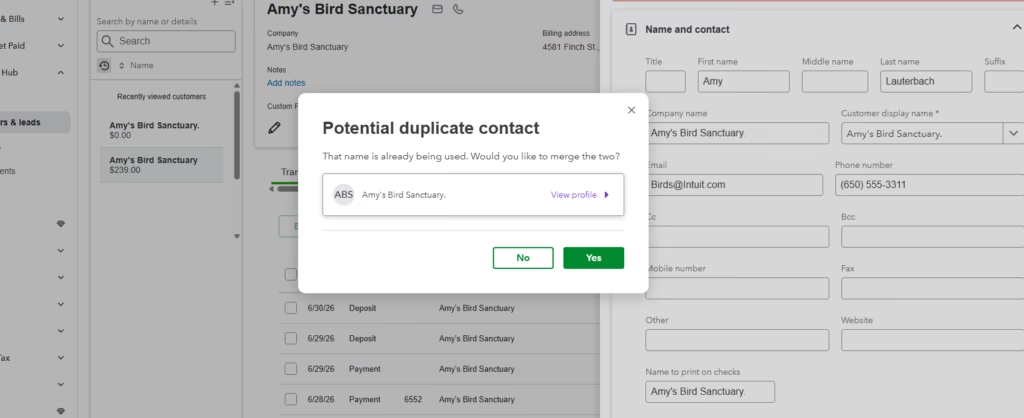
Step 6: Save and Confirm the Merge
Select Save. QuickBooks should display a message asking whether you want to merge the names. Read the message carefully, then select Yes only if you are sure.
This confirmation is the point of no return. Once you confirm, QuickBooks Online combines the customer records and removes the duplicate from the active list.
Step 7: Review the Remaining Customer Record
Open the customer record that remains. Review the transaction list and confirm that invoices, payments, estimates, sales receipts, and credits from both records now appear under one name.
Also check the customer balance. The expected result is one active customer record with a combined transaction history and a correct open balance.
Verification Checklist
| Check | How to Verify | Expected Result |
|---|---|---|
| One active customer remains | Search the Customers list | Only the kept customer appears |
| Transactions transferred | Open the remaining customer profile | Invoices, payments, estimates, and sales receipts appear together |
| Balance is correct | Review the customer balance and aging report | Open balance matches expected amount |
| Profile details are correct | Open Customer details | Email, address, terms, and tax settings are accurate |
| Reports updated | Run Sales by Customer or A/R Aging | Activity appears under one customer name |
Common Problems
| Problem | Cause | Solution |
|---|---|---|
| No merge prompt appears | The display name does not match exactly | Copy and paste the exact display name from the customer you want to keep |
| Name already exists error | The name may belong to a vendor, employee, or inactive customer | Check other name lists and show inactive records |
| Cannot edit customer | User permission is limited | Ask the QuickBooks admin to update access |
| Customers will not merge | Different currencies or hierarchy levels may be involved | Confirm multicurrency settings and sub-customer structure |
| Wrong profile details remain | The less accurate customer was kept | Update the remaining profile manually after the merge |
Common Mistakes
A common mistake is merging too quickly without checking transactions. Similar customer names do not always mean the records belong to the same customer.
Another mistake is keeping the wrong record. Since the remaining profile keeps its details, review addresses, emails, tax settings, and payment terms first.
Beginners also forget that customer display names must be unique across customers, vendors, and employees. If QuickBooks blocks the name, check those lists before assuming the merge failed.
Finally, avoid merging records during a busy billing cycle unless necessary. If your team is actively entering invoices or payments, communicate before making customer list changes.
Best Practices
Export your customer list before every cleanup session. It gives you a snapshot of names and details before permanent changes.
Use a consistent naming format, such as legal company name or customer-facing display name. This reduces future duplicates.
Assign one person to approve customer merges. That keeps cleanup controlled and prevents accidental combinations.
Review accounts receivable reports after each group of merges. This helps you catch balance issues while the work is still fresh.
Train your team to search before creating new customers. A simple search can prevent most duplicates.
Frequently Asked Questions
Can I undo a customer merge in QuickBooks Online?
No. Merging customers in QuickBooks Online is permanent. You can edit the remaining customer details, but you cannot restore the removed customer as it was.
Will I lose invoices when I merge customers?
No. Existing invoices move to the customer record that remains. You should still verify the transaction history after the merge.
What happens to payments and credits?
Payments, unapplied payments, and credits are retained and moved under the remaining customer record.
Which customer details are kept?
The remaining customer keeps its profile details. The duplicate record’s profile details do not replace the kept record automatically.
Can I merge customers with different currencies?
If multicurrency is enabled, the customer records usually need the same currency. Review currency settings before trying to merge.
Can I merge a customer with a sub-customer?
Only if the hierarchy level allows it. Sub-customers generally need to be at the same level before merging.
Why does QuickBooks say the name already exists?
The name may already exist as a customer, vendor, employee, or inactive record. Check all related name lists.
Can I merge customers from a report?
No. Start from the Customers list and edit the duplicate customer profile.
Should I merge customers before month-end close?
Yes, if the duplicates affect reporting, but verify balances afterward and avoid making changes while others are entering transactions.
Key Takeaways
- To merge duplicate customers in QuickBooks Online, rename the duplicate to match the customer you want to keep.
- The merge moves transactions to the remaining customer record.
- The remaining customer keeps its profile details.
- The merge is permanent and cannot be undone.
- Always review balances, open invoices, credits, currency, and hierarchy before merging.
Conclusion
Merging duplicate customers is a simple QuickBooks Online cleanup task, but it deserves careful review. The right preparation helps you protect transaction history and keep customer reporting accurate.
Once your customer list is clean, your invoices, payments, statements, and reports become easier to manage. If you have many duplicates or complex customer histories, handle the work in small batches and verify results as you go.
Need Expert Help with QuickBooks?
Databrax can help you clean up QuickBooks with confidence. Our team supports Data Migration, Bulk Imports, Cleanup, Error Resolution, Reporting, and Ongoing Support so your QuickBooks file is accurate, organized, and ready for better decisions.